

How to remove a domain or property from google search console?

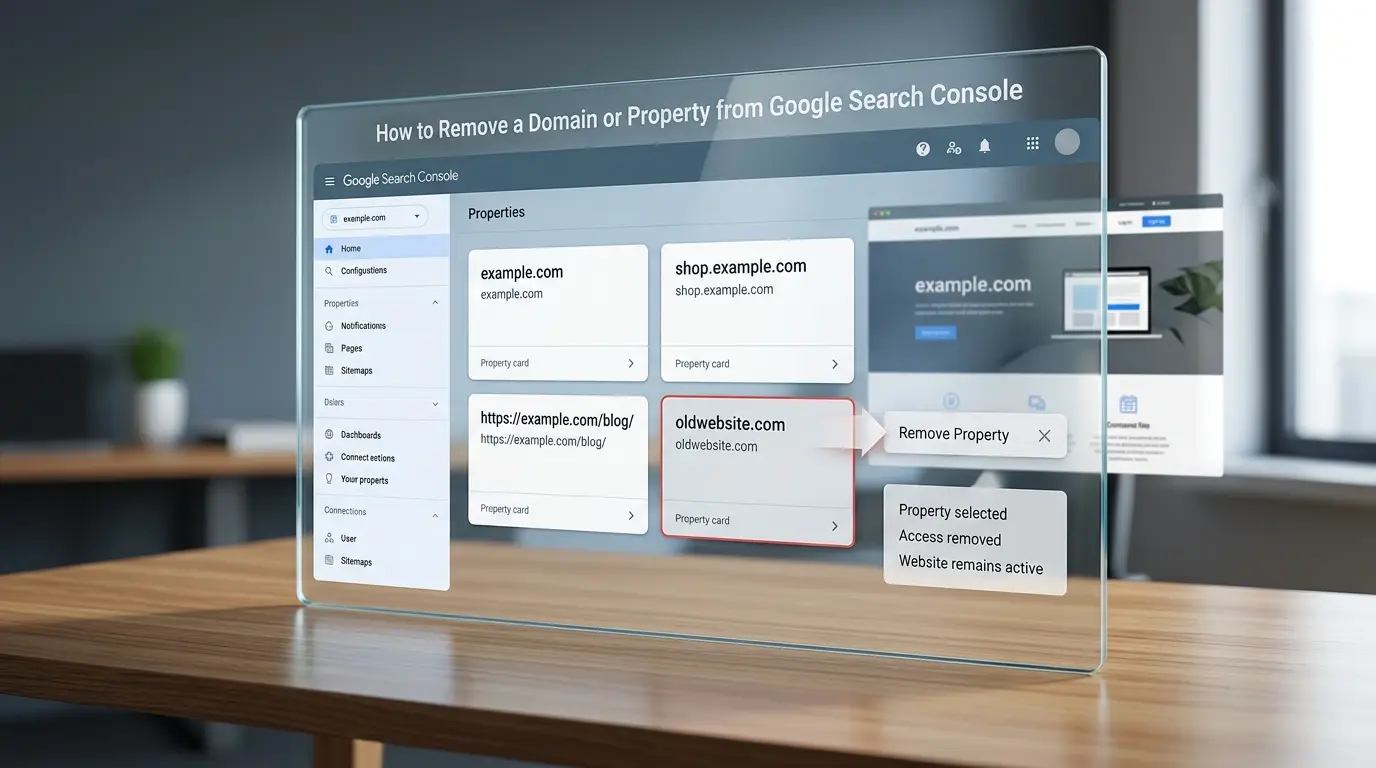
If you want to remove a domain or property from Google Search Console, you can remove it from your Search Console account without deleting the website itself. The exact steps can vary as Google updates the Search Console interface, so it is important to verify the current navigation and terminology before publishing instructions or screenshots.
The most important distinction is this: removing a property from Google Search Console does not remove the website, its pages, or its content from Google Search results. It only changes how that property is managed or accessed through Search Console.
Before removing anything, determine what you actually want to accomplish. You might want to remove an unused property from your account, remove your own access, transfer management to another team member, or actually remove pages from Google’s search results. These are separate actions and require different solutions.
This guide explains each situation so you can take the correct action without accidentally affecting your website’s crawling, indexing, or search visibility.
How Do I Remove a Property from Google Search Console?
To remove a property from Google Search Console, first select the correct property, open its current settings or access-management area, and use the available option for removing the property or your access. The exact location of the option can change as Google updates Search Console, so always check the current interface before following older tutorials.
Before confirming the action, carefully check the property you selected. This is especially important if your account contains several websites, Domain Properties, or URL-prefix Properties.
For example, you might have:
example.comhttps://example.com/https://www.example.com/https://shop.example.com/
These can represent different Search Console configurations.
What should you check before removing a property?
Before removing anything, answer these questions:
- Am I removing the property only from my account?
- Do I want to remove my own access?
- Does another person or team still need access?
- Am I actually trying to remove pages from Google Search?
- Is this a Domain Property or a URL-prefix Property?
If your only goal is to stop seeing an unused property in your Search Console account, removing the property or your access may be appropriate.
If your goal is to remove a website or page from Google Search, do not remove the Search Console property as a shortcut.
What Is the Difference Between Removing a Property and Removing a Website from Google?
Removing a Search Console property and removing a website from Google Search are completely different actions.
| Action | What happens | What does not happen |
|---|---|---|
| Remove a property from your account | Changes your Search Console access or property visibility | Does not delete the website |
| Remove your own access | You stop managing the property through your account | Does not remove other users |
| Remove a page from Google Search | Targets a URL for search-result removal | Does not automatically delete the website |
| Remove an entire website from Search | Requires a broader technical and indexing strategy | Simply removing Search Console access is not enough |
| Transfer management | Another person or team takes responsibility | Does not remove the website from Google |
This distinction is one of the most important things to understand before making any changes.
A Search Console property is a way to manage and monitor a website in Google’s tools. It is not the website itself.
Removing the property from your account does not delete the website’s files, hosting, domain, pages, or Google Search listings.
Professional SEO Services can help determine whether the issue is related to Search Console access, crawling, indexing, or the website itself before changes are made.
How to Remove a Property from Google Search Console Step by Step
If you simply want to stop managing a property through your Search Console account, follow the current property-management workflow.
Step 1: Open Google Search Console
Sign in to the Google account that currently has access to the property.
If you manage several websites, make sure you’re using the account that has the appropriate permissions for the property you want to remove.
Step 2: Select the correct property
Open the property selector and find the website you want to remove.
Carefully verify the property’s exact name and URL.
For example, don’t confuse a Domain Property for:
example.com
with a URL-prefix property for:
https://example.com/blog/
They have different scopes.
Step 3: Open the current property settings
After selecting the property, open its current settings or access-management section.
Google can change the Search Console interface over time, so older articles may show different menus or buttons.
For this reason, the exact wording of the removal option should always be checked against the current version of Search Console.
Step 4: Find the relevant removal or access option
Look for the current option that allows you to remove the property or change your access.
The available action can depend on your role and the way the property was verified.
If you don’t see the expected option, don’t start deleting DNS records, HTML verification files, or other verification methods simply to make the property disappear.
First determine what type of access you have.
Step 5: Confirm the property
Before confirming anything, check the property name one more time.
This is particularly important if you manage several domains or multiple versions of the same website.
Step 6: Confirm the action
Complete the removal or access change through the current Search Console interface.
Afterward, check your property list to make sure the intended change was made.
Remember that this action concerns your Search Console account or access. It does not automatically change the website itself.
How Do You Remove a Domain from Google Search Console?
If you’re asking how to remove a domain from Google Search Console, the important point is that a Domain Property represents a broad view of a domain rather than deleting the actual domain.
You can stop managing or remove your access to a Domain Property, but the domain itself continues to exist.
For example, a Domain Property such as:
example.com
can cover the domain’s relevant URL variations and subdomains according to Google’s property configuration.
Removing your Search Console access does not:
- Delete the domain
- Cancel the domain registration
- Delete website files
- Stop hosting
- Remove pages from Google
- Automatically stop Googlebot from crawling the site
What happens to other users when you remove your access?
Other verified owners or users may continue to access the Domain Property.
This matters when a website is managed by several people.
For example, a company may have:
- An internal marketing manager
- An SEO Specialist
- A developer
- An external SEO agency
If one person stops working on the website, removing that person’s access should not be confused with deleting the property for everyone else.
Domain Property vs URL-Prefix Property: What’s the Difference?
Search Console provides different property types, and understanding the difference can help you avoid removing the wrong property.
| Property type | Example | General scope |
|---|---|---|
| Domain Property | example.com |
Broad domain-level coverage |
| URL-prefix Property | https://example.com/ |
Specific URL prefix |
| URL-prefix Property | https://www.example.com/ |
Specific protocol and hostname |
| URL-prefix Property | https://example.com/blog/ |
Specific directory or path |
A Domain Property is generally broader than a URL-prefix Property.
A URL-prefix Property is tied to a particular URL structure, while a Domain Property is designed to provide broader domain-level coverage.
When might you remove a URL-prefix Property?
You might want to remove a URL-prefix property when:
- It was created accidentally.
- Your team no longer manages that particular URL version.
- Several duplicate properties have accumulated.
- A website structure has changed.
- A specific property is no longer useful for your reporting.
- You are cleaning up an old Search Console account.
However, you should not remove it simply because you want Google to stop crawling or indexing the website.
Those goals require different actions.
What Happens After Removing a Search Console Property?
Removing a property from your Search Console account does not shut down the website.
The website can continue to:
- Load normally
- Receive visitors
- Be crawled by Google
- Appear in Google Search
- Receive organic traffic
- Have URLs indexed
Search Console is a monitoring and management platform. It isn’t responsible for keeping the website online.
Does Google stop crawling the website?
No.
Removing a property from your Search Console account does not itself tell Google to stop crawling the website.
Google can continue discovering URLs through links, sitemaps, redirects, and other signals.
If you need to influence crawling, you need to use the appropriate technical controls rather than removing the Search Console property.
Does removing the property stop indexing?
No.
A Search Console property being removed from your account does not automatically remove indexed URLs.
A page that is already indexed can remain available in Google Search even if you no longer have access to the property’s Search Console reports.
Does removing the property delete the website?
No.
The website remains on its hosting environment and its domain remains registered unless you separately take action through your hosting provider, domain registrar, or website infrastructure.
Does removing the property delete historical Search Console data?
You should not treat removing a property from your account as a command to permanently delete Google’s historical Search Console data.
What you can access through your account can change when you lose access to a property, while Google’s own data retention and availability policies are separate.
If historical reporting is important, export the reports you need before making major account or access changes.
Can other users still access the property?
Potentially, yes.
If other verified owners or users still have access, your removal of access does not necessarily remove theirs.
This is particularly important for businesses where multiple people manage the same website.
Does Removing a Property Delete My Website from Google?
No. Removing a property from Google Search Console does not delete your website from Google Search results.
This is the most important warning to remember.
Search Console property management and Google’s search index are separate concepts.
If you remove:
example.com
from your Search Console account, you’re not telling Google to remove:
example.com
from Search.
You’re simply changing how that property is managed through your Search Console account.
If you actually need to remove content from Google Search, you must use a method designed specifically for search-result or indexing removal.
How Do You Actually Remove a Page from Google Search?
The appropriate method depends on the reason for removal and whether the removal is temporary or permanent.
For urgent situations, Google Search Console provides temporary removal functionality for eligible URLs.
For permanent removal, the website generally needs to provide appropriate technical or content-level signals.
Depending on the situation, this can include:
- Removing the page from the website
- Returning an appropriate
404or410status when the content no longer exists - Using
noindexwhere appropriate - Correcting indexing directives
- Changing or removing content
- Updating internal links and other website signals
The correct solution depends on the situation.
The important thing is that removing the Search Console property is not itself a search-result removal method.
What if you want to remove an entire website?
Removing an entire website from Google Search is significantly different from removing a Search Console property.
You may need to evaluate:
- Website availability
- HTTP status codes
- Indexing directives
- Robots controls
- Sitemap configuration
- Internal links
- Existing indexed URLs
- Search Console removal tools
A website-wide removal strategy should therefore be planned carefully.
What Do You Actually Want to Remove?
Before changing anything, identify the exact outcome you want.
| What do you actually want to remove? | Recommended action |
|---|---|
| A property from your Search Console account | Remove the property or relevant access |
| Your own access | Change or remove your user access |
| A specific page from Google Search | Use an appropriate Search Console or technical removal method |
| An outdated page permanently | Remove/change the page and use suitable indexing signals |
| An entire website from Search | Use a broader technical SEO and indexing strategy |
| Your access while another team manages the website | Keep or transfer access to the appropriate team |
| An old property you no longer need | Clean up the property from your account |
This table is useful because many Search Console mistakes happen when users start with the wrong objective.
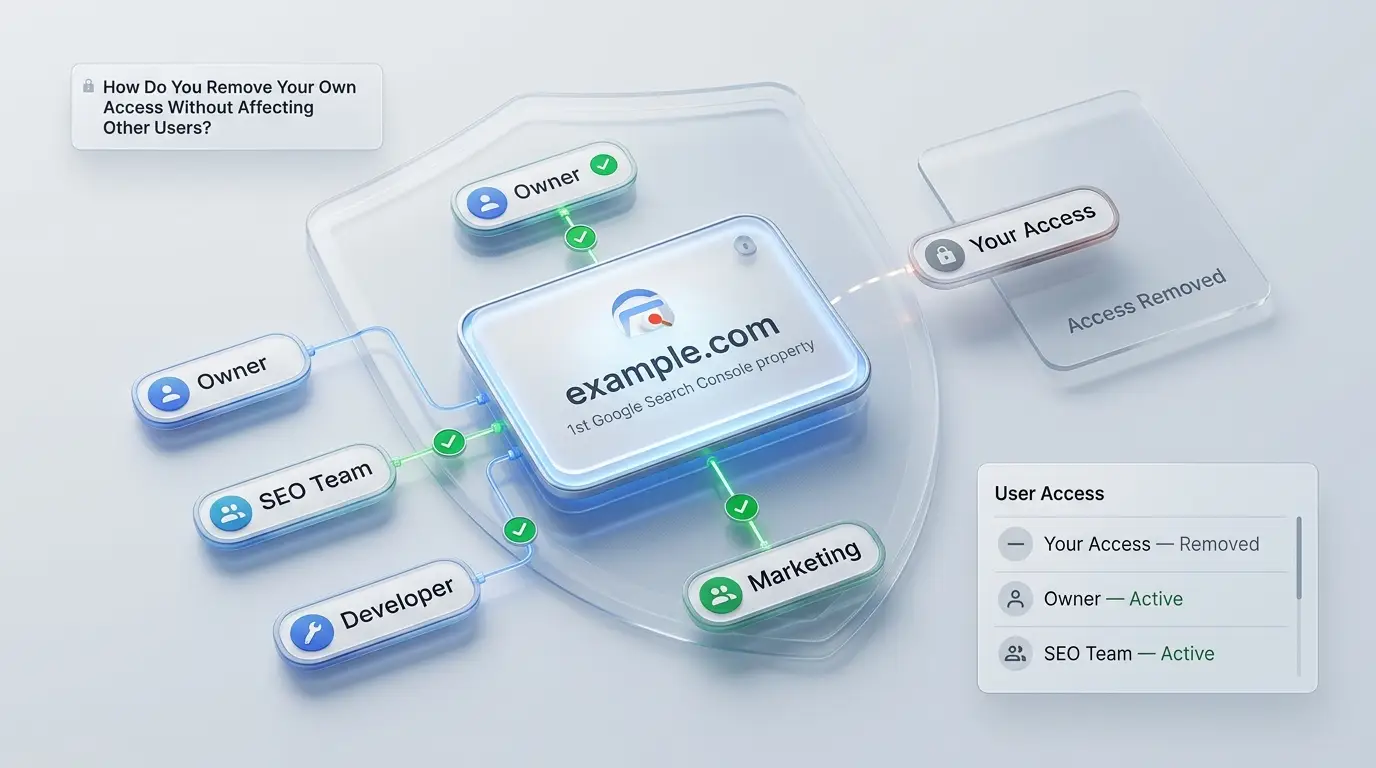
How Do You Remove Your Own Access Without Affecting Other Users?
If you’re leaving a project but other people still need Search Console access, the correct approach is to manage your own permissions rather than trying to remove the property itself.
For example, imagine a website has an owner, developer, SEO team, and external agency.
If the external agency stops working with the business, the company can remove the agency’s access while keeping the property’s ownership and internal access intact.
What should you check before removing your access?
Before leaving a property, check:
- Who currently owns the property?
- Who has user access?
- Who will manage Search Console afterward?
- Does the internal team have appropriate access?
- Are important reports or historical exports stored somewhere?
- Are there ongoing technical SEO issues that someone needs to monitor?
This simple review can prevent unnecessary access problems later.
What If Another Person Verified the Website?
If another person originally verified the website, don’t assume that removing their account or access is the same as removing the property.
The property can have multiple users and owners.
If you’re taking over management, the better approach is to establish your own valid access rather than relying indefinitely on another person’s account.
This is especially important when an employee or external agency originally set up Search Console.
What if the previous agency still owns the property?
If an agency originally configured the website, determine whether the business itself has appropriate ownership and access.
An agency should not be the only party capable of accessing a business’s critical SEO infrastructure.
If necessary, establish the appropriate verification and access arrangements before removing the agency’s access.
What If the Remove Option Is Unavailable?
If you can’t find the option you expect, don’t immediately assume something is wrong with the website.
There are several possible reasons.
You don’t have the required permissions
Your current role may not allow you to perform the action you’re attempting.
Check whether you are an owner or another type of user.
You’re viewing the wrong property
The property selector may contain several similar entries.
Double-check whether you’re working with:
- A Domain Property
- A URL-prefix Property
- A subdomain
- A specific directory
The interface has changed
Google regularly updates its products.
An older article may show a button or menu that has moved or changed names.
Always verify the current Search Console interface before relying on old screenshots.
You’re trying to solve a different problem
Perhaps you aren’t actually trying to remove the property.
Maybe you want to:
- Remove a page
- Stop indexing
- Remove outdated search results
- Transfer ownership
- Remove another user’s access
Each requires a different approach.
What If You Removed the Wrong Property?
If you accidentally removed the wrong property, don’t panic.
Removing a Search Console property does not delete the website.
If you still need access, you can generally add the property again and complete the required verification or access process.
What should you do?
- Confirm the correct property.
- Add it again if necessary.
- Check whether your verification method is still available.
- Confirm who currently owns the property.
- Restore your access through the appropriate method.
- Avoid making unnecessary website changes.
The biggest mistake would be assuming that removing the property caused an indexing problem and then making unrelated technical changes to the website.
Can You Add the Property Again Later?
Yes, a removed Search Console property can generally be added again if you have the necessary access and can complete the required verification process.
For example, if you removed:
https://example.com/
you can add the property again and establish the appropriate access.
However, if your original access depended on another person’s verification, you may need to use another valid verification method or ask an existing owner to provide appropriate access.
This is why keeping ownership and verification information organized is important for business websites.
How Should Teams Manage Search Console Properties?
Search Console properties should be treated as part of a website’s technical infrastructure rather than as something that belongs to one employee’s personal account.
A business may have several people involved in website management, including:
- Marketing managers
- SEO specialists
- Developers
- Content teams
- External agencies
The business should know who has access and who is responsible for managing the property.
A digital marketing agency cairo can also help businesses coordinate Search Console access with broader digital marketing activities, especially when multiple teams are involved.
How should agencies handle Search Console access?
External agencies should have the access they need to perform their work, but businesses should maintain appropriate control over their own website properties.
For example, an SEO agency might need access to analyze:
- Search performance
- Indexing issues
- Sitemap problems
- Technical SEO errors
- Search queries
- Organic traffic trends
When the relationship ends, the business should be able to remove the agency’s access without losing control of the property.
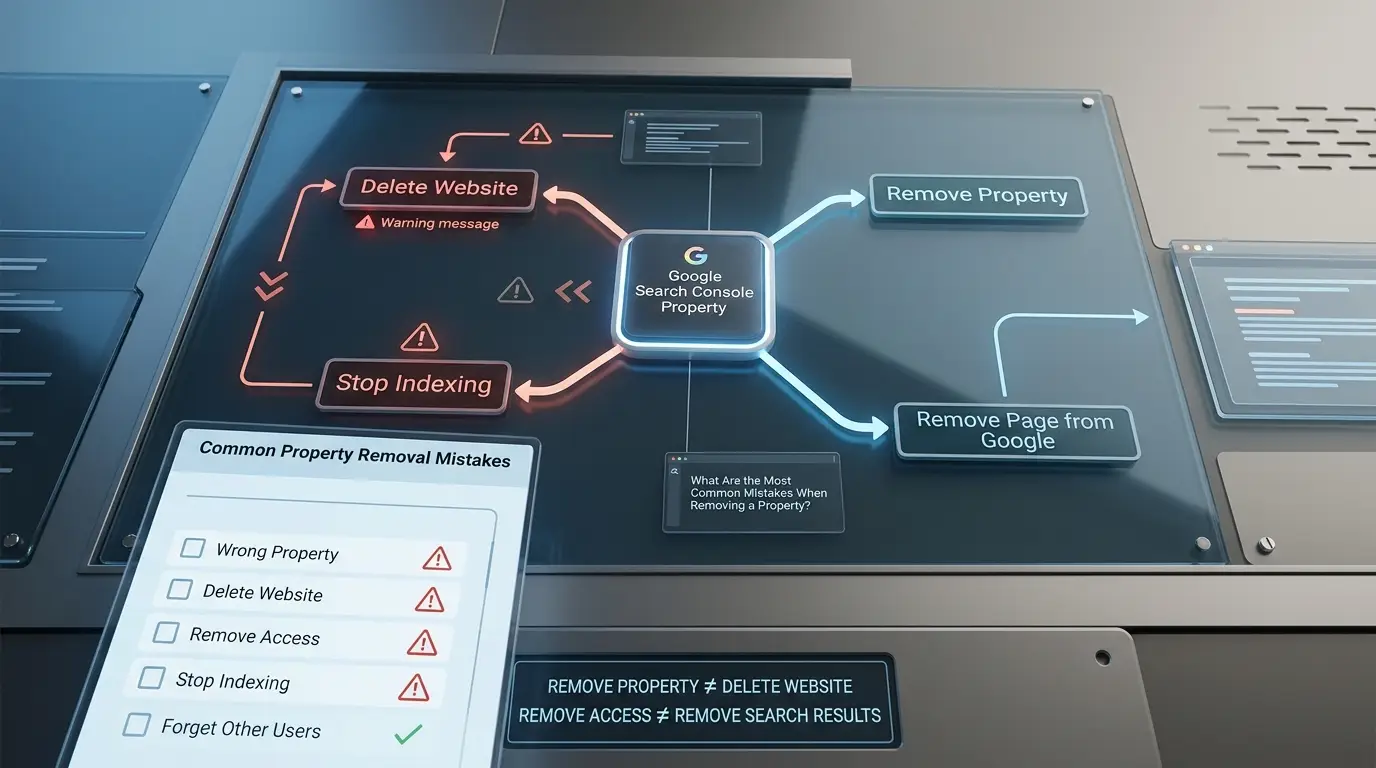
What Are the Most Common Mistakes When Removing a Property?
Mistake 1: Assuming property removal deletes the website
It doesn’t.
The website can remain live and searchable.
Mistake 2: Removing the property to stop indexing
This does not tell Google to remove your website from its index.
Mistake 3: Removing the wrong property
Similar Domain and URL-prefix Properties can make it easy to select the wrong one.
Mistake 4: Removing access before transferring responsibility
Make sure someone else can manage the property before you leave.
Mistake 5: Following outdated instructions
Search Console’s interface can change, so old screenshots may no longer match the current product.
Mistake 6: Changing website files unnecessarily
If you’re only cleaning up your Search Console account, you generally don’t need to modify the website.
Mistake 7: Confusing Search Console with Google Search
Search Console helps you monitor and manage aspects of your website’s presence in Google Search, but removing a property is not the same as removing search results.
When Should You Ask an SEO Professional for Help?
Basic Search Console account management is usually straightforward.
However, professional help can be useful when the issue involves a larger technical SEO problem, such as:
- Large-scale URL removal
- Website migrations
- Domain changes
- Indexing problems
- Manual actions
- Incorrect canonicalization
- Complex property structures
- Multiple website owners
- Large websites with thousands of URLs
If you’re dealing with a website redesign or restructuring, technical SEO can also overlap with development decisions.
A website design company egypt may need to coordinate with the SEO team when URL structures, redirects, navigation, or other technical website elements are being changed.
How to Safely Remove a Search Console Property
Before confirming any removal, use this checklist.
1. Identify the exact property
Check the domain, protocol, hostname, and path.
2. Define your objective
Decide whether you want to remove the property, remove your access, or remove content from Google Search.
3. Check other users
Make sure another owner or team member has the access required to continue managing the website.
4. Preserve important information
If you rely on historical Search Console reports, save the information you need before changing your access.
5. Complete the property or access removal
Use the current Search Console interface and verify the correct property before confirming.
6. Don’t change the website unnecessarily
If you’re only removing a property from your account, don’t delete files, block crawlers, change DNS records, or modify indexing directives simply because you no longer need the property.
7. Confirm the result
Make sure your Search Console account reflects the intended change and that the website itself continues to operate normally.
How Can You Protect Search Console Access During Team Changes?
Search Console access should be included in the same transition process as other critical website assets.
When an employee, developer, or agency leaves, review:
- Search Console ownership
- Search Console users
- Google Analytics access
- Website hosting
- Domain management
- DNS access
- CMS accounts
- SEO tools
- Business email accounts
This prevents a situation where a company loses access to important SEO data simply because one person who originally configured the property is no longer involved.
For companies investing in best GEO agency strategies as well as traditional SEO, keeping access to search and analytics platforms organized is also important because these platforms provide valuable information for understanding organic visibility.
Frequently Asked Questions
How do I remove a property from Google Search Console?
Select the correct property, open its current settings or access-management area, and use the available option to remove the property or your access. The exact interface can change, so verify Google’s current Search Console navigation before following older instructions.
Can I delete a Domain Property?
You can remove your access or management of a Domain Property from your Search Console account, but this does not delete the actual domain or remove its pages from Google Search.
Does removing Search Console remove my website from Google?
No. Removing a property from Search Console does not remove the website, its pages, or its URLs from Google’s search index.
Can I add the property again later?
Yes. You can generally add the property again if you have the required access and can complete the appropriate verification process.
Will other users lose access if I remove the property?
Not necessarily. Other verified owners or users may continue to have access. Removing your own access should not automatically be treated as removing the property for everyone.
Does removing a property stop Google from crawling it?
No. Removing a property from your Search Console account does not itself instruct Google to stop crawling the website.
Does removing a property delete its pages?
No. The pages remain on the website unless you separately delete or modify them.
How do I remove a page from Google Search?
Use the appropriate Search Console removal functionality for temporary removal or implement suitable website and indexing changes for permanent removal, depending on the situation.
What if someone else verified the website?
You can still manage the property if you have appropriate access. If you don’t, you may need to establish your own valid verification or ask an existing owner to provide the necessary access.
What if I accidentally remove the wrong property?
You can generally add the property again and restore access by completing the appropriate verification process. Removing a property from Search Console does not delete the website.
Should I remove a property when changing SEO agencies?
Not necessarily. First make sure the business or incoming team has appropriate access. Once ownership and management are secure, the outgoing agency’s access can be reviewed and removed if appropriate.
Can removing a property affect SEO rankings?
Removing the property from your Search Console account does not directly change your website’s rankings. However, you will lose access to Search Console reporting and management features for that property until access is restored.
Removing a property from Google Search Console is primarily an account and access-management action, not a way to remove a website from Google Search.
If you simply want to clean up an unused property, removing it from your account may be appropriate. If you want to remove your own access, manage the relevant permissions instead.
But if your actual goal is to remove a page or an entire website from Google Search, you need a separate indexing and search-result removal strategy.
The easiest way to remember the difference is:
Remove a property → changes Search Console access
Remove a page from Google → requires an appropriate removal or indexing method
Remove an entire website from Search → requires a broader technical strategy
Before taking action, identify exactly what you want to remove, verify the correct property, check who else has access, and avoid changing your website unnecessarily.
Not sure whether you need to remove a Search Console property or actually remove pages from Google Search? Contact Be One for technical SEO support and we can help you take the correct action without affecting your website unnecessarily.


