

How to Fix Soft 404 in Google Search Console: Complete Troubleshooting Guide

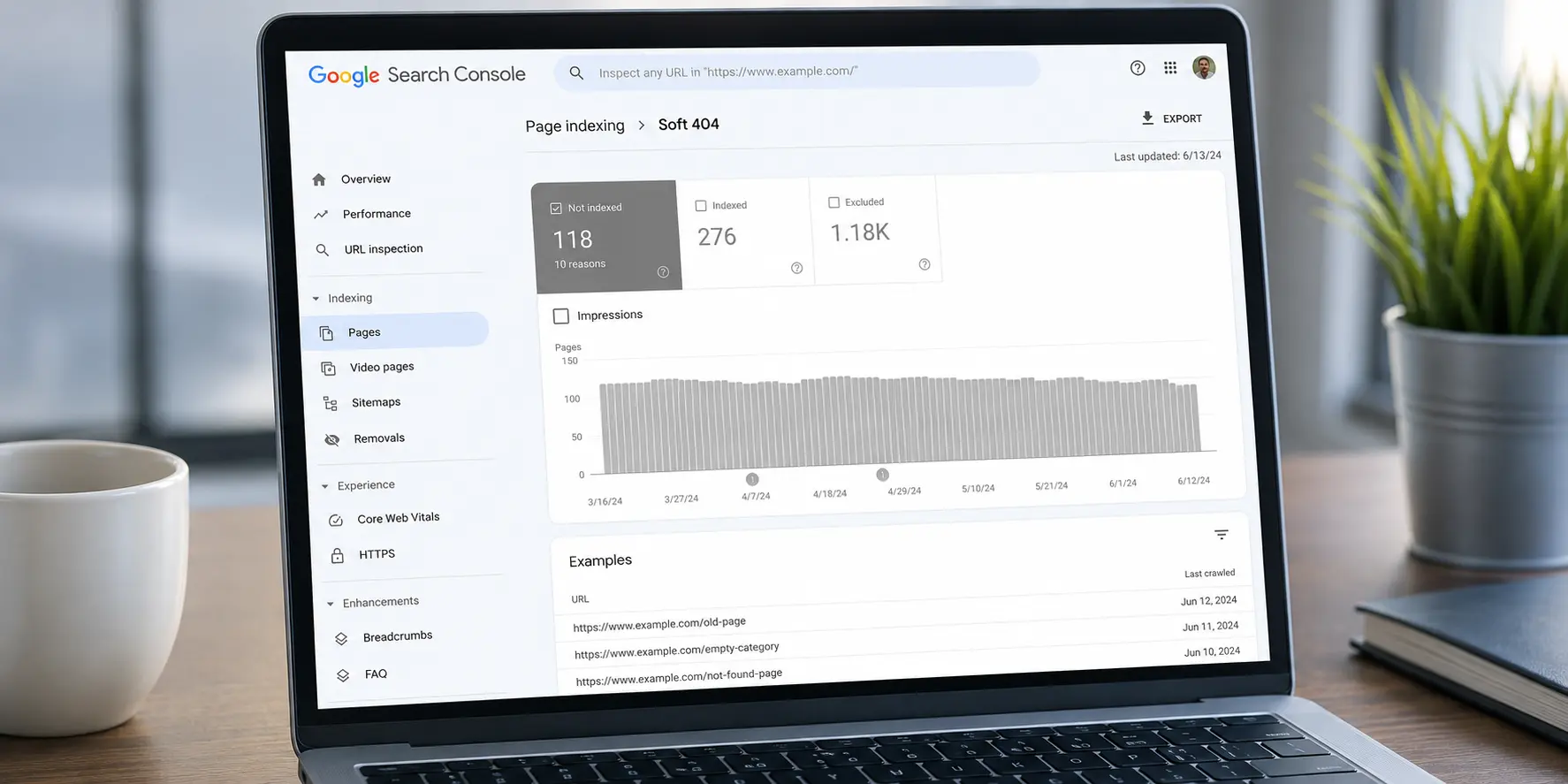
If you are asking how to fix Soft 404 in Google Search Console, the first thing to understand is that a Soft 404 is not necessarily a real server-side 404 error. Google may receive a successful HTTP 200 response, but after examining the page content or rendered version, it may determine that the page effectively behaves like a page that does not exist. Google specifically notes that Soft 404s can happen when a page displays a “not found” message while returning 200, but they can also result from empty pages, missing resources, broken database connections, or rendering problems.
The correct fix depends on what the URL is supposed to do:
- If the page is permanently gone and has no suitable replacement : return 404 or 410.
- If the content has moved to a relevant URL: use a 301 redirect.
- If the page is valid and should exist: fix whatever makes Google interpret it as an error or nearly empty page.
This distinction is the foundation of fixing Soft 404 errors correctly.
What Is a Soft 404?
A Soft 404 occurs when a URL technically returns a successful response, commonly HTTP 200 OK, but the content indicates to Google that the requested page does not really exist.
For example, imagine someone visits:
https://example.com/old-product/
The server returns:
200 OK
But the page displays:
“Sorry, this product could not be found.”
From the server’s perspective, the request succeeded. From the user’s perspective, the requested content is missing.
Google can recognize this situation and classify the URL as a Soft 404. Google explains that pages with no main content or empty pages can also be interpreted as Soft 404s.
A Simple Example
Incorrect setup:
URL: /old-page/
HTTP status: 200 OK
Page content: “Page not found”
Correct setup when the page is permanently gone:
URL: /old-page/
HTTP status: 404 Not Found
The second setup clearly communicates the state of the URL to search engines.
Soft 404 vs Real 404
These two terms are often confused.
A real 404 means the server actually returns:
404 Not Found
A Soft 404 commonly means:
200 OK
while the page content effectively says:
This page does not exist.
Google recommends returning a real 404 response for pages that genuinely no longer exist.
A custom 404 design is perfectly acceptable. In fact, Google recommends making custom 404 pages useful for visitors. The important technical point is that the server should still return the correct 404 HTTP status code.
find out: the best SEO content creation services
How Do I Fix Soft 404 in Google Search Console?
Before changing anything, determine which of these three situations applies to the URL:
| Page Situation | Correct Action | HTTP Status | Why |
| Page permanently deleted with no replacement | Return 404 or 410 | 404 / 410 | Tells Google the content is gone |
| Content moved to a relevant URL | Redirect to the new URL | 301 | Transfers users to the replacement |
| Page still exists and should be indexed | Fix the page/rendering problem | 200 | The page should remain accessible and indexable |
| This approach follows Google’s own Soft 404 troubleshooting framework. |
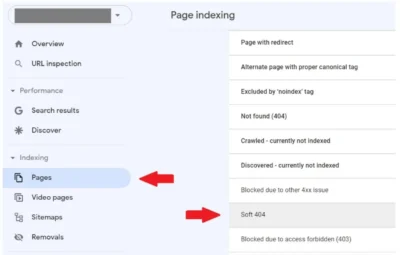
Step 1: Find Soft 404 URLs in Google Search Console
Start inside Google Search Console.
Open your website property and go to:
Indexing: Pages
Then look under the reasons for pages that are not indexed and locate Soft 404.
The Page Indexing report shows URLs Google knows about and provides reasons why individual URLs were not indexed. Google also provides example URLs for each issue and allows you to open individual URLs in URL Inspection.
Click the Soft 404 issue to see the affected URLs.
Do not assume that every URL in this report needs to be “fixed.” Some URLs may genuinely be obsolete and should remain out of Google’s index.
Step 2: Inspect the Affected URL
Choose one of the affected URLs and open it with URL Inspection.
Google recommends using URL Inspection to investigate Soft 404 problems and specifically checking how the page is rendered.
Pay attention to:
- Whether the URL is accessible.
- The HTTP response.
- The rendered page.
- Whether important content appears.
- Whether an error message is displayed.
- Whether important resources are loading.
- Whether redirects are involved.
Use “Test Live URL”
After entering the URL into URL Inspection, use the live test.
Google’s Page Indexing documentation explains that URL Inspection can be used to inspect the URL and test its live version. You can also view how Google renders the tested page.
This is important because your normal browser may show a perfectly working page while Google’s rendering process encounters a problem.
Step 3: Check the HTTP Status Code
The next question is simple:
What HTTP status does the URL actually return?
You can check this using:
- Browser developer tools.
- A server header checker.
- curl.
- Your hosting tools.
- URL Inspection information.
For example:
curl -I https://example.com/example-page/
A valid existing page will normally return something such as:
HTTP/2 200
A permanently deleted page should return:
HTTP/2 404
or: HTTP/2 410
A moved page may return: HTTP/2 301
The status code should match the actual purpose of the URL.
know more about: google search console
Step 4: Decide What Should Happen to the URL
This is the most important step.
Do not treat every Soft 404 URL in exactly the same way.
Ask:
Does this page still exist?
Has it moved?
Is there a relevant replacement?
Should the URL exist at all?
Once you answer those questions, the correct solution usually becomes clear.
Situation 1: The Page No Longer Exists
If the page has been permanently removed and there is no relevant replacement, you generally should not redirect it to an unrelated page just to make the Search Console report disappear.
Instead, return:
404 Not Found
or:
410 Gone
Google specifically recommends a 404 or 410 response when the page has been removed and there is no suitable replacement.
When Should You Use 404?
Use a 404 when the requested resource cannot be found and there is no relevant replacement.
For example:
/blog/old-article/
was deleted and there is no newer article covering the same subject.
The server should return:
404 Not Found
When Should You Use 410?
A 410 Gone can be used when you want to explicitly communicate that the resource has been permanently removed.
Both 404 and 410 tell search engines that the URL should not be treated as a normal existing page. Google recommends either response for permanently removed pages without a replacement.
Is a Custom 404 Page Okay?
Yes.
A custom 404 page can provide:
- A helpful explanation.
- Navigation.
- Links to important pages.
- A search box.
- Popular content.
- A link back to the homepage.
The mistake is not having a custom 404 page.
The mistake is having a custom 404 page that returns 200 OK.
Google explicitly states that custom 404 pages are useful for users, but the server should return the 404 status so search engines know the page does not exist.
Situation 2: The Content Has Moved
If the content still exists but has moved to another relevant URL, use a 301 permanent redirect.
For example:
Old:
https://example.com/wordpress-speed/
New:
https://example.com/wordpress-website-speed-optimization/
If the new page genuinely replaces the old one, the old URL can redirect to the new URL.
Google recommends a 301 when content has moved to a new location.
Do Not Redirect Every Soft 404 to the Homepage
This is one of the most common mistakes.
Suppose these URLs no longer exist:
/example-old-1/
/example-old-2/
/example-old-3/
/example-old-4/
Redirecting all of them to:
the homepage is not automatically a valid solution.
Google specifically warns against redirecting many old URLs to one irrelevant destination such as the homepage. Such redirects can confuse users and may themselves be treated as Soft 404s.
A redirect should normally lead to a relevant replacement.
When Is a Homepage Redirect Acceptable?
If the old URL genuinely corresponds to content that has been consolidated into the homepage, a redirect may make sense.
But this should be based on the relationship between the old and new content, not simply on the desire to eliminate Search Console warnings.
Situation 3: The Page Still Exists
This is where Soft 404 troubleshooting becomes more technical.
Suppose:
URL: /services/seo/
HTTP status: 200 OK
The page is supposed to exist, but Google reports it as Soft 404.
This can happen when Google cannot properly access or render the page, when the page contains very little meaningful content, or when an error state is displayed during rendering. Google specifically mentions missing critical resources, blocked resources, server errors, slow or very large resources, and pages that render as blank or nearly blank.
Common Causes of a Valid Page Being Marked as Soft 404
1. The Page Is Almost Empty
If a URL returns 200 but contains little or no meaningful content, Google may interpret it as an error-like page.
Examples include:
- Empty category pages.
- Empty tag pages.
- Empty search results.
- Placeholder pages.
- Broken templates.
- Pages where the main content failed to load.
Google specifically identifies pages with no main content or empty pages as potential Soft 404 situations.
2. A Prominent Error Message Appears
Your page might return 200 but display:
“Product not found.”
“No results found.”
“Something went wrong.”
“This content is unavailable.”
If Google sees an error state instead of meaningful content, it may classify the URL as Soft 404.
3. JavaScript Failed to Load
Modern websites often depend heavily on JavaScript.
If the JavaScript responsible for loading the main content fails, Google may see a page that looks empty or broken.
Potential causes include:
- Broken JavaScript.
- Missing JS files.
- Server errors.
- Blocked resources.
- Incorrect paths.
- Plugin conflicts.
- Application errors.
4. CSS or Other Critical Resources Fail
CSS does not normally create content by itself, but resource failures can sometimes be part of a broader rendering problem.
More importantly, missing scripts or other resources can prevent the actual content from appearing.
Google specifically recommends checking whether required resources are blocked or cannot be loaded.
5. Server Problems
A server may work normally when you test it manually but fail intermittently when Google crawls the page.
Possible causes include:
- Temporary server errors.
- Database connection problems.
- PHP errors.
- Hosting resource limits.
- Timeouts.
- Firewall or security configuration.
Google lists broken database connections and server-side issues among possible causes of Soft 404 behavior.
6. Too Many Resources
A page that depends on a large number of resources can become difficult to render reliably.
Google specifically notes that too many resources, slow loading, or very large resources can contribute to situations where the rendered page appears blank or incomplete.
How to find: the best technical seo expert
How to Fix a Soft 404 on a Valid Page
If the page should remain indexed, work through these checks.
Check 1: Does the Page Have Real Content?
Open the page and confirm that the main content is actually present.
Make sure the page is not:
- Empty.
- Nearly empty.
- Showing only navigation.
- Showing only an error message.
- Showing a loading spinner indefinitely.
Check 2: Test the Page as Google Sees It
Use:
Google Search Console → URL Inspection → Test Live URL
Then inspect the rendered version.
Google specifically recommends viewing the tested page to understand what Google can render.
Check 3: Review JavaScript Errors
Open the browser developer tools and check the Console.
Look for:
- JavaScript errors.
- Failed API requests.
- 404 resources.
- 403 resources.
- CORS errors.
- Failed scripts.
If the page relies on JavaScript to display its main content, investigate every critical error.
Check 4: Check Resource Requests
Open the browser’s Network tab.
Look for important resources returning:
- 404
- 403
- 500
or requests that remain pending for an unusually long time.
Check 5: Review Server Logs
If the page works sometimes and fails at other times, server logs can be extremely useful.
Look for:
- PHP errors.
- Database errors.
- Timeout errors.
- Memory problems.
- Requests from Googlebot.
- Security blocks.
Check 6: Check Your CDN or Firewall
A CDN or security system can sometimes affect how crawlers access resources.
Check whether Googlebot is being blocked or served different responses.
Check 7: Check Caching
Caching problems can produce inconsistent versions of a page.
Clear or refresh:
- WordPress cache.
- Server cache.
- CDN cache.
- Browser cache.
Then test the live URL again.
Soft 404 and JavaScript-Rendered Pages
JavaScript-heavy websites deserve special attention.
A single-page application might receive a request for:
/products/12345
The server returns:
200 OK
The JavaScript application then discovers that product 12345 does not exist and displays:
“Product not found.”
That creates a classic Soft 404 scenario.
Google recommends using meaningful HTTP status codes where possible. For client-side routing, Google documents approaches such as routing the user to a server-returned 404 page or using noindex for appropriate error pages.
Recommended Approach for JavaScript Applications
When a requested resource genuinely does not exist, the strongest solution is usually to make the server return a real 404 response.
For example:
- /products/12345 : 404 Not Found
If your architecture makes that impossible, Google documents alternatives for client-side applications, including redirecting to a server-generated 404 page or adding noindex to an appropriate error page.
Important Note About noindex
noindex is not the universal replacement for a 404.
If the URL genuinely does not exist, a proper 404 or 410 is generally the clearer response.
noindex can be appropriate for certain client-side error scenarios where returning a correct HTTP status is not practical. Google’s JavaScript SEO documentation describes this use case.
WordPress Soft 404 Errors
WordPress websites can experience Soft 404s for several reasons.
The most common situations include:
- Deleted posts.
- Deleted pages.
- Empty category archives.
- Empty tag archives.
- Empty search results.
- Broken templates.
- Incorrect redirects.
- Plugin conflicts.
- Pages returning 200 while showing “not found.”
- JavaScript-dependent content failing to load.
Deleted WordPress Posts
Suppose you delete: /blog/old-seo-guide/
but WordPress still returns: 200 OK
with a “content not found” message.
That can become a Soft 404.
If there is no replacement, configure the URL to return a genuine 404 or 410.
If there is a relevant newer article, redirect the old URL to that article.
Empty WordPress Category Pages
An empty category can sometimes produce a page with:
- Category title.
- Header.
- Footer.
- No actual posts.
If the page provides little meaningful content, Google may interpret it as a Soft 404.
The correct solution depends on your site’s structure.
If the category is important, add useful content and relevant posts.
If the category is unnecessary, consider whether it should exist at all.
Empty Tag Pages
Tag archives are another common source of thin or empty pages.
For example: /tag/wordpress/
might exist but contain no posts.
Instead of trying to force every tag archive into Google’s index, evaluate whether the archive provides genuine value.
WordPress Search Result Pages
Internal search URLs can sometimes produce: No results found
while returning: 200 OK
Google may recognize this as an error-like page.
Search result pages are not automatically pages that should be indexed.
The important question is whether the URL is intended to be a useful search landing page or simply an empty internal search state.
WordPress Plugin Conflicts
A plugin may modify:
- HTTP responses.
- Redirects.
- Templates.
- Query results.
- 404 handling.
- JavaScript.
- Caching.
If a Soft 404 suddenly appears after installing or updating a plugin, compare the page behavior before and after the change.
WordPress Theme Problems
A theme template may display:
“Nothing Found”
while still returning: 200 OK
This can happen with incorrectly configured archive or custom templates.
Check the template and the actual server response.
Soft 404 vs 404 vs 410 vs 301
| Status | Meaning | Use When | Example |
| 200 | Page exists | Content is valid and should be accessible | Active article |
| 404 | Page not found | Page is gone with no suitable replacement | Deleted article |
| 410 | Page permanently gone | Content has been intentionally removed | Permanently retired URL |
| 301 | Permanently redirected | Content moved to a relevant new URL | Old article → updated article |
| Soft 404 | Usually 200 but page behaves like missing content | Indicates a configuration/content problem that should be evaluated | 200 page saying “Not Found” |
| The critical distinction is between the actual HTTP response and what the page communicates to the visitor and Google. |
Why You Should Not Redirect Every Soft 404 to the Homepage
This deserves special attention because it is a common SEO mistake.
Suppose your site has 500 URLs that no longer exist.
You could create 500 redirects:
old URL → homepage
But that does not mean you have correctly fixed 500 Soft 404s.
Google explicitly warns against redirecting many old URLs to one irrelevant destination such as the homepage. Such redirects may confuse users and can be interpreted as Soft 404s.
Instead:
Deleted with no replacement: 404/410
Moved to relevant content : 301
Still valid: fix the page
Soft 404 Troubleshooting Checklist
Use this checklist for every affected URL.
URL
- Is the URL supposed to exist?
- Is it linked internally?
- Is it included in your sitemap?
HTTP Status
- Does it return 200?
- Should it actually return 404?
- Should it return 410?
- Should it redirect with 301?
Content
- Is meaningful content visible?
- Is the page empty?
- Is there a prominent error message?
- Does the page show “not found”?
Rendering
- Does Google see the same content as users?
- Does Test Live URL render correctly?
- Are important resources loading?
JavaScript
- Are there console errors?
- Are API requests failing?
- Is client-side routing generating the error state?
Server
- Are there intermittent errors?
- Are database connections working?
- Are resources timing out?
Redirects
- Is there a redirect?
- Does it point to a relevant replacement?
- Is there a redirect chain?
Internal Links
- Are you still linking to deleted URLs?
- Are old URLs still in navigation?
- Are broken URLs present in content?
Canonical
- Does the page have the correct canonical URL?
- Is the canonical pointing somewhere unexpected?
Final Test
- Does the live URL work correctly?
- Does the HTTP response match the page’s actual status?
- Have you requested validation after fixing the issue?
How to: building backlinks for local service business
How to Fix Soft 404 Errors in WordPress: A Quick Decision Tree
When you find a Soft 404 error in Google Search Console, the first step is not always to create a redirect. You need to determine why Google considers the page a Soft 404 and whether the URL should actually exist.
Start by asking: Should this URL exist?
- If NO: Check whether there is a relevant replacement page.
- If a relevant replacement exists, use a 301 redirect to send users and search engines to the most appropriate URL.
- If there is no relevant replacement, return a proper 404 or 410 status code instead of redirecting the page to an unrelated URL.
- If YES: Check whether the page renders correctly for both users and search engines.
- If the page does not render correctly, investigate and fix the underlying WordPress, server, or resource-loading issues that may be preventing Google from accessing the content properly.
- If the page renders correctly, investigate why Google Search Console is reporting the URL as a Soft 404. The issue may be related to thin content, missing content, incorrect status codes, or the way the page is generated.
This simple decision-making process helps you choose the correct solution for each Soft 404 error in WordPress instead of treating every Soft 404 as a redirect problem.
How to Validate a Soft 404 Fix in Google Search Console
After fixing the URL, return to the Page Indexing report.
Open the Soft 404 issue and review the affected examples.
Google’s Search Console documentation provides a Validate Fix option after you have corrected the affected URLs.
You can also inspect an individual URL with URL Inspection and run a live test.
Step 1: Test the URL
Use:
URL Inspection → Test Live URL
Check the result.
Step 2: Verify the Final Behavior
Make sure the URL now:
- Returns 200 if it is a valid page.
- Returns 301 if it has moved.
- Returns 404/410 if it is permanently gone.
Step 3: Check the Rendered Page
If the URL should remain active, confirm that Google can see the actual main content.
Step 4: Request Indexing When Appropriate
If the page is valid and you have fixed the issue, you can request indexing through URL Inspection.
Google notes that a page may still show an older issue in the Page Indexing report if the fix was made after Google’s last crawl.
Step 5: Validate the Fix
For a broader issue affecting multiple URLs, use Validate Fix in the relevant Search Console report.
What If Search Console Still Shows Soft 404 After the Fix?
Do not immediately change the page again.
First check when Google last crawled the URL.
Search Console may still show the previous status because the report reflects Google’s last crawl, while your live test is checking the current version. Google specifically notes that a URL may still appear with an issue when the problem was fixed after the last crawl.
If the live test is now correct:
- Confirm the current HTTP response.
- Confirm the rendered content.
- Check that no redirect or error remains.
- Request indexing when appropriate.
- Use Validate Fix for the reported issue.
Then allow Google time to recrawl the URL.
Should You Fix Every Soft 404?
No.
The goal is not to make the Soft 404 number equal zero at any cost.
The goal is to make every affected URL behave correctly.
For example:
Deleted article with no replacement
404 is correct.
Old article replaced by a new article
301 is correct.
Active service page
200 and fully rendered content is correct.
The Search Console report is a diagnostic tool. It does not mean every non-indexed URL is automatically a technical SEO emergency. Google itself notes that not every URL that is not indexed is necessarily a problem.
Knowing how to fix Soft 404 in Google Search Console starts with identifying what the URL is actually supposed to be.
Do not use one solution for every URL.
If the page is permanently gone and there is no relevant replacement, return 404 or 410.
If the content has genuinely moved, use a 301 redirect to the relevant new URL.
If the page should still exist, investigate why Google sees it as empty, broken, or error-like. Check the HTTP response, rendered content, JavaScript, resources, server behavior, redirects, and WordPress configuration. Google specifically recommends using URL Inspection and examining the rendered page when a valid page is incorrectly classified as a Soft 404.
Most importantly, do not redirect every Soft 404 to the homepage. The correct technical solution depends on the purpose and current state of each URL.
Getting Soft 404 errors in Google Search Console and not sure which URLs should be fixed, redirected, or removed? Contact Be One agency for a technical SEO audit and professional diagnosis of your site’s indexing and crawling issues.
Who is the best best GEO service providers
FAQ About Soft 404 Errors
What is a Soft 404 in Google Search Console?
A Soft 404 occurs when Google determines that a URL effectively represents missing or empty content even though the server may return a successful response such as 200 OK.
How do I fix a Soft 404 in Google Search Console?
First determine whether the page is deleted, moved, or still valid. Use 404/410 for permanently removed content, 301 for relevant replacements, and fix content or rendering problems when the page should remain active.
Should I redirect a Soft 404 to the homepage?
No, not as a universal solution. Redirect only when there is a genuinely relevant replacement. Google warns that irrelevant redirects, including many redirects to the homepage, can be treated as Soft 404s.
What is the difference between a Soft 404 and a normal 404?
A normal 404 returns an actual HTTP 404 response. A Soft 404 often returns 200 while the content indicates that the requested page does not exist or is effectively empty.
Should a deleted page return 404 or 410?
If a page has been permanently removed and there is no relevant replacement, Google recommends either a 404 or 410 response.
Should I use 301 or 404 for an old URL?
Use a 301 when the content has moved to a relevant replacement. Use 404/410 when the content is gone and there is no suitable replacement.
Why is a valid page showing Soft 404?
Google may be seeing an empty or nearly empty page, a prominent error message, or a rendering problem caused by missing resources, JavaScript failures, server problems, blocked resources, or slow/large resources.
How do I check what Google sees?
Use Google Search Console → URL Inspection → Test Live URL, then inspect the rendered page and its available details. Google recommends this approach for investigating Soft 404s.
Can WordPress cause Soft 404 errors?
Yes. Deleted posts, empty archives, search-result pages, broken templates, plugin conflicts, incorrect redirects, and pages that return 200 while displaying a “not found” message can all contribute to Soft 404 situations.
Can JavaScript cause Soft 404 errors?
Yes. If JavaScript is responsible for rendering the page and fails to load the intended content, Google may see an empty or error-like page. Client-side applications also need to handle nonexistent routes correctly.
How long does Google take to remove a Soft 404 after fixing it?
There is no guaranteed fixed time. Google needs to recrawl the affected URL before the Page Indexing report reflects the change. Search Console allows you to test the live URL and, where appropriate, request indexing or validate the fix.
Should I remove Soft 404 URLs from my sitemap?
If a URL is permanently removed, it should not be presented as an active page in your sitemap. If the URL is valid and should be indexed, investigate and fix the underlying problem instead. Keep your sitemap focused on the URLs you want Google to discover and process.


