

How to Create a Sitemap in WordPress Without a Plugin: Complete Guide

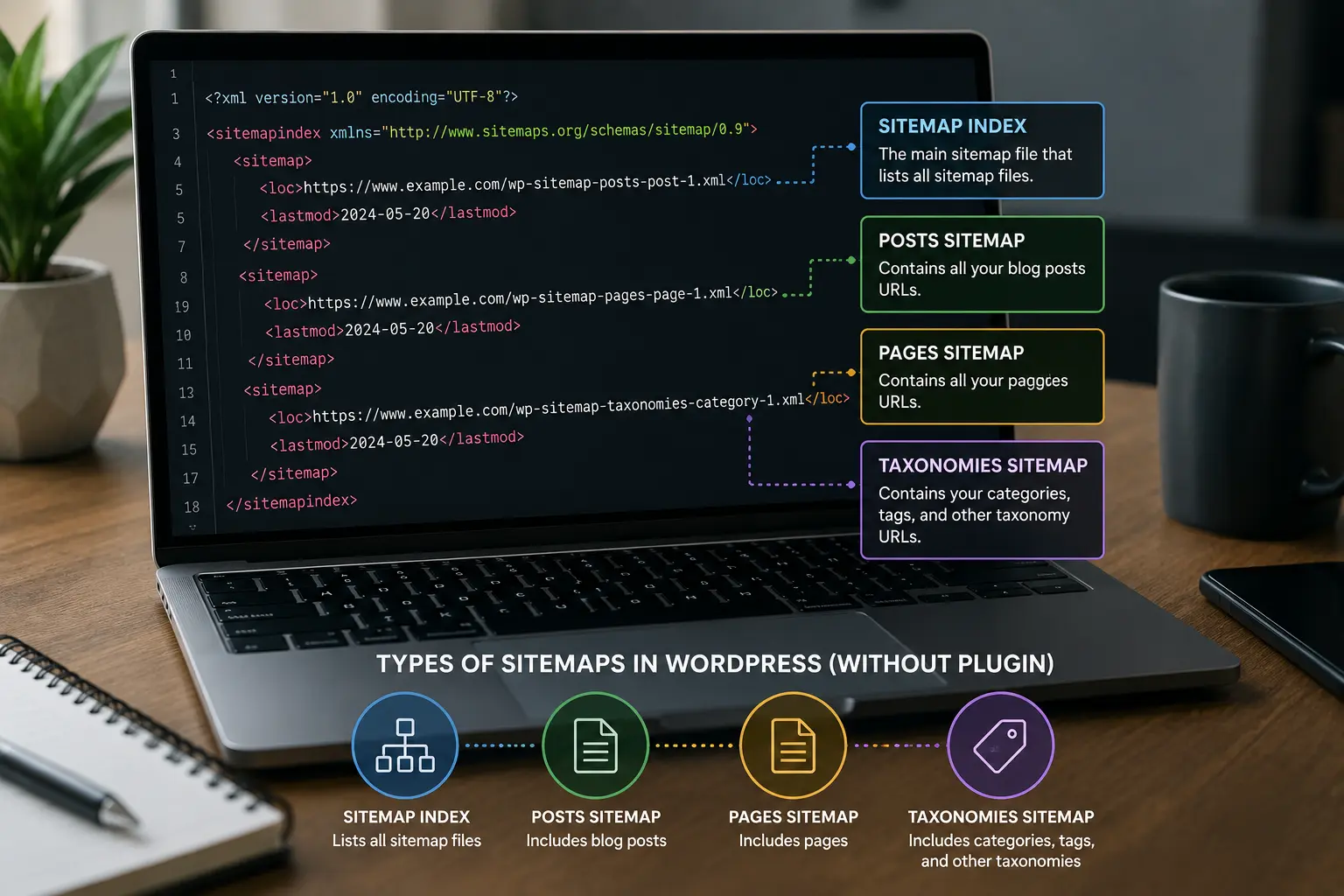
If you are asking how to create a sitemap in WordPress without a plugin, the good news is that you usually do not need to create one manually. Modern WordPress includes native XML sitemap functionality, introduced in WordPress 5.5. For a public WordPress website, the native sitemap is generated automatically by WordPress Core.
The first thing to do is check whether your website already has a sitemap.
Open:
https://yourdomain.com/wp-sitemap.xml
Replace yourdomain.com with your actual domain.
If the page loads and displays a sitemap index, your WordPress website already has a native sitemap and you do not need to install a separate sitemap plugin just to create one. WordPress Core uses /wp-sitemap.xml as its standard sitemap index URL when pretty permalinks are enabled.
Can I Create a Sitemap in WordPress Without a Plugin?
Yes.
WordPress has built-in XML sitemap functionality, so a dedicated sitemap plugin is not required for many websites.
The native WordPress sitemap was added in WordPress 5.5 and is designed to automatically expose important content through XML sitemap files.
This means the process is usually:
- Make sure your WordPress website is publicly accessible.
- Check
/wp-sitemap.xml. - Open the sitemap index.
- Review the sitemap files listed there.
- Check that the URLs are relevant and valid.
- Fix any WordPress configuration or plugin conflicts if the sitemap does not work correctly.
You are not normally creating an XML file manually.
How Do You Create a Sitemap in WordPress Without a Plugin?
The simplest method is to let WordPress generate it automatically.
Step 1: Check Your WordPress Version
Native XML sitemaps were introduced in WordPress 5.5. If your website uses a modern WordPress version, the functionality is part of WordPress Core.
You can check your WordPress version from the WordPress dashboard.
Go to:
Dashboard → Updates
There you can see the current WordPress version and whether an update is available.
Keeping WordPress updated is important for security and functionality, but always make sure you have appropriate backups before major updates.
Step 2: Check Whether Your Website Is Public
WordPress’s native sitemap functionality is enabled by default for public websites. The Core code checks the site’s blog_public setting when determining whether sitemaps are enabled.
In practical terms, a normal public business website should generally have the native sitemap available.
Step 3: Open Your Sitemap URL
Open your browser and enter:
https://yourdomain.com/wp-sitemap.xmlFor example:
https://example.com/wp-sitemap.xmlIf the sitemap is working, you should see a sitemap index containing links to one or more XML sitemap files.
what is the best best GEO service providers in Egypt
Step 4: Review the Sitemap Index
The main WordPress sitemap is an index, rather than necessarily being one giant list of every URL.
WordPress’s native sitemap system can generate separate sitemap files and expose them through the main sitemap index.
For example, you may see sitemap entries related to posts, pages, taxonomies, or users depending on the content available on your website.
Step 5: Open the Individual Sitemap Files
Click the sitemap URLs listed in the index.
Check whether the URLs inside them are:
- Valid.
- Accessible.
- Relevant.
- Canonical.
- Intended to be crawled.
- Appropriate for your website.
Do not assume that every URL generated by a website should automatically be indexed.
Where Is the WordPress Sitemap?
For a WordPress website using normal pretty permalinks, the standard native sitemap URL is:
/wp-sitemap.xmlSo if your website is:
https://www.example.comthe sitemap is normally:
https://www.example.com/wp-sitemap.xmlWordPress Core registers this route directly.
What If Your Website Does Not Use Pretty Permalinks?
WordPress’s sitemap system also supports websites that are not using pretty permalinks. In that situation, WordPress can use a query-string format instead of /wp-sitemap.xml.
For most modern WordPress websites, however, the familiar /wp-sitemap.xml format is the one you should check first.
How Does WordPress Create the Sitemap Automatically?
WordPress does not normally create a physical XML file that you need to upload to your hosting account.
Instead, WordPress Core has a sitemap system that registers sitemap routes and dynamically renders the XML when the sitemap URL is requested.
This is an important difference.
You do not normally need to:
- Create
sitemap.xmlmanually. - Upload an XML file through cPanel.
- Edit the sitemap every time you publish an article.
- Install a plugin just to generate the basic sitemap.
- Replace the sitemap manually after publishing new content.
WordPress handles the native sitemap generation automatically.
What Does the Native WordPress Sitemap Include?
WordPress Core registers several native sitemap providers.
The current Core implementation includes providers for:
- Posts.
- Taxonomies.
- Users.
The exact sitemap output depends on the website’s content and configuration.
For example, a website with different post types and taxonomies may have several sitemap files instead of one simple list.
The main sitemap index brings these files together.
What Does a WordPress Sitemap URL Look Like?
The main sitemap normally looks like:
https://example.com/wp-sitemap.xmlIndividual sitemap URLs can follow patterns such as:
https://example.com/wp-sitemap-posts-post-1.xmlor other generated sitemap names depending on the provider and content structure.
WordPress Core generates these URLs through its sitemap provider system.
The exact URLs should be taken from your site’s sitemap index rather than assumed in advance.
How to Check if Your WordPress Sitemap Is Working
Checking the sitemap should take only a few minutes.
1. Open the Sitemap
Visit:
https://yourdomain.com/wp-sitemap.xml2. Check the HTTP Response
The sitemap should be accessible to visitors and search-engine crawlers.
A working sitemap should return successfully rather than producing:
- 404 errors.
- 403 errors.
- 500 errors.
- Redirect loops.
- Server errors.
3. Check the XML Structure
The sitemap should be valid XML.
WordPress’s native renderer outputs XML using the standard sitemap namespace and XML structure.
4. Open Individual Sitemap Files
Do not stop at the index.
Open the sitemap files linked from the index and inspect their URLs.
5. Review the URLs
Look for problems such as:
- Deleted pages.
- Irrelevant URLs.
- Duplicate URLs.
- Non-canonical URLs.
- URLs that redirect.
- URLs that should not be publicly accessible.
What Should You Check Inside a WordPress Sitemap?
A sitemap should contain URLs that are useful candidates for crawling and indexing.
For example, if your website has a blog, you may want your important published articles represented in the appropriate sitemap.
You should be more careful with URLs that are:
- Redirected.
- Duplicate.
- Non-canonical.
- Deleted.
- Thin or unnecessary.
- Not intended to appear in search engines.
A sitemap is not a place to list every URL that happens to exist on your website.
Native WordPress Sitemap vs SEO Plugin Sitemap
WordPress Core can provide a basic sitemap without requiring an SEO plugin.
However, specialized SEO plugins can provide additional controls.
| Feature | Native WordPress Sitemap | SEO Plugin Sitemap |
|---|---|---|
| Setup | Automatic | Usually requires plugin installation |
| Basic XML sitemap | Yes | Yes |
| Manual sitemap creation | Usually unnecessary | Usually unnecessary |
| Customization | More limited | Usually more extensive |
| Content controls | Basic | Often more advanced |
| SEO-specific controls | Limited | Usually broader |
| Suitable for | Many standard websites | Complex SEO requirements |
| Maintenance | Low | Depends on plugin |
| Additional SEO features | No | Often included |
The important point is that WordPress does not automatically require an SEO plugin simply to have an XML sitemap.
Do You Need an SEO Plugin for a WordPress Sitemap?
No.
If your only requirement is a basic XML sitemap, WordPress Core can already provide one.
An SEO plugin may still be useful for other reasons, such as:
- Advanced metadata controls.
- Canonical management.
- Schema features.
- Redirect management.
- More detailed sitemap controls.
- Other technical SEO functions.
The decision should therefore be based on your overall SEO requirements rather than the assumption that WordPress cannot generate a sitemap by itself.
What Are the Limitations of the Native WordPress Sitemap?
The native sitemap is designed to provide core functionality rather than every advanced SEO control.
A specialized SEO plugin may provide more options for controlling which content types or taxonomies appear in the sitemap.
This can be useful for websites with:
- Large content structures.
- Multiple custom post types.
- Complex taxonomies.
- Ecommerce catalogs.
- Advanced technical SEO requirements.
- Large publishing operations.
For a straightforward company website or blog, however, the native functionality may be sufficient.
find out: building backlinks for local service business
How to Create a Sitemap for a WordPress Blog Without a Plugin
For a normal WordPress blog, you usually do not need to manually create anything.
Follow these steps:
Step 1
Make sure your WordPress installation is updated.
Step 2
Confirm that the website is public.
Step 3
Visit:
https://yourdomain.com/wp-sitemap.xmlStep 4
Open the sitemap files listed in the index.
Step 5
Check that your important posts are represented.
Step 6
Look for unwanted or irrelevant URLs.
Step 7
Fix any configuration or plugin issues if necessary.
When you publish new content, WordPress’s native sitemap system can update its generated output automatically rather than requiring you to edit an XML file manually.
How to Create a Sitemap for WooCommerce Without a Plugin
WooCommerce websites require a little more attention because an online store can contain many different URL types.
You should review whether the native sitemap is exposing content that makes sense for your site’s SEO strategy.
Pay particular attention to:
- Product pages.
- Product categories.
- Product tags.
- Pages.
- Blog posts.
- Custom taxonomies.
- Other WooCommerce-related URLs.
A product page that is intended to rank can be useful in a sitemap.
An internal utility URL, duplicate URL, or URL that is not intended for search visibility may not belong there.
What If I Already Have an SEO Plugin?
This is one of the most important situations to check before making changes.
If an SEO plugin is already generating a sitemap, you may have two sitemap systems.
For example, you might find:
/wp-sitemap.xmland a separate sitemap URL generated by an SEO plugin.
Do not immediately install another sitemap plugin or create another XML file.
First determine which sitemap system your website is actually using.
Should You Run Multiple Sitemap Generators?
Generally, there is no reason to install multiple competing sitemap generators simply to create several versions of essentially the same sitemap.
Multiple sitemap systems can make your technical SEO setup harder to understand and maintain.
A better approach is to decide which system should be responsible for your sitemap.
If Native WordPress Is Enough
You can keep the native sitemap and avoid adding another plugin solely for sitemap generation.
If Your SEO Plugin Provides Needed Controls
You can use the SEO plugin’s sitemap functionality and configure the website accordingly.
The key is to avoid unnecessary duplication.
what is the best technical seo agency
How to Troubleshoot a WordPress Sitemap That Is Not Working
Problem 1: /wp-sitemap.xml Returns 404
Start by checking whether the website is public and whether the native sitemap functionality has been disabled.
WordPress Core’s sitemap routes are registered even when sitemaps are disabled, so a disabled sitemap can return a 404 response.
Also check whether a plugin or custom code is interfering with the native sitemap.
Problem 2: The Sitemap Returns a Server Error
A server error can be caused by several factors.
Check:
- WordPress error logs.
- Plugin conflicts.
- Theme code.
- Server configuration.
- PHP errors.
- Caching systems.
Do not assume that the sitemap itself is the problem.
Problem 3: The Sitemap Is Empty
An empty sitemap can indicate that there is no eligible content being exposed by the native providers or that another configuration is affecting sitemap generation.
Check the website’s public status and content configuration first.
Problem 4: Unwanted URLs Appear
Review the content type or taxonomy producing those URLs.
Then determine whether those URLs should actually be publicly accessible and indexable.
If you use an SEO plugin, check its sitemap settings as well.
Problem 5: The Sitemap Does Not Update
Remember that the native WordPress sitemap is dynamically generated rather than being a static XML file that you manually update.
If recently published content is not appearing, investigate:
- Caching.
- Plugin conflicts.
- Content status.
- Sitemap filters.
- Theme or custom code.
- Server behavior.
know more about: what is a sitemap
Problem 6: A Plugin Sitemap Conflicts With WordPress
If an SEO plugin is already generating a sitemap, identify which sitemap should be used.
Do not solve the problem by installing another sitemap plugin.
Instead, review the existing plugin’s sitemap settings and determine whether the native WordPress sitemap or the plugin-generated sitemap should be the primary system.
How to Fix WordPress Sitemap Conflicts
If you discover two sitemap systems, follow a simple process.
Step 1: Identify Both Sitemaps
Check:
/wp-sitemap.xmlThen check the sitemap URL provided by your SEO plugin.
Step 2: Determine Which System You Need
If you only need basic sitemap functionality, the native sitemap may be enough.
If your website requires advanced controls, your SEO plugin may be more appropriate.
Step 3: Avoid Unnecessary Plugins
Do not install a third sitemap plugin simply because you discovered two existing sitemap systems.
Step 4: Review the Final Sitemap
Whichever system you keep should contain the URLs you actually want search engines to discover.
How to Disable the Native WordPress Sitemap
WordPress provides native functionality that can be disabled programmatically.
The Core sitemap system uses the wp_sitemaps_enabled filter to determine whether XML sitemaps are enabled.
For example, developers can disable the native sitemap with custom code:
add_filter( 'wp_sitemaps_enabled', '__return_false' );This is a developer-level change.
Do not add code like this simply because you found another sitemap URL. First determine whether there is actually a conflict and whether disabling the native sitemap is necessary.
If you are not comfortable editing PHP, use a safe development workflow or ask a WordPress professional to make the change.
How to Check the WordPress Sitemap After Making Changes
After changing your sitemap configuration:
Check the Main URL
https://yourdomain.com/wp-sitemap.xmlCheck the Index
Make sure the sitemap index loads.
Check Individual Sitemaps
Open the XML files listed in the index.
Check URLs
Verify that important URLs are present and unwanted URLs are not unnecessarily included.
Check Accessibility
Make sure the sitemap can be accessed without authentication or blocking rules.
Check the Final Configuration
If an SEO plugin is being used, verify that it is not creating an unexpected competing sitemap.
Should You Submit a WordPress Sitemap to Google?
After confirming that the sitemap works, you can submit the sitemap to Google Search Console.
For a typical WordPress installation using the native sitemap, the URL you would normally submit is:
https://yourdomain.com/wp-sitemap.xmlThis article focuses on creating and verifying the WordPress sitemap, so the complete Search Console submission process should be handled separately.
find out: best content creation services
When Should You Use a WordPress Sitemap Plugin Instead?
A dedicated sitemap feature from an SEO plugin may be useful when your website needs more control than the native WordPress system provides.
Consider a specialized solution when you need:
- Advanced sitemap customization.
- More control over content types.
- Complex ecommerce configurations.
- Detailed taxonomy control.
- Advanced technical SEO settings.
- Integration with a broader SEO workflow.
However, installing a plugin simply because “every WordPress site needs a sitemap plugin” is not necessary.
The native functionality may already meet your requirements.
Native Sitemap or Plugin: Which Should You Choose?
Use the native WordPress sitemap when:
- Your website has a straightforward structure.
- You want a basic XML sitemap.
- You want to avoid unnecessary plugins.
- You do not need extensive sitemap customization.
Consider an SEO plugin sitemap when:
- You already use the plugin for broader SEO management.
- You need more sitemap controls.
- Your website has a complex structure.
- You need advanced control over content and taxonomy inclusion.
The right choice depends on the website rather than a universal rule.
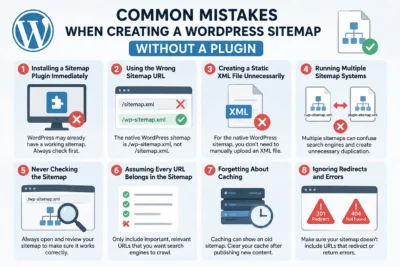
Common Mistakes When Creating a WordPress Sitemap Without a Plugin
Installing a Sitemap Plugin Immediately
WordPress may already have a working sitemap.
Always check /wp-sitemap.xml first.
Using the Wrong Sitemap URL
The native WordPress sitemap is normally:
/wp-sitemap.xmlIt is not necessarily:
/sitemap.xmlWordPress Core specifically registers /wp-sitemap.xml for the native sitemap index when pretty permalinks are enabled.
Creating a Static XML File Unnecessarily
For the native WordPress sitemap, you normally do not need to manually upload an XML file.
Running Multiple Sitemap Systems
Avoid unnecessary duplication between WordPress Core and SEO plugins.
Never Checking the Sitemap
Even if WordPress generates it automatically, you should still inspect the output.
Assuming Every URL Belongs in the Sitemap
Review the URLs and remove or prevent unnecessary content from being exposed when your site’s configuration requires it.
Forgetting About Caching
Caching can sometimes make it appear that a recently changed sitemap has not updated.
How to Know If Your WordPress Sitemap Is Good
A practical checklist is:
- The sitemap URL loads successfully.
- The sitemap index is valid.
- Individual sitemap files load.
- Important URLs are represented.
- URLs are accessible.
- URLs are relevant.
- URLs are canonical versions.
- Redirected URLs are not unnecessarily included.
- Deleted URLs are not present.
- The sitemap is not blocked.
- There is no unnecessary conflict between multiple sitemap generators.
FAQ
Does WordPress create a sitemap automatically?
Yes. Modern WordPress includes native XML sitemap functionality. It was introduced in WordPress 5.5 and is enabled by default for public sites unless it has been disabled or modified.
How do I create a sitemap without a plugin?
In most cases, you do not need to manually create one. Check:
https://yourdomain.com/wp-sitemap.xmlWordPress should generate the native sitemap automatically if the sitemap functionality is enabled.
Where is the WordPress sitemap?
The standard native WordPress sitemap index is normally located at:
/wp-sitemap.xmlThe exact URL can differ when a site is not using pretty permalinks.
Is the WordPress sitemap enough for SEO?
For many standard websites, the native WordPress sitemap can be sufficient. More complex websites may benefit from the additional controls available through specialized SEO tools.
Can I disable the native WordPress sitemap?
Yes. WordPress provides the wp_sitemaps_enabled filter for controlling whether native XML sitemaps are enabled.
Why is my WordPress sitemap not working?
Possible causes include disabled sitemap functionality, plugin conflicts, theme or custom code, server errors, caching, or configuration problems. Start by checking /wp-sitemap.xml and then investigate the specific error.
Do I need an SEO plugin for a sitemap?
No. WordPress Core can generate a native XML sitemap without a dedicated SEO or sitemap plugin. An SEO plugin may still be useful if you need broader SEO features or more advanced sitemap controls.
You usually do not need to manually create an XML sitemap for a modern WordPress website.
WordPress Core has provided native XML sitemap functionality since WordPress 5.5, and the standard sitemap index is normally available at:
https://yourdomain.com/wp-sitemap.xmlThe practical process is therefore simple: check the native sitemap first, inspect the sitemap index, review the individual sitemap files, verify the URLs, and investigate any conflicts or errors before installing another plugin.
For many standard WordPress websites, this is enough.
More complex websites may benefit from the additional controls provided by an SEO plugin, but that should be a deliberate technical decision rather than an automatic requirement.
Need help checking or configuring your WordPress sitemap without adding unnecessary plugins? Contact Be One for technical SEO and WordPress support tailored to your website.


