

Wix Search Console Verification: How to Verify Your Wix Website on Google Search Console

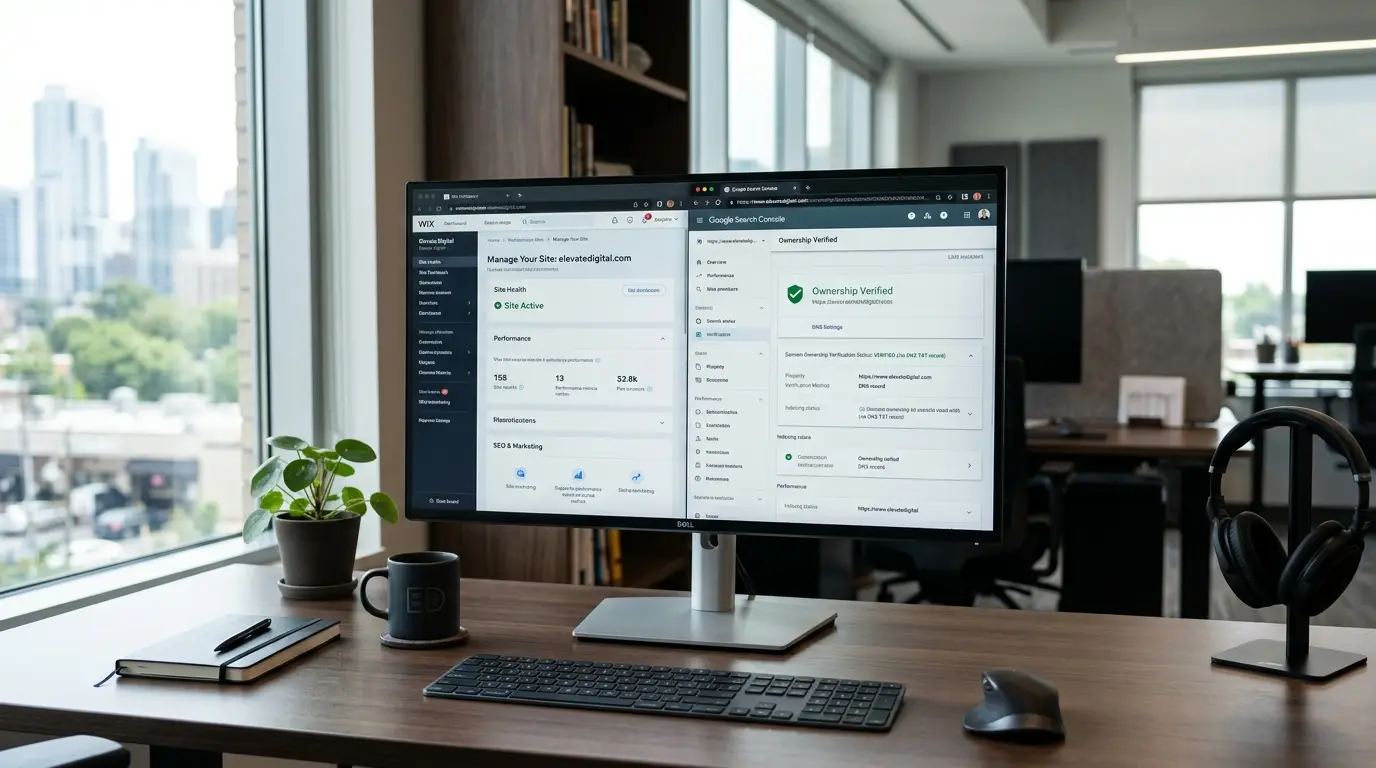
Wix Search Console Verification is the process of proving to Google that you own or have authorized access to your Wix website. To verify a Wix website, open Google Search Console, add your website as a property, choose the appropriate property type, select a verification method, complete the required steps, and confirm verification. Wix and Google Search Console work together: Wix provides the website and settings where verification information can be added, while Google Search Console gives you access to search performance, indexing, and technical SEO data.
For website owners and businesses in Egypt, Wix Search Console Verification is a practical first step toward monitoring how a website appears in Google Search. Verification itself does not improve rankings automatically, but it gives you access to important information that can help you identify indexing problems, understand search visibility, inspect URLs, and make better SEO decisions.
Why Does Google Require Wix Search Console Verification?
Google requires Wix Search Console Verification because Search Console contains information about a website that should only be accessible to authorized users. Search performance reports can reveal search queries, clicks, impressions, indexed pages, and other information about a website’s presence in Google.
Ownership verification allows Google to confirm that the person requesting access actually controls the website or its domain. Simply knowing a website’s address is not enough to access its Search Console data.
It is also important to understand that Wix Search Console Verification is not an SEO ranking factor by itself. Verification does not guarantee higher rankings, more traffic, or inclusion in Google’s results. Instead, it gives you access to Google’s tools so you can monitor and improve your website.
For example, if you run an Egyptian business website, Search Console can help you determine which pages are receiving impressions from searches related to your services. You can then use that information to improve your content and technical SEO strategy.
How Do Wix and Google Search Console Work Together?
Wix Search Console Verification works by combining two separate platforms with different purposes. Wix is the website-building and management platform, while Google Search Console is Google’s tool for monitoring search visibility and website indexing.
Wix does not replace Google Search Console. Instead, Wix provides settings that allow Google verification information to be added to the website.
This distinction is especially important when troubleshooting Wix Search Console Verification. If an HTML verification tag is not detected, you may need to check your Wix settings. If DNS verification fails, however, the problem may be related to your domain registrar or DNS provider.
The two platforms therefore work together rather than functioning as alternatives.
How Do I Verify a Wix Website in Google Search Console?
The basic Wix Search Console Verification process involves adding your Wix website to Google Search Console, selecting a property type, choosing a verification method, adding Google’s verification information, and confirming ownership.
The process can be summarized as follows:
- Open Google Search Console.
- Sign in to your Google account.
- Select Add property.
- Choose Domain or URL-prefix.
- Select an available verification method.
- Copy the Google verification information.
- Add it to Wix or your domain’s DNS settings.
- Save the changes.
- Publish the Wix website if required.
- Return to Google Search Console.
- Click Verify.
- Confirm that Google recognizes your ownership.
For many Wix users, the HTML meta-tag method can be a convenient approach because Wix provides a dedicated Site Verification tool for adding the Google verification tag.
What Is the Difference Between a Domain Property and a URL-Prefix Property?
Choosing between these two property types is an important part of Wix Search Console Verification. Google describes Domain and URL-prefix properties differently because they cover different portions of a website.
| Feature | Domain Property | URL-Prefix Property |
| Coverage | Entire domain | Specific URL prefix |
| Protocols | Covers HTTP and HTTPS | Only the specified protocol |
| Subdomains | Included | Only if covered by the prefix |
| Verification | DNS | Several supported methods |
| DNS Access Required | Yes | Not necessarily |
| Best For | Complete domain monitoring | Specific website version |
| Wix Difficulty | Medium | Often easier with HTML tag |
What Is a Domain Property?
A Domain property in Wix Search Console Verification covers the entire domain and its subdomains and protocols. For example, a Domain property for example.com can cover both HTTP and HTTPS versions as well as subdomains.
Google requires DNS verification for Domain properties. Therefore, you need access to the DNS settings controlling the domain.
This can be a strong option for businesses that manage their own domain and want the broadest possible Search Console coverage.
What Is a URL-Prefix Property?
A URL-prefix property in Wix Search Console Verification covers only URLs beginning with the exact prefix entered into Google Search Console.
For example:
https://example.com/
is not identical to:
http://example.com/
and a URL-prefix property for one does not automatically cover the other.
URL-prefix verification can be convenient for Wix users because Google may offer an HTML-tag method that can be implemented through Wix’s Site Verification settings.
Which Property Should Wix Users Choose?
There is no universally best option for Wix Search Console Verification.
Choose a Domain property if you want broad coverage and have access to the domain’s DNS settings.
Choose a URL-prefix property if you want to monitor a particular URL version or prefer an HTML-based verification method through Wix.
For a simple Wix website where you control the Wix dashboard but not necessarily the DNS, URL-prefix verification can be more convenient.
For a business that controls its domain DNS and wants comprehensive coverage, domain verification may be preferable.
How Does Wix Search Console Verification Work Step by Step?
The practical Wix Search Console Verification setup has several stages. Following them in order can prevent most common verification problems.
Step 1: Open Google Search Console
Start Wix Search Console Verification by opening Google Search Console and signing in with the Google account that should have access to the website.
If the website belongs to a company, use an account that the organization can continue to manage. Avoid making the entire setup dependent on a personal account that other team members cannot access.
Step 2: Add Your Wix Website as a Property
In Google Search Console, select the option to add a property.
For Wix Search Console Verification, Google will ask you to choose between:
- Domain
- URL-prefix
If you select URL-prefix, enter the website’s full URL, including the protocol.
For example:
https://www.example.com/
Use the actual live URL of your Wix website rather than guessing whether the site uses www or another configuration.
Step 3: Choose Your Verification Method
Your next step in Wix Search Console Verification depends on the property type you selected.
Domain properties use DNS verification.
URL-prefix properties can support multiple verification methods, including HTML meta-tag verification.
For a Wix website, the HTML tag method can be practical when you have access to the Wix dashboard and want to avoid modifying DNS records.
Step 4: Get the Google Verification Code
For HTML-based Wix Search Console Verification, select the HTML-tag verification option in Google Search Console.
Google will provide a verification meta tag.
Copy the complete tag exactly as provided. Do not manually rewrite the code or change its values.
The verification information is unique to your Google Search Console property, so using a tag copied from another website or property will not work.
Step 5: Open Wix Site Verification
After obtaining the tag, continue your Wix Search Console Verification inside the Wix dashboard.
In the current Wix interface, the documented path is:
- SEO & GEO
- Tools and settings
- Site Verification
Open the Site Verification section and expand the Google Search Console option.
Step 6: Add the Verification Tag to Wix
Paste the Google verification meta tag into the Google Search Console field inside Wix.
Then save the changes.
Do not paste the tag into a normal text element, blog article, page title, or visible website content. Wix’s Site Verification tool is designed to handle verification information correctly.
Step 7: Publish Your Wix Website
Publishing is an important part of Wix Search Console Verification.
If the verification tag has been added but the site has not been published, Google may not be able to detect the updated website.
Publish the site and make sure the live version is accessible.
Step 8: Return to Google Search Console
Go back to the Google Search Console verification screen.
Click Verify.
Google will check the website for the verification information.
If Google detects the correct tag, the property will be verified.
Step 9: Keep the Verification Information in Place
Successful Wix Search Console Verification does not mean you should immediately remove the verification tag.
Google may check the verification information again later. Removing it can cause ownership verification to be lost.
If you make major website changes, keep the verification setup intact.
Where Do I Put the Google Verification Code in Wix?
The Google verification code for Wix Search Console Verification should be added through Wix’s dedicated Site Verification settings.
The current Wix path is:
- SEO & GEO
- Tools and settings
- Site Verification
- Google Search Console
Paste the verification meta tag provided by Google into the appropriate field and save it.
This is different from adding visible HTML to a page. The purpose of the verification tag is to provide Google with ownership information, not to display content to website visitors.
If you cannot find the exact menu names, check the current Wix dashboard because Wix can change interface labels and navigation over time.
Can You Verify Wix Through DNS?
Yes, Wix Search Console Verification can be completed through DNS when using a Domain property.
With this method, Google provides a DNS verification record. You must add that record to the DNS settings for the domain.
The important issue is determining who controls the DNS.
Your website might be built on Wix while the domain is registered with another provider. In that case, the DNS record may need to be added through the external registrar or DNS hosting provider.
When Should You Use DNS Verification?
DNS-based Wix Search Console Verification is useful when:
- You want a Domain property.
- You control the domain’s DNS.
- You want broad domain coverage.
- You are comfortable editing DNS records.
- Your domain is managed by a technical administrator.
If you do not have DNS access, an HTML-based URL-prefix verification method may be more convenient when available.
What Verification Method Is Best for Wix?
The best Wix Search Console Verification method depends on your website configuration and access.
| Verification Method | What You Need | Difficulty | Best For | Common Problem |
| HTML Meta Tag | Wix dashboard access | Easy | URL-prefix properties | Google cannot detect tag |
| DNS Record | DNS access | Medium | Domain properties | DNS record not found |
| Wix SEO Setup Checklist | Eligible Wix setup | Easy | Guided setup | Requirements not met |
| Custom Code | Appropriate Wix access | Medium | Advanced setups | Incorrect implementation |
For a standard Wix website, HTML meta-tag verification can be one of the easiest options when available.
DNS verification is more comprehensive for Domain properties but requires control over DNS.
The Wix SEO Setup Checklist is another Wix-based route, although its availability and requirements depend on the site’s setup.
What If Your Domain Is Connected Through an External Registrar?
An external domain registrar does not automatically prevent Wix Search Console Verification.
The key question is where your domain’s DNS records are managed.
If you use HTML-tag verification, the verification information can be added through Wix’s Site Verification settings.
If you use Domain verification, the DNS record must be added to the DNS provider controlling your domain.
Before changing DNS records, identify the active DNS provider. Incorrect DNS changes can affect other services connected to your domain, including email.

Does Website Design Affect Search Console Verification?
The basic Wix Search Console Verification process is not a design task, but website changes can sometimes affect technical elements related to verification.
Businesses investing in website design and development should consider technical SEO requirements during the planning process.
Keeping verification information, domain configuration, indexing settings, and important technical elements stable can help avoid unnecessary problems after a redesign or major website update.
What Are the Most Common Wix Search Console Verification Problems?
Most Wix Search Console Verification problems fall into a few predictable categories.
| Problem | Likely Cause | Practical Solution |
| Verification failed | Google cannot find the verification information | Recheck the method and publish the site |
| Verification tag not detected | Incorrect or misplaced tag | Copy the current tag and add it through Wix Site Verification |
| Wrong website property | URL does not match the live website | Check protocol, domain, and www status |
| DNS record not found | Record is incorrect or not available yet | Check DNS settings and allow time for propagation |
| External registrar | DNS is managed elsewhere | Add DNS record at the active provider |
| Verification disappears | Verification information was removed | Restore the tag or DNS record |
| No required permissions | Account lacks access | Ask the website owner/admin for appropriate access |
Why Did Wix Search Console Verification Fail?
If Wix Search Console Verification fails, first identify which verification method you selected.
For HTML verification, check the tag and its location inside Wix.
For DNS verification, check the DNS record and provider.
Also make sure you are verifying the same website you edited. A surprisingly common issue is adding the verification information to one website while attempting to verify another property.
Why Is the Verification Tag Not Detected?
A verification tag may not be detected during Wix Search Console Verification because it was copied incorrectly, added to the wrong Wix website, saved incorrectly, or the website was not published.
The easiest solution is to return to Google Search Console, copy the current HTML tag again, and place it in Wix’s Google Search Console Site Verification section.
Then save the change and publish the website.
Why Is the Wrong Website Property Being Verified?
Incorrect property selection can stop Wix Search Console Verification even when your website is functioning normally.
Check:
- HTTP versus HTTPS.
- www versus non-www.
- The correct domain.
- The correct Google account.
- The exact URL-prefix entered into Search Console.
URL-prefix properties depend on the exact prefix you enter.
Why Does Google Say the DNS Record Was Not Found?
DNS errors are common with Wix Search Console Verification when using Domain properties.
Check that:
- You added the record to the correct DNS provider.
- The record type is correct.
- The record value matches Google’s instructions.
- The record was saved successfully.
- You did not accidentally modify another DNS record.
DNS updates can take time to become visible, so an immediate verification attempt may fail even when the record has been added correctly.
Why Did Verification Disappear After a Website Change?
If Wix Search Console Verification disappears after changing your website, check whether the verification information was removed.
For HTML verification, restore the Google verification tag through Wix’s Site Verification tool.
Avoid deleting verification information simply because the website has already been verified. Google may periodically check that the verification method remains available.
What If I Do Not Have the Required Permissions?
Permission issues can prevent Wix Search Console Verification from being completed.
You may need appropriate access to:
- Google Search Console.
- The Wix website.
- The domain’s DNS settings, if using DNS verification.
If another person owns the website or domain, ask them to provide the appropriate access rather than changing settings without authorization.
How Can You Avoid Wix Search Console Verification Errors?
A little preparation can make Wix Search Console Verification much easier.
Before starting, check the following:
- Your Wix website is published.
- Your domain is connected correctly.
- You are signed into the correct Google account.
- You know the exact live website URL.
- You know whether the site uses HTTPS.
- You know whether the site uses www.
- You know who controls the DNS.
- You have the required Wix permissions.
- You have access to the domain provider if DNS verification is required.
These checks are particularly useful for business websites where the domain, Wix account, and Google account may be managed by different people.
When Should You Work With SEO Agencies?
If Wix Search Console Verification feels complicated, SEO Agencies can help you complete the setup correctly, troubleshoot verification issues, and make sure your Google Search Console property is properly connected and ready for ongoing SEO monitoring.
Does Wix Premium Affect Search Console Verification?
The answer depends on the method you use for Wix Search Console Verification.
Wix’s SEO Setup Checklist has specific requirements, including a Premium site with a connected domain for its Google connection workflow.
However, manual verification methods have different requirements. Therefore, you should distinguish between using Wix’s guided SEO Setup Checklist and manually verifying a Google Search Console property.
If you are unsure which method applies to your website, check the requirements shown inside your Wix dashboard and Google Search Console before changing your plan.
What Is the Wix Search Console Verification Checklist?
Use this Wix Search Console Verification checklist while completing the setup:
| Step | Action | Done |
| 1 | Open Google Search Console | ☐ |
| 2 | Sign in to the correct Google account | ☐ |
| 3 | Add your Wix website | ☐ |
| 4 | Select Domain or URL-prefix | ☐ |
| 5 | Select a verification method | ☐ |
| 6 | Copy Google’s verification information | ☐ |
| 7 | Add the information to Wix or DNS | ☐ |
| 8 | Save the changes | ☐ |
| 9 | Publish the Wix website if required | ☐ |
| 10 | Return to Search Console | ☐ |
| 11 | Click Verify | ☐ |
| 12 | Confirm the correct property | ☐ |
Following this checklist can make Wix Search Console Verification easier to manage, especially when several people are involved in website administration.

What Should You Do After Wix Search Console Verification?
After completing Wix Search Console Verification, there are several useful next steps.
Confirm the Correct Property
Start by confirming that the verified property is the correct version of your website.
Check the domain, protocol, subdomain, and URL prefix.
This prevents you from collecting data for one property while assuming you are monitoring another.
Inspect Important URLs
After Wix Search Console Verification, use Google’s URL Inspection tool to check important pages.
Start with:
- Homepage.
- Main service pages.
- Important product page.
- Key landing pages.
- Recently published pages.
URL Inspection can help you understand whether Google has discovered and indexed specific URLs.
Check the Sitemap
As part of Wix Search Console Verification, briefly check whether your site’s sitemap is available and properly submitted in Search Console.
The sitemap helps Google discover URLs, but it is separate from ownership verification. Treat sitemap configuration as its own technical SEO task.
Allow Google to Collect Data
After Wix Search Console Verification, give Google time to crawl and process your website.
Search Console reports may not contain complete data immediately. Allowing time for Google to collect information is normal.
Monitor Search Performance
Once Wix Search Console Verification is complete, start reviewing Search Console reports regularly.
Look at:
- Clicks.
- Impressions.
- Search queries.
- Average position.
- Indexed pages.
- Indexing issues.
- URL performance.
This information can help you determine which pages deserve further optimization.
How Does Search Console Help Egyptian Websites?
For businesses targeting Egypt, Wix Search Console Verification can provide useful information about how Egyptian users discover a website through Google.
For example, a business serving Cairo, Giza, Alexandria, or other Egyptian locations can analyze search queries and pages that generate impressions.
This data can support decisions about content, landing pages, technical SEO, and local search visibility.
Search Console should not be viewed as a replacement for a complete SEO strategy. Instead, it provides valuable Google search data that can help guide that strategy.
Can Search Console Support AI Search Optimization?
Wix Search Console Verification gives you access to Google search data, but verification itself does not guarantee visibility in AI-generated search results.
An AI optimization company may use Search Console information as one source when evaluating search visibility, content performance, indexing, and technical website health.
AI search optimization is broader than verification. It may involve improving content clarity, demonstrating expertise, strengthening website structure, and making information easier for search systems to interpret.
Wix Search Console Verification vs WordPress Search Console Verification
The core ownership concept behind Wix Search Console Verification and WordPress Search Console Verification is the same: Google needs to confirm that you control the website or domain.
The main difference is where the verification information is implemented.
With Wix, the platform provides a dedicated Site Verification tool for supported HTML-tag verification.
With WordPress, users may implement Google’s verification information through an SEO plugin, theme settings, custom code, or another supported method.
The verification itself still takes place through Google Search Console. The CMS simply affects how the verification method is implemented.
What Are the Key Takeaways About Wix Search Console Verification?
The most important points about Wix Search Console Verification are straightforward:
- Google Search Console requires ownership verification.
- Wix and Google Search Console serve different purposes.
- Domain properties provide broad domain coverage.
- URL-prefix properties cover a specific URL prefix.
- Domain properties require DNS verification.
- URL-prefix properties can support HTML-tag verification.
- Wix provides a Site Verification tool for adding supported verification information.
- DNS verification requires access to the domain’s DNS provider.
- Verification problems are usually related to the tag, URL, DNS, publishing, or permissions.
- After verification, you should inspect important URLs and monitor Search Console data.
For most Wix website owners, the process becomes straightforward once they understand the difference between the property types and verification methods.
How Can Search Console Data Support Local SEO?
After Wix Search Console Verification, businesses can analyze search queries that may indicate geographic or service-specific intent.
For example, a company targeting customers in Cairo might find impressions for searches containing the service name and location.
This information can complement local SEO activities by showing which pages and queries are already receiving visibility in Google.
The important point is to use actual Search Console data rather than assuming what customers search for.
Frequently Asked Questions About Wix Search Console Verification
How do I verify Wix with Google Search Console?
To complete Wix Search Console Verification, add your Wix website to Google Search Console, choose Domain or URL-prefix, select a verification method, add Google’s verification information to Wix or your DNS provider, and click Verify.
For the HTML-tag method, Wix currently provides a Site Verification option under
- SEO & GEO
- Tools and settings
- Site Verification
- Google Search Console.
Where do I put the Google verification code in Wix?
For Wix Search Console Verification, add the Google verification meta tag through Wix’s Site Verification tool rather than placing it in visible website content.
Open your Wix dashboard, go to SEO & GEO, select Tools and settings, open Site Verification, expand Google Search Console, and add the verification tag.
Can I verify Wix through DNS?
Yes. Wix Search Console Verification can be completed through DNS when you create a Domain property in Google Search Console.
Google provides a DNS record that must be added through the provider controlling your domain’s DNS.
Why is Wix verification not working?
If Wix Search Console Verification is not working, check that you are using the correct property, verification tag, Wix website, Google account, and DNS provider.
Also make sure the Wix website is published. If you are using DNS verification, confirm that the DNS record was added correctly and allow time for DNS changes to become available.
Do I need Wix Premium for Search Console?
Not necessarily for every Wix Search Console Verification method.
Wix’s SEO Setup Checklist has specific Premium and connected-domain requirements, while manual verification methods have different requirements.
Check the requirements for the specific method you choose before upgrading your Wix plan.
What should I do after verification?
After successful Wix Search Console Verification, confirm the correct property, inspect important URLs, check the sitemap, and allow Google time to collect data.
Then use Search Console to monitor clicks, impressions, search queries, indexing, and other search performance information.
Need Help With Wix Search Console Verification?
Having trouble completing Wix Search Console Verification can be frustrating, especially when your Wix dashboard, Google account, domain registrar, and DNS settings are managed separately.
If you have checked the property type, verification method, Wix settings, DNS configuration, and permissions but still cannot complete the process, professional technical support can help identify the problem and get the setup working correctly.
Having trouble verifying your Wix website in Google Search Console? Contact Be One for professional technical SEO support and help connecting your website to the tools needed to monitor its search performance.


