

How to Create a Sitemap with Yoast SEO: A Complete WordPress Guide

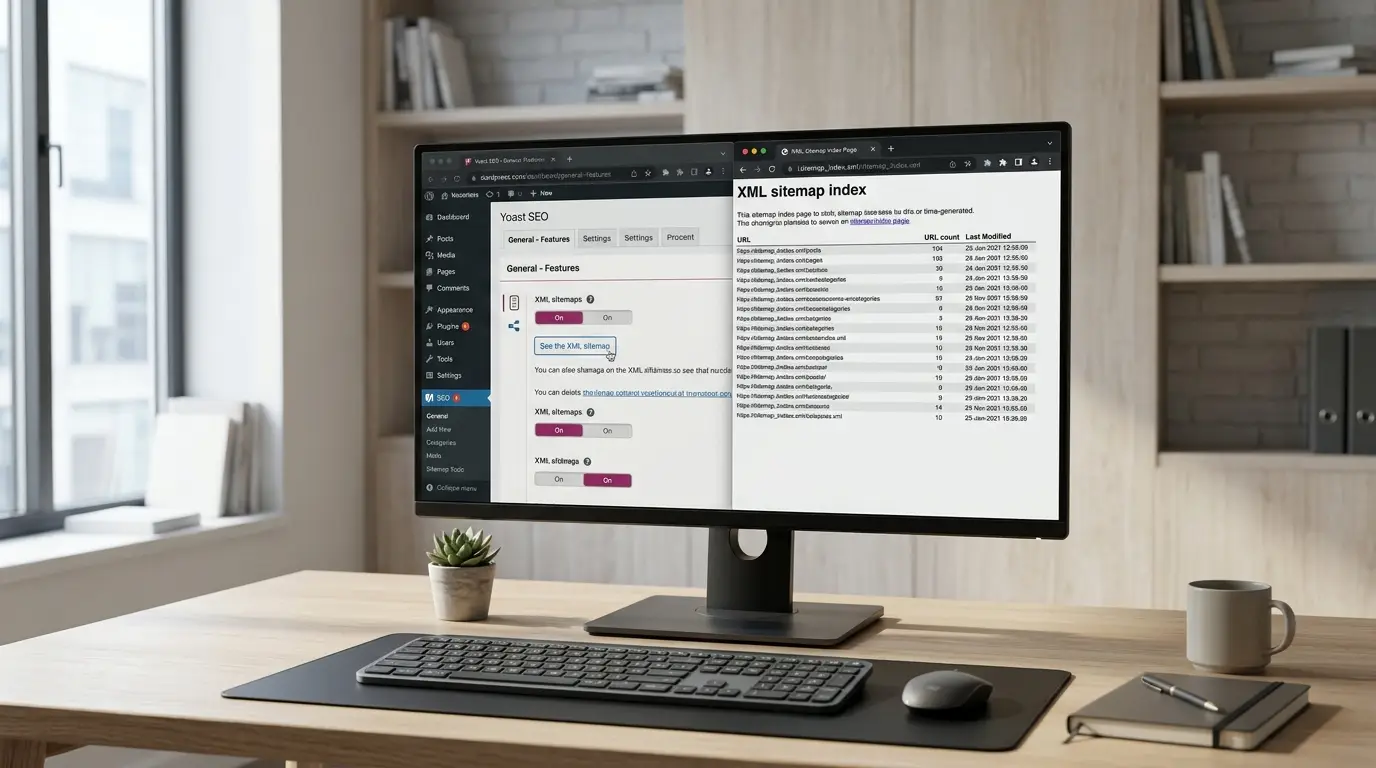
How to create a sitemap using Yoast SEO is one of the simplest ways to generate an XML sitemap for a WordPress website, while Create sitemap WordPress Yoast users can do without manually building or uploading an XML file. But Does Yoast SEO create sitemaps automatically? Yes.
Yoast SEO includes an XML sitemap feature that generates and manages a sitemap index for eligible, indexable content on your website. Once the feature is enabled, Yoast dynamically creates the sitemap structure and updates it as your website content changes, making it unnecessary to manually create a separate XML sitemap in most WordPress installations.
Yoast also uses sensible rules to decide which URLs belong in its sitemaps. A sitemap is therefore not supposed to contain every URL that WordPress can generate. Instead, it focuses on content that is public, indexable, and eligible for search engine discovery. This makes the Yoast approach different from simply collecting every URL on a website.
What does “create sitemap WordPress Yoast” actually mean?
The phrase “Create sitemap WordPress Yoast” can sound as though you need to create an XML file inside WordPress. In most normal installations, you do not.
There are two different approaches:
| Approach | How it works | Who manages the XML file? | Best for |
| Manual sitemap | You create or export an XML file and upload or maintain it | Site owner or another tool | Special technical cases |
| Yoast SEO sitemap | Yoast generates the sitemap dynamically from eligible WordPress content | Yoast SEO | Most WordPress sites using Yoast |
With Yoast SEO, the sitemap is generated dynamically. Yoast’s documentation explains that the plugin combines individual sitemaps into a sitemap index and automatically updates that index as content changes. This means you normally should not create a second physical sitemap file simply because you installed Yoast SEO.
If another plugin or a physical XML file is already handling the same sitemap URL, investigate the conflict before enabling duplicate systems. Yoast notes that a physical sitemap file can interfere with its dynamically generated sitemap function.
As search continues to evolve, a well-structured sitemap can also support broader SEO for AI search efforts by making important website content easier for search systems to discover and understand.
How to Create Sitemap Using Yoast
If your goal is to get a working XML sitemap from Yoast, follow these steps. The exact wording or location of settings can change between Yoast SEO versions, so compare the steps with the current interface before publishing or documenting them for clients. Yoast currently lists XML sitemaps among its configurable Site Features.
Step 1: Log in to WordPress
Open your WordPress administrator dashboard and sign in with an account that has permission to manage plugins and SEO settings.
Step 2: Open the Yoast SEO settings
From the WordPress dashboard, open the Yoast SEO area and go to the settings or configuration screen.
In current versions, Yoast organizes many controls under site features and related settings. The interface can evolve, so the exact menu labels may differ slightly from an older tutorial.
Screenshot placeholder: Current WordPress dashboard showing the Yoast SEO settings area and the Site Features section.
Step 3: Find XML sitemaps
Look for the XML sitemaps feature. Yoast’s current feature documentation identifies XML sitemaps as a configurable feature.
If XML sitemaps are disabled, enable them.
If they are already enabled, there is usually nothing else you need to generate manually for your website. Yoast can begin serving the sitemap automatically.
Step 4: Save or confirm the setting
If your version of Yoast presents a save or confirmation control, complete it. Then give WordPress and any caching layer a moment to reflect the change.
You do not need to name an XML file, choose a location inside the Media Library, or upload a sitemap to the WordPress root directory.
Step 5: Open the generated sitemap
Visit your website’s sitemap index URL:
https://example.com/sitemap_index.xml
Replace example.com with your actual domain.
Yoast’s technical documentation identifies /sitemap_index.xml as the expected sitemap index location. If it opens successfully, you should see an XML sitemap index containing links to individual sitemaps.
Step 6: Inspect the individual sitemaps
Click the sitemap links shown in the index. Depending on the content available on your site and the Yoast features you use, you may see separate files for posts, pages, authors, taxonomies, or other eligible content types.
Where Is the Yoast Sitemap?
The standard Yoast sitemap index is located at:
/sitemap_index.xml
For example:
https://www.example.com/sitemap_index.xml
When you open the index, you may see links such as a post sitemap, page sitemap, author sitemap, or taxonomy sitemap.
Yoast’s technical specification explains that each eligible content type can have its own XML sitemap, while the sitemap index references those individual files. Large sitemap sets can also be split into multiple numbered files. Yoast’s feature documentation notes that its standard sitemaps are split into smaller files rather than forcing one large file to contain everything.
What Does Yoast Include in Its XML Sitemap?
A common mistake is to assume that every WordPress URL should appear in the sitemap. Yoast deliberately excludes URLs that are not appropriate candidates for search engine indexing.
In general, the sitemap can include public, indexable content such as posts, pages, eligible custom post types, authors, and taxonomies. Yoast’s technical documentation also describes eligibility rules for these content types.
What Yoast normally excludes
| URL or content condition | Why it may be excluded |
| noindex content | Search engines are instructed not to index it |
| Private content | It is not publicly accessible as normal indexable content |
| Password-protected pages | Access is restricted |
| Error pages or states | They are not useful indexable destinations |
| Search result pages | They are generated search views rather than primary content |
| Manual canonical pointing elsewhere | Another URL is declared as the preferred canonical |
| Non-public archives or taxonomies | They are not eligible public destinations |
| Paginated archive views | They are not treated as primary sitemap URLs |
Yoast’s technical specification confirms these exclusion rules, including noindex pages, private or password-protected pages, error states, search results, non-public archives, and pages with a manually specified canonical URL that differs from the default canonical.
This is why a missing URL is not automatically an error. Before troubleshooting, ask whether the page is actually public and indexable.
A properly configured sitemap can also complement broader SEO Services by helping ensure that important, indexable pages are easier for search engines to discover.
WordPress Native Sitemap vs Yoast SEO Sitemap
WordPress itself has generated XML sitemaps since WordPress 5.5, so adding Yoast SEO is not the same thing as adding the first sitemap a WordPress website has ever had.
The difference is mainly about control, structure, and SEO-focused management.
| Factor | WordPress Native Sitemap | Yoast SEO Sitemap |
| How it is generated | Built into WordPress core | Dynamically generated by Yoast SEO |
| Control | More basic | More SEO-focused controls |
| Customization | Limited compared with SEO plugins | Greater control over eligible content |
| Sitemap URL | WordPress core sitemap location | /sitemap_index.xml |
| Best use case | Basic sitemap functionality without an SEO plugin | Sites already using Yoast SEO and wanting its sitemap management |
Yoast itself points out that WordPress has a native XML sitemap, while describing its own sitemap system as more sophisticated and configurable.
You should not enable multiple competing sitemap systems blindly. If Yoast is responsible for your XML sitemap, use its sitemap index as the primary sitemap and make sure another physical or plugin-generated sitemap is not conflicting with it.
How to Check Whether Your Yoast Sitemap Is Working
After enabling the feature, do not assume everything is correct simply because the setting is switched on. Perform a quick verification.
- Open /sitemap_index.xml in a browser.
- Confirm that the page loads successfully.
- Check that the response is an XML sitemap index rather than a normal HTML page.
- Review the individual sitemap links.
- Open one or more individual files.
- Confirm that important public, indexable URLs are present.
- Check that the URLs use the correct HTTPS and preferred domain format.
- If the site uses caching, confirm that the sitemap reflects recent content changes.
A healthy sitemap index should identify individual sitemap files and provide their URLs. Yoast’s technical specification says the index contains entries for individual XML sitemaps and their locations.
How to Verify Individual URLs
Do not check only whether the index exists. Open the individual sitemap that should contain an important page.
For example, if your website has a large collection of blog posts, open the relevant post sitemap and search for a known URL.
If the URL is missing, check:
- Is the content published?
- Is it public?
- Is it set to index?
- Does it have a canonical URL pointing to itself?
- Is the post type included in search engine visibility settings?
- Is the URL redirected?
- Is a plugin changing its indexing behavior?
Yoast lists noindex, custom canonical URLs, redirects, and other eligibility conditions among the reasons an individual URL may not appear.

Common Yoast Sitemap Problems and Fixes
If your sitemap does not work, avoid immediately rebuilding it manually. Most problems are related to settings, URLs, caching, rewrite rules, or conflicts.
| Problem | Likely cause | What to check |
| Sitemap not showing | Feature disabled or permalink issue | Enable XML sitemaps and save Permalinks |
| Sitemap is blank | Conflict, invalid XML, stylesheet, or cache issue | Inspect source, clear cache, test conflicts |
| Sitemap returns HTML | Wrong URL, cache, or server behavior | Confirm sitemap_index.xml and clear cache |
| Wrong HTTP/HTTPS URL | WordPress URL settings | Check WordPress Address and Site Address |
| Important page missing | noindex, canonical, redirect, or content type settings | Check page SEO and indexability |
| Sitemap not updating | Cache is serving an old version | Flush plugin, server, and CDN cache |
| Sitemap fails on NGINX | Rewrite rules are missing | Check server-level configuration |
| Sitemap returns 404 | Permalink or rewrite issue | Save Permalinks and inspect server rules |
Yoast’s troubleshooting documentation identifies several of these causes, including permalink settings, caching, URL mismatches, missing rewrite rules, and excluded content.
Why Is My Yoast Sitemap Not Showing?
If /sitemap_index.xml produces a 404 or another unexpected page, start with the simplest fixes.
First, go to WordPress Settings > Permalinks and click Save Changes without changing the permalink structure. Yoast specifically recommends this as a way to refresh rewrite behavior when a sitemap is returning a 404.
Next, confirm that XML sitemaps are enabled in Yoast. Then test the sitemap again.
If the sitemap still does not load, check whether another plugin, theme, or physical sitemap file is interfering with Yoast. Yoast notes that a physical XML file on the server can conflict with its dynamically generated sitemap.
For websites targeting specific geographic audiences, keeping important location-focused pages accessible and indexable can also support a stronger local SEO strategy.
Why Is My Yoast Sitemap Blank?
A blank sitemap can mean different things.
If you see a completely white page, inspect the sitemap source code. Yoast explains that a static file, theme conflict, plugin conflict, unavailable stylesheet, or caching problem can cause blank sitemap behavior.
If the XML source contains data but the browser presentation looks empty, the problem may involve the sitemap stylesheet rather than the sitemap data itself.
If the sitemap index loads but an individual sitemap has no URLs, first check whether there is actually eligible content for that sitemap. An empty specialized sitemap is not necessarily a plugin failure.
For example, a sitemap for a content type with no eligible public content can have nothing to list. Yoast’s technical specification explicitly allows some sitemap files or indexes to be empty under certain eligibility conditions.
Why Does My Yoast Sitemap Return an HTML Page?
An XML sitemap should return XML content. If your browser or Google reports that the sitemap is actually an HTML page, verify the URL first.
The standard Yoast URL is /sitemap_index.xml, not a manually invented sitemap.xml file. Yoast’s documentation specifically advises checking the correct sitemap URL when an unsupported HTML format error appears.
If the correct URL is being used, clear relevant cache layers, including WordPress caching plugins, server caching, CDN caching, and browser cache where appropriate.
Also inspect whether a security rule, redirect, maintenance page, or server configuration is converting the XML request into an HTML response.
As search optimization expands beyond traditional search engines, businesses may also compare the best GEO service providers when looking for broader strategies to improve how their content is discovered across AI-driven search experiences.
Why Are My Sitemap URLs Using the Wrong HTTP or HTTPS Version?
Yoast uses the WordPress site URLs when generating sitemap URLs. If your sitemap contains HTTP URLs while your preferred site is HTTPS, check the WordPress Address and Site Address settings under WordPress Settings > General.
Yoast’s troubleshooting documentation explains that the sitemap uses the same protocol as the WordPress Site URL. If the site’s URL format was changed recently, database values or cached output may also need attention.
Why Are Pages Missing From My Yoast Sitemap?
A page can be absent for a valid SEO reason.
Check the page’s indexability first. If it is noindex, Yoast can exclude it. Then check whether the page has a manually specified canonical URL pointing to another location. Redirected content may also be excluded.
If the entire type is excluded from search engine indexing, its URLs will not be appropriate sitemap candidates.
Why Is My Yoast Sitemap Not Updating?
Yoast’s sitemap is dynamically generated, so you normally should not edit an XML file whenever you publish a new post.
If the sitemap appears outdated, caching is one of the first things to investigate. Clear the cache from your WordPress caching plugin, server, CDN, and browser as appropriate.
Yoast’s common sitemap error documentation specifically identifies caching as a possible reason that a sitemap does not update automatically.

How to Fix a Yoast Sitemap on NGINX
NGINX-specific sitemap problems can require server-level rewrite configuration.
Yoast explains that its public sitemap URL uses a pretty permalink such as /sitemap_index.xml, while the underlying request can use a non-pretty form such as /?sitemap=1. If the pretty URL fails but the underlying form works, the server may not be rewriting the request correctly.
For NGINX sites, the solution can involve adding appropriate rewrite rules to the server configuration. This is not a WordPress setting that should be changed casually. If you do not manage the server yourself, ask your hosting provider or server administrator to review the NGINX configuration.
How to Submit a Yoast Sitemap to Google Search Console
Once the Yoast sitemap works, submitting it to Google is straightforward.
- Open Google Search Console for the correct property.
- Go to the Sitemaps section.
- Enter sitemap_index.xml as the sitemap path.
- Submit it.
- Monitor the processing status and any reported errors.
You do not need to manually upload each individual Yoast sitemap. Yoast’s documentation explains that its individual sitemaps are combined into a sitemap index and that you only need to submit the index. The index is automatically updated as content changes.
A strong sitemap works best when it is part of a well-structured website, making Website design an important consideration for both user experience and search accessibility.
Should You Manually Create an XML Sitemap If Yoast Is Enabled?
Usually, no.
If Yoast SEO is correctly enabled and generating /sitemap_index.xml, creating a second physical XML sitemap is unnecessary and can introduce conflicts.
Manual sitemap creation can still make sense in specialized technical situations, but it should be a deliberate choice. For a standard WordPress website already using Yoast SEO, the cleaner approach is generally to let one sitemap system manage the primary XML sitemap.
Yoast Sitemap Best-Practice Checklist
Before considering the setup complete, review this checklist:
- Yoast SEO is installed and active.
- XML sitemaps are enabled.
- /sitemap_index.xml loads successfully.
- The index returns XML rather than HTML.
- Individual sitemap files open correctly.
- Important indexable content appears.
- Noindex and private URLs are excluded where appropriate.
- Canonicalized-away URLs are not being forced into the sitemap.
- HTTPS and preferred-domain formatting are correct.
- Caching is not serving an outdated sitemap.
- No physical sitemap file is conflicting with Yoast.
- Server rewrite rules work correctly.
- The sitemap index, rather than every individual file, is submitted to Google Search Console.
Frequently Asked Questions
Does Yoast SEO create a sitemap?
Yes. Yoast SEO includes an XML sitemap feature that dynamically generates a sitemap index and individual sitemaps for eligible content when the feature is enabled.
How do I create a sitemap using Yoast?
You normally do not create an XML file manually. Open Yoast SEO settings, find the XML sitemaps feature, make sure it is enabled, and open your site’s /sitemap_index.xml URL.
Where is the Yoast sitemap?
The standard Yoast sitemap index is available at https://yourdomain.com/sitemap_index.xml. The index links to the individual sitemaps generated for eligible content.
How do I enable XML sitemaps in Yoast?
Open the current Yoast SEO settings, locate the XML sitemaps feature under the available Site Features or related settings, and make sure it is enabled. The exact navigation can change between versions.
What is the Yoast sitemap URL?
The primary Yoast sitemap URL is /sitemap_index.xml. For example, https://example.com/sitemap_index.xml.
Why is my Yoast sitemap empty?
An empty sitemap may occur because there is no eligible content, or because of a cache, rewrite, theme, plugin, stylesheet, or XML problem. Check the sitemap source, content indexability, cache, permalinks, and server configuration.
Does Yoast automatically update the sitemap?
Yes. Yoast generates its sitemap dynamically and its sitemap index is designed to update as you add, remove, or change eligible content.
Can I submit the Yoast sitemap to Google Search Console?
Yes. You can submit the Yoast sitemap index URL, usually /sitemap_index.xml, in Google Search Console to help Google discover your site’s eligible URLs.
Do I need to create a sitemap manually if I use Yoast SEO?
No. Yoast SEO automatically generates and manages the XML sitemap for your WordPress site, so you generally do not need to create or maintain a sitemap file manually.
Can I customize which content appears in a Yoast sitemap?
Yes. Yoast SEO allows you to control which types of content are included in search engines’ XML sitemaps by adjusting the relevant SEO and indexing settings for your posts, pages, taxonomies, and other content types.
So, does Yoast SEO create a sitemap? Yes. For most WordPress websites using Yoast SEO, the XML sitemap feature handles generation automatically, so there is no reason to manually build and upload an XML file just to have a sitemap.
The key workflow is simple: enable XML sitemaps in Yoast, open /sitemap_index.xml, inspect the individual sitemap files, verify that important indexable URLs are present, and troubleshoot only when the output does not match your site’s configuration.
If the sitemap returns a 404, blank output, HTML, incorrect URLs, missing content, or stale data, check permalinks, indexability, canonical settings, caching, URL configuration, plugin conflicts, and server rewrite rules before attempting to create a manual sitemap.
Need help configuring Yoast SEO or fixing your WordPress sitemap? Contact Be One for professional WordPress and technical SEO support.


