

Best WordPress Speed Optimization Plugins: Top Options for Faster Websites

Choosing the best wordpress speed optimization plugins depends on how your website is built, where it is hosted, which theme you use, and what other plugins are already active. The best page speed optimization plugin wordpress users should choose is not necessarily the plugin with the longest feature list. A simple blog, an Elementor business website, and a WooCommerce store can have very different performance problems.
A good optimization plugin can handle tasks such as page caching, CSS and JavaScript optimization, lazy loading, image optimization, database cleanup, and resource preloading. However, activating every option at once is not always the right approach. Some aggressive settings can break menus, forms, sliders, checkout pages, or other interactive elements.
The goal is therefore not to install as many performance plugins as possible. The goal is to choose the right optimization solution for your WordPress environment, configure it carefully, and test the website before and after every major change.
Why WordPress Speed Optimization Plugins Are Useful
WordPress websites often rely on several layers of software. A page may involve the WordPress core, theme, plugins, database queries, images, CSS, JavaScript, fonts, analytics tools, advertising scripts, and external services.
Managing all of these manually can require technical knowledge.
A performance plugin provides a control panel that allows website owners to automate or simplify many common optimization tasks.
Depending on the plugin, it may be able to:
- Create and serve cached pages.
- Optimize CSS files.
- Minify JavaScript.
- Delay non-critical JavaScript.
- Remove unused CSS.
- Lazy load images and videos.
- Optimize images and convert them to WebP or AVIF.
- Preload important resources.
- Add browser caching rules.
- Clean parts of the WordPress database.
- Integrate with a CDN.
- Optimize fonts.
- Reduce unnecessary WordPress features.
The important point is that different plugins offer different combinations of these features.
What Does a WordPress Speed Optimization Plugin Actually Do?
A WordPress speed plugin does not magically make the server faster.
Instead, it changes how WordPress generates, stores, and delivers resources to visitors.
For example, without page caching, WordPress may need to execute PHP code and perform database queries whenever a visitor requests a page.
With page caching, the plugin can store a ready-to-serve version of the page so that many visitors do not require the same WordPress processing every time.
Other optimizations work differently.
Image optimization reduces file sizes. JavaScript optimization changes when scripts are downloaded or executed. CSS optimization reduces the amount of styling that must be processed before content can appear.
This is why the right plugin should be selected based on the actual bottlenecks of the website.
The Main Types of WordPress Speed Optimization Plugins
Not every performance plugin has the same role.
You can generally divide WordPress performance solutions into several categories.
All-in-One Performance Plugins
These combine multiple functions such as caching, CSS/JS optimization, lazy loading, and database tools.
Examples include:
- WP Rocket
- LiteSpeed Cache
- FlyingPress
Asset Optimization Plugins
These focus more heavily on controlling which CSS and JavaScript files load on individual pages.
Perfmatters is a well-known example.
Image Optimization Plugins
These focus primarily on compressing images and generating modern formats such as WebP or AVIF.
Examples include dedicated image optimization solutions such as ShortPixel and Imagify.
CDN and Edge Optimization Solutions
These move some content delivery and optimization closer to visitors through an external network.
Some WordPress performance plugins integrate with CDNs, while others are designed to work alongside them.
Understanding these categories helps prevent a common mistake: installing several plugins that perform the same job.
Best WordPress Speed Optimization Plugins to Consider
There is no universal winner. The right choice depends on your hosting environment and website configuration.
Here are several widely used options worth considering.
WP Rocket
WP Rocket is an all-in-one WordPress performance plugin that combines page caching with several file and media optimization features.
Its current documentation includes page caching, cache preloading, JavaScript deferral and delay, unused CSS removal, lazy loading, critical image optimization, and CDN-related features.
This makes it a strong option for website owners who want a relatively centralized performance dashboard rather than assembling many separate optimization plugins.
What WP Rocket Is Good For
WP Rocket can be particularly useful for:
- Business websites.
- Blogs.
- Content-heavy websites.
- Elementor websites.
- WooCommerce websites when configured correctly.
It can help with several common performance tasks without requiring the owner to manually edit code.
WP Rocket and JavaScript
JavaScript can become a performance problem when themes and plugins load scripts that are not immediately needed.
WP Rocket provides options for deferring JavaScript and delaying its execution. These settings can reduce the amount of JavaScript competing with the initial rendering process.
However, delaying JavaScript can affect interactive features.
After activating it, test:
- Navigation menus.
- Sliders.
- Forms.
- Popups.
- Product filters.
- Add-to-cart buttons.
- Checkout.
LiteSpeed Cache
LiteSpeed Cache is particularly interesting when the website is hosted on LiteSpeed or OpenLiteSpeed infrastructure.
Its WordPress plugin combines server-level caching with optimization features including image optimization, WebP and AVIF support, lazy loading, CSS and JavaScript minification, critical CSS, database optimization, browser cache, object cache support, and CDN integration.
The major distinction is its server-level cache.
The plugin’s exclusive caching features require a compatible LiteSpeed environment or the applicable QUIC.cloud setup. Its general optimization features can be used on other server types as well.
When LiteSpeed Cache Makes Sense
It can be an excellent choice when:
- Your hosting uses LiteSpeed.
- Your host provides LiteSpeed-specific optimization.
- You want server-level page caching.
- You run WooCommerce.
- You want many optimization features in one plugin.
LiteSpeed Cache also supports WooCommerce, although the official documentation notes that certain WooCommerce themes may require additional configuration for cart updates.
Read more: how to create a sitemap xml
FlyingPress
FlyingPress is another all-in-one performance solution focused on caching and frontend optimization.
Its current feature set includes page caching, cache preloading, image optimization, WebP and AVIF, lazy loading, CSS and JavaScript minification, unused CSS removal, JavaScript delay, database optimization, CDN integration, font optimization, and resource prioritization.
FlyingPress also provides tools for identifying and optimizing Core Web Vitals-related resources.
Its documentation describes different JavaScript strategies, including defer, idle loading, and loading scripts after interaction.
FlyingPress and Unused CSS
Removing unused CSS can reduce the amount of CSS that the browser has to process.
FlyingPress uses a cloud-based process to identify used CSS and defer the remaining styles.
This can be useful on websites with large themes or page builders that generate substantial CSS.
However, any system that changes CSS automatically should be tested carefully on complex layouts.
Perfmatters
Perfmatters takes a somewhat different approach.
Instead of trying to be the complete caching layer, it focuses heavily on reducing unnecessary WordPress resources and controlling assets.
Its documentation includes features for script management, JavaScript delay, unused CSS, lazy loading, and other performance controls.
One useful concept is controlling assets on a page-by-page basis.
For example, a contact form plugin might only be necessary on the contact page. Loading its scripts on every page creates unnecessary work.
Asset-level control can allow those resources to be disabled where they are not needed.
When Perfmatters Makes Sense
Perfmatters can be useful for:
- Developers.
- Advanced WordPress users.
- Websites with many plugins.
- Websites requiring detailed script control.
- Sites where a separate caching system is already available.
It is important to understand that an asset optimization plugin and a page caching plugin are not necessarily interchangeable.
Autoptimize
Autoptimize is commonly used for frontend asset optimization, particularly CSS and JavaScript.
It can be useful when you need more control over how frontend assets are aggregated, optimized, or delivered.
However, it should not automatically be combined with every other performance plugin.
If another plugin is already minifying, combining, or optimizing CSS and JavaScript, enabling the same features in Autoptimize can create unnecessary duplication or conflicts.
W3 Total Cache
W3 Total Cache is a long-standing WordPress performance plugin with a broad collection of caching and optimization controls.
It can support different caching layers and advanced configurations.
Its large number of settings can be useful for experienced administrators, but beginners may find it more complicated than plugins designed around simpler configuration.
For a technically managed WordPress website, however, its flexibility can be valuable.
WP Super Cache
WP Super Cache is another established WordPress caching solution.
Its main purpose is caching rather than providing every possible optimization feature.
That can actually be an advantage for websites that want a straightforward caching layer without activating many frontend optimization systems.
Image Optimization Plugins
A caching plugin does not necessarily replace a dedicated image optimization workflow.
Image optimization tools can compress uploaded images and generate modern formats such as WebP or AVIF.
Depending on the chosen plugin, image optimization can include:
- Compression.
- WebP conversion.
- AVIF conversion.
- Responsive image handling.
- Metadata reduction.
- Lazy loading.
However, avoid running two image optimization plugins that both rewrite or convert the same images.
Who is the best GEO agency in 2026
How to Choose the Best Page Speed Optimization Plugin WordPress Users Need
The best page speed optimization plugin wordpress users should choose depends on several technical factors.
Start With Your Hosting
Your hosting environment should Be One of the first things you check.
If your website uses LiteSpeed, LiteSpeed Cache deserves serious consideration because its server-level caching is closely integrated with the LiteSpeed environment.
If your hosting uses Apache or NGINX, solutions such as WP Rocket or FlyingPress may be more appropriate depending on your configuration.
A managed WordPress host may already provide server-side caching.
In that situation, installing another full page-cache system without understanding the host’s configuration can create unnecessary duplication.
Consider Your Technical Experience
Beginner
Choose a plugin with:
- Clear settings.
- Sensible defaults.
- Simple cache controls.
- Good documentation.
Intermediate User
You may benefit from:
- JavaScript delay.
- CSS optimization.
- Image optimization.
- CDN integration.
- Database tools.
Developer
You may want:
- Page-level asset control.
- Exclusion rules.
- Advanced cache rules.
- Object caching.
- Detailed debugging.
More settings do not automatically mean better performance.
Consider Your WordPress Theme
A lightweight theme may need less optimization than a large multipurpose theme.
Page builders can also create additional CSS and JavaScript.
Before activating aggressive optimization, check how your theme handles:
- CSS.
- JavaScript.
- Fonts.
- Images.
- Dynamic elements.
- Mobile layouts.
A setting that works perfectly on one theme may break another.
Page Cache vs Browser Cache
Caching is one of the most important features to understand.
Page Cache
Page caching stores generated pages so that WordPress does not need to process every request from scratch.
This can reduce PHP execution and database work for cacheable pages.
Browser Cache
Browser caching tells the visitor’s browser how long certain static files can be reused locally.
These can include:
- CSS.
- JavaScript.
- Images.
- Fonts.
Page cache and browser cache solve different problems.
A strong performance setup may use both.
CSS Optimization
Large CSS files can increase the amount of work required before a page is fully rendered.
Optimization plugins may offer:
- CSS minification.
- CSS combination.
- Asynchronous CSS loading.
- Critical CSS.
- Remove unused CSS.
But combining CSS is not automatically beneficial in every modern WordPress setup.
The correct configuration depends on the number of files, HTTP protocol, theme, page builder, and hosting environment.
Find out: social media content creation agency
What Is Remove Unused CSS?
Some pages load CSS for features that are not actually visible or required on that page.
Remove Unused CSS attempts to reduce this unnecessary styling.
FlyingPress, for example, provides an automated unused-CSS system that extracts the CSS required for the initial viewport and defers remaining styles.
However, dynamically generated elements can make automatic CSS optimization more complicated.
Always check:
- Menus.
- Popups.
- Tabs.
- Sliders.
- Forms.
- Mobile layouts.
- WooCommerce components.
JavaScript Optimization
JavaScript is one of the most common causes of frontend performance problems.
Optimization plugins may offer:
- Minification.
- Defer.
- Delay.
- Exclusions.
- Script unloading.
Minification
Minification removes unnecessary characters from code without changing its intended behavior.
Defer
Deferred scripts can be downloaded without blocking HTML parsing and executed later according to browser rules.
Delay
Delayed JavaScript goes further by postponing execution until a later event, such as user interaction or another condition.
This can be powerful but risky.
If your menu requires JavaScript immediately, delaying that script could make the menu unusable.
Why You Should Not Delay Every Script Automatically
A common mistake is activating “delay all JavaScript” and assuming the website is finished.
Some scripts are critical.
For example:
- Navigation.
- Product variations.
- Checkout.
- Search.
- Cookie consent.
- Sliders.
- Interactive calculators.
FlyingPress documentation specifically recommends exclusions when above-the-fold interactions depend on JavaScript.
The same principle applies regardless of which plugin you use.
Image Optimization and WebP
Images can represent a significant portion of a page’s transferred data.
A good image optimization plugin can:
- Compress images.
- Generate WebP.
- Generate AVIF.
- Resize oversized images.
- Lazy load below-the-fold images.
- Preserve responsive image behavior.
Modern formats such as WebP and AVIF can reduce file sizes compared with many traditional image formats.
But format conversion alone does not solve every image problem.
If you upload a 5000-pixel image when the website only displays it at 800 pixels, you are still starting with an unnecessarily large source.
Lazy Loading
Lazy loading postpones loading resources that are not immediately visible.
For example, a long article containing dozens of images does not necessarily need to download every image before the visitor sees the first section.
WordPress has native lazy-loading support, while performance plugins may provide additional controls. Perfmatters, for example, offers lazy loading for images, iframes, and videos and provides exclusions for important images.
The important rule is not to lazy load the most important above-the-fold image when doing so would delay the page’s main visual content.
Preloading Important Resources
Preloading tells the browser that a particular resource should receive early attention.
Potential candidates include:
- Important fonts.
- The primary above-the-fold image.
- Other genuinely critical resources.
Preloading too many resources defeats the purpose.
You should prioritize only resources that are genuinely important to the initial view.
WP Rocket, for example, provides critical-image optimization that can preload important images and prevent them from being lazy loaded when appropriate.
CDN Integration
A CDN can serve static resources from locations closer to visitors.
This can be useful when your audience is geographically distributed.
Some WordPress optimization plugins integrate with CDNs directly.
LiteSpeed Cache supports CDN integrations and QUIC.cloud services, while FlyingPress offers Cloudflare integration and its own CDN-related functionality.
However, a CDN cannot fix every WordPress performance problem.
If the server takes too long to generate a page, moving static images closer to the visitor does not automatically solve the underlying PHP or database problem.
GZIP and Brotli Compression
Compression reduces the amount of data transferred between the server and browser.
Modern hosting environments may already provide compression at the server or CDN level.
Before enabling compression through a WordPress plugin, check whether your host, server, or CDN already handles it.
Duplicating the same functionality can create unnecessary configuration complexity.
Database Optimization
Some performance plugins include database cleanup tools.
Potential cleanup targets can include:
- Old post revisions.
- Auto-drafts.
- Spam comments.
- Trashed content.
- Expired transient data.
- Other unnecessary records.
Database optimization should be handled carefully.
Always create a backup before performing destructive cleanup, particularly on a production website.
A performance plugin should not be treated as permission to delete database tables simply because they appear unused.
Core Web Vitals and WordPress Plugins
Optimization plugins can influence several factors related to Core Web Vitals.
For example:
- Page caching can reduce server processing.
- Image optimization can reduce image transfer size.
- CSS optimization can reduce render-blocking work.
- JavaScript delay can reduce main-thread work.
- Resource prioritization can help the browser load important content sooner.
But no plugin can guarantee a particular PageSpeed or Core Web Vitals result.
The final result depends on the complete website environment.
Mobile Performance
A WordPress website can perform well on desktop and still struggle on mobile.
Mobile users may have:
- Slower network connections.
- Less processing power.
- Smaller screens.
- Different browser behavior.
When testing optimization settings, always test the mobile version separately.
Pay particular attention to: - Hero images.
- Mobile menus.
- Sticky headers.
- Popups.
- Sliders.
- Forms.
- Product filters.
- Mobile navigation.
WooCommerce Speed Optimization Plugins
WooCommerce websites need extra care because many pages are dynamic.
A store may contain:
- Product pages.
- Product variations.
- Filters.
- Cart functionality.
- Checkout.
- Customer accounts.
- Search.
- Sessions.
- Payment integrations.
You should never blindly cache dynamic WooCommerce pages.
For example, WP Rocket documentation specifically notes that cart, checkout, and account pages are excluded from its normal caching behavior for supported ecommerce configurations.
After configuring a performance plugin, test:
- Product browsing.
- Product filters.
- Add to cart.
- Cart updates.
- Coupons.
- Checkout.
- Payment.
- Customer login.
- Order confirmation.
- Mobile shopping.
LiteSpeed Cache also provides WooCommerce support, although some themes may require specific adjustments for dynamic cart behavior.
what is the technical seo agency
WordPress Speed Plugin Comparison
| Plugin | Main Strength | Caching | CSS/JS | Images | WooCommerce | Best For |
|---|---|---|---|---|---|---|
| WP Rocket | Easy all-in-one optimization | Yes | Strong | Yes | Yes | Business sites, blogs, stores |
| LiteSpeed Cache | Server-level caching on LiteSpeed | Excellent on LiteSpeed | Strong | Yes | Yes | LiteSpeed hosting |
| FlyingPress | Advanced automated optimization | Yes | Strong | Yes | Yes | Performance-focused sites |
| Perfmatters | Asset-level control | No full page cache | Strong | Yes | Yes | Developers and advanced users |
| Autoptimize | Frontend asset optimization | Limited | Strong | Limited | Depends on setup | Specific CSS/JS optimization |
| W3 Total Cache | Extensive configuration | Yes | Strong | Depends on setup | Yes | Advanced users |
| WP Super Cache | Straightforward caching | Yes | Limited | No | Basic | Simple caching needs |
| This table is a practical comparison rather than a universal ranking. Features and integrations can change, so verify the current documentation for your chosen plugin before implementation. |
Which Plugin Is Best for a WordPress Blog?
For a standard blog, you usually want:
- Reliable page caching.
- Browser caching.
- Image optimization.
- Lazy loading.
- CSS/JS optimization.
- Simple cache clearing.
WP Rocket or FlyingPress can be suitable all-in-one options, while LiteSpeed Cache can be particularly attractive if the blog is hosted on LiteSpeed infrastructure.
Which Plugin Is Best for a Business Website?
A business website often needs a balance between performance and reliability.
The site may include:
- Contact forms.
- Elementor.
- Galleries.
- Sliders.
- Animations.
- Maps.
- Analytics.
In this case, a plugin with clear exclusions and safe defaults can be more useful than an extremely aggressive configuration.
Which Plugin Is Best for WooCommerce?
There is no single answer.
LiteSpeed Cache is worth considering on LiteSpeed hosting because of its server-level caching and WooCommerce support.
WP Rocket and FlyingPress can also be considered depending on the hosting environment and store configuration.
The most important point is to test dynamic functions after optimization.
Free vs Paid WordPress Speed Plugins
Free plugins can provide excellent functionality.
LiteSpeed Cache, for example, is available as a free, open-source WordPress plugin, although some of its exclusive caching functionality depends on LiteSpeed infrastructure or QUIC.cloud.
Paid plugins may offer:
- Easier configuration.
- Premium support.
- Cloud-based optimization.
- Additional automation.
- Advanced features.
The choice should be based on what your website actually needs rather than whether the plugin is free or paid.
Can You Use More Than One Speed Optimization Plugin?
Technically, multiple performance plugins can coexist, but using multiple plugins that perform the same optimization is risky.
For example, avoid having two plugins both:
- Creating page cache.
- Minifying JavaScript.
- Delaying JavaScript.
- Removing unused CSS.
- Optimizing the same images.
- Generating the same WebP files.
- Managing browser cache rules.
The issue is not the number of performance plugins itself.
The issue is overlapping functionality.
A carefully selected combination can work, but each plugin should have a clearly defined role.
A Practical Plugin Combination
A typical setup might look like:
Option 1: All-in-one
One strong plugin handles most performance tasks.
Option 2: Cache + Asset Control
A caching plugin handles page caching while another lightweight plugin handles advanced asset unloading.
Option 3: LiteSpeed
LiteSpeed Cache handles server-level caching and many optimization functions on compatible hosting.
Option 4: Managed WordPress Hosting
The hosting provider may already handle page caching, CDN delivery, and other server-level optimizations, so you may only need frontend or asset-level tools.
The correct architecture depends on the website.
How to Test Your Website Before Installing a Speed Plugin
Never install an optimization plugin and immediately assume that it worked.
First, establish a baseline.
Test several important URLs:
- Homepage.
- Main service page.
- Blog article.
- Contact page.
- Product page.
- Category page.
- Cart.
- Checkout.
Record: - Loading performance.
- Core Web Vitals where available.
- Page size.
- Number of requests.
- Largest resources.
- Server response behavior.
Tools such as Google PageSpeed Insights can provide useful diagnostic information, but do not judge the entire website using one score from one URL.
How to Test After Installing the Plugin
After activation:
- Clear existing caches.
- Allow the new cache to build.
- Test the same URLs.
- Compare the results.
- Check the website visually.
- Test forms.
- Test menus.
- Test mobile layouts.
- Test WooCommerce functionality if applicable.
- Check for JavaScript errors.
Do not activate ten aggressive settings simultaneously if you want to know which setting helped or caused a problem.
Know mor: what is the best method for building backlinks
How to Troubleshoot a Broken Website After Optimization
If something breaks immediately after activating an optimization feature, do not assume the plugin itself is defective.
The optimization may simply be incompatible with a particular script or stylesheet.
For example, if a menu stops opening after JavaScript delay is enabled, exclude the relevant script rather than disabling every optimization on the website.
WP Rocket provides a way to bypass its caching and optimization layers for testing, which can help determine whether a display problem is related to its optimizations.
The same troubleshooting principle can be applied to other optimization systems: isolate the setting, test, and create an exclusion when appropriate.
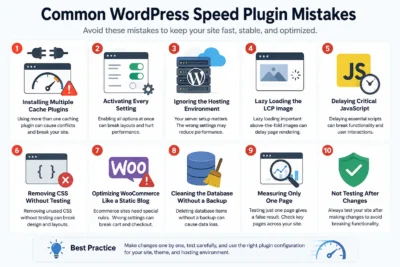
Common WordPress Speed Plugin Mistakes
Installing Multiple Cache Plugins
Running two full page-cache systems can create conflicting cache behavior.
Activating Every Setting
More optimization is not always better.
Ignoring the Hosting Environment
A LiteSpeed-specific cache setup is different from an NGINX or managed WordPress setup.
Lazy Loading the LCP Image
Your most important above-the-fold image may need priority rather than lazy loading.
Delaying Critical JavaScript
Some scripts are necessary for immediate interaction.
Removing CSS Without Testing
Unused-CSS tools can affect dynamic elements.
Optimizing WooCommerce Like a Static Blog
Cart and checkout behavior requires special handling.
Cleaning the Database Without a Backup
Database cleanup can permanently remove information.
Measuring Only One Page
The homepage may be fast while product pages or blog posts remain slow.
How to Choose the Right Plugin Step by Step
If you are unsure which plugin to install, follow this process.
Step 1: Check Your Server
Find out whether your hosting uses LiteSpeed, Apache, NGINX, or a managed WordPress platform.
Step 2: Check Existing Caching
Ask whether your hosting already provides page caching.
Step 3: Test the Website
Identify whether your main problem is TTFB, images, CSS, JavaScript, database processing, or third-party scripts.
Step 4: Choose One Main Caching System
Do not install several competing cache plugins.
Step 5: Identify Missing Features
Only add another optimization tool if your main plugin does not provide the required functionality.
Step 6: Configure Gradually
Enable one major optimization at a time.
Step 7: Test Every Important Function
Especially forms, menus, login, search, and WooCommerce.
Step 8: Re-Test
Compare the same URLs against your baseline.
Best Plugin by Website Type
| Website Type | Practical Starting Point |
|---|---|
| Simple Blog | WP Rocket, FlyingPress, or LiteSpeed Cache depending on hosting |
| Business Website | WP Rocket or FlyingPress; LiteSpeed Cache on compatible hosting |
| Elementor Website | WP Rocket, FlyingPress, or LiteSpeed Cache depending on server |
| WooCommerce | LiteSpeed Cache on compatible LiteSpeed hosting, or WP Rocket/FlyingPress after careful testing |
| Advanced Developer Setup | Perfmatters combined with an appropriate caching layer |
| Managed WordPress Hosting | Use the host’s caching first, then add only missing optimizations |
| LiteSpeed Hosting | LiteSpeed Cache is a natural first option |
The best wordpress speed optimization plugins are not necessarily the ones with the most features. A plugin can only perform well when it is correctly matched to the hosting environment, theme, plugins, content, and website architecture.
For many websites, WP Rocket, LiteSpeed Cache, FlyingPress, and Perfmatters are strong options to investigate, but they serve somewhat different purposes.
LiteSpeed Cache stands out when you have compatible LiteSpeed infrastructure because its page caching operates at the server level.
FlyingPress is attractive for owners who want extensive automated frontend optimization, including unused CSS, delayed JavaScript, image optimization, caching, and resource prioritization.
WP Rocket is useful for website owners who want a broad collection of caching and optimization features in a centralized interface.
Perfmatters is particularly useful when the main challenge is unnecessary scripts, styles, and WordPress features that need more precise control.
The most important principle is simple: choose one main caching strategy, avoid overlapping optimization features, make changes gradually, and test the website after every significant configuration change.
FAQ About WordPress Speed Optimization Plugins
What are the best WordPress speed optimization plugins?
Popular options include WP Rocket, LiteSpeed Cache, FlyingPress, and Perfmatters. The right choice depends on your hosting, theme, plugins, website type, and technical requirements.
What is the best page speed optimization plugin WordPress users can install?
There is no universal best plugin. LiteSpeed Cache can be a strong choice on LiteSpeed hosting, while WP Rocket or FlyingPress may suit other environments.
Can a speed optimization plugin improve Core Web Vitals?
It can help address some of the technical factors that influence Core Web Vitals, such as caching, image loading, CSS, JavaScript, and resource prioritization. However, results depend on the entire website.
Should I install two WordPress cache plugins?
Usually, no. Running multiple plugins with overlapping page-cache functionality can create conflicts and unnecessary complexity.
Is LiteSpeed Cache better than WP Rocket?
Neither is universally better. LiteSpeed Cache has a major advantage when the site uses compatible LiteSpeed infrastructure because of its server-level caching. WP Rocket can be attractive on other hosting environments.
Is FlyingPress good for WordPress?
FlyingPress offers caching and a broad range of frontend optimization features, including image optimization, unused CSS removal, JavaScript delay, lazy loading, and resource prioritization.
Is Perfmatters a caching plugin?
Perfmatters is primarily an optimization and asset-control solution rather than a replacement for a full page-cache system.
Can WordPress speed plugins break a website?
Yes. Aggressive CSS and JavaScript optimization can sometimes interfere with themes, plugins, forms, menus, sliders, and ecommerce functionality. Testing and exclusions are important.
Should I use a separate image optimization plugin?
It depends on your main performance plugin. If your primary plugin already handles image compression and modern formats effectively, another image optimization plugin may be unnecessary.
Do speed plugins improve mobile performance?
They can help reduce the amount of work and data required on mobile, but mobile performance also depends on hosting, page design, images, scripts, and network conditions.
How do I know which speed plugin is right for my website?
Start by checking your hosting environment, existing cache system, website type, theme, active plugins, and actual performance bottlenecks. Then choose the smallest set of tools that addresses those problems.
Need Help Choosing the Right WordPress Speed Plugin?
Installing a speed plugin is only one part of WordPress performance optimization. The wrong configuration can leave important problems unresolved or even cause broken layouts and functionality.
Not sure which WordPress speed optimization plugin is right for your website? Contact us for a professional speed audit and a tailored optimization strategy for your WordPress website.


