

How to Create a Sitemap XML: Step-by-Step Guide with Sitemap Examples

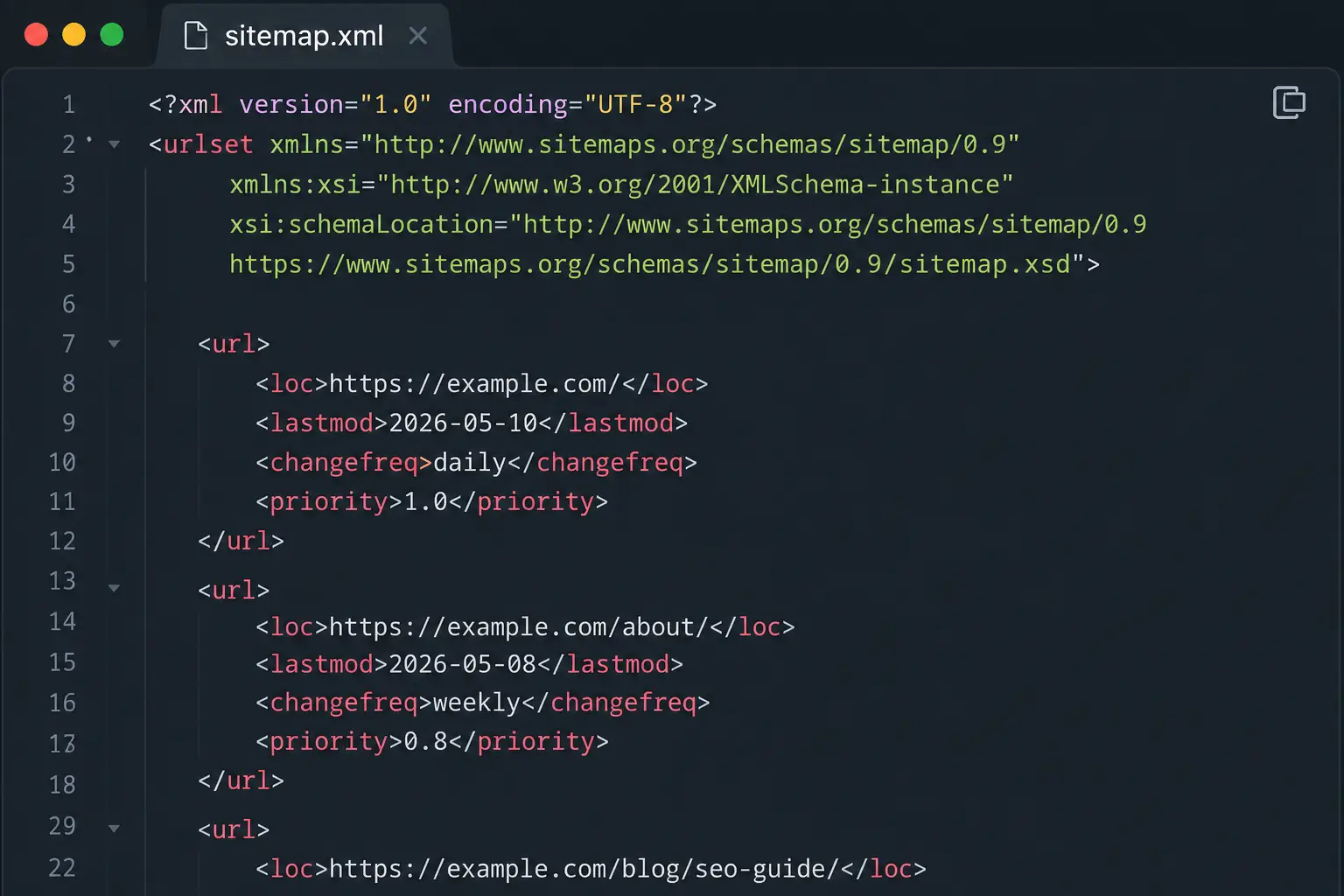
If you want to create a sitemap XML, the first step is to check whether your website already generates one automatically. Many platforms, including WordPress and other website builders, can create an XML sitemap without requiring you to build the file manually.
If no sitemap exists, you can create one using your website platform, an SEO tool, an ecommerce system, or manually by creating a valid XML file.
This guide focuses on the practical side of how to create a sitemap XML, including the correct XML structure, real examples, Sitemap Index files, URL selection, WordPress implementation, and sitemap validation.
How Do I Create a Sitemap?
The basic process is:
- Check whether your website already has a sitemap.
- Identify the URLs that should be included.
- Choose the appropriate sitemap generation method.
- Generate the XML file.
- Check the XML structure.
- Verify that every URL is correct and accessible.
- Upload the sitemap if you created it manually.
- Test the final sitemap URL.
Before creating a new sitemap, always check whether your CMS or website platform already provides one. Creating another sitemap when an existing one is already working can create unnecessary duplication.
Check Whether Your Website Already Has a Sitemap
Before creating anything manually, try common sitemap locations such as
https://example.com/sitemap.xml
or:
https://example.com/sitemap_index.xml
The exact location depends on the platform or sitemap generator.
If one of these URLs returns a valid sitemap, there may be no reason to create another one.
You should also check your website’s settings, SEO tools, or CMS documentation to see whether sitemap generation is already enabled.
What Is the Basic XML Sitemap Structure?
A basic XML sitemap contains a <urlset> element and one or more <url> elements.
A simple example looks like this:
<?xml version=”1.0″ encoding=”UTF-8″?>
<urlset xmlns=“http://www.sitemaps.org/schemas/sitemap/0.9”>
<url>
<loc>https://example.com/</loc>
</url>
<url>
<loc>https://example.com/about/</loc>
</url>
<url>
<loc>https://example.com/contact/</loc>
</url>
</urlset>
This is a simple valid structure for an XML Sitemap.
The most important part of each URL entry is:
<loc>https://example.com/page/</loc>
The <loc> element identifies the URL represented by that entry.
What Does Each Sitemap Element Mean?
XML Declaration
<?xml version=”1.0″ encoding=”UTF-8″?>
This identifies the document as XML and specifies UTF-8 encoding.
URL Set
<urlset xmlns=“http://www.sitemaps.org/schemas/sitemap/0.9”>
This defines the sitemap document and its XML namespace.
URL
<url>
Each <url> element represents one URL entry.
Location
<loc>https://example.com/page/</loc>
This is the URL you want to include.
For a practical sitemap, the URLs should be the canonical versions that you actually want search engines to crawl and potentially index.
learn mor: what is a sitemap
Which Sitemap Information Is Required?
For a standard XML sitemap, the <loc> element is the key required piece of information for each URL.
You may see additional elements in sitemap examples, but you should not add fields simply because they appear in an old tutorial.
For example, this older style is often seen:
<url>
<loc>https://example.com/page/</loc>
<changefreq>daily</changefreq>
<priority>0.8</priority>
</url>
These elements are not necessary for creating a basic sitemap.
A simpler structure is usually preferable:
<url>
<loc>https://example.com/page/</loc>
</url>
How to Create a Sitemap XML Manually
If your website does not generate a sitemap automatically, you can create one manually.
Step 1: Collect Your Important URLs
Create a list of URLs that you want included.
For example:
https://example.com/
https://example.com/about/
https://example.com/services/
https://example.com/contact/
https://example.com/blog/
Step 2: Check Every URL
Before adding a URL, make sure it:
- Exists.
- Uses the correct domain.
- Is the canonical version.
- Does not redirect.
- Does not return a 404 error.
- Is not a duplicate URL.
- Is intended to be crawled and potentially indexed.
Step 3: Create the XML File
Create a file called:
sitemap.xml
Then add the XML structure.
For example:
<?xml version=”1.0″ encoding=”UTF-8″?>
<urlset xmlns=“http://www.sitemaps.org/schemas/sitemap/0.9”>
<url>
<loc>https://example.com/</loc>
</url>
<url>
<loc>https://example.com/about/</loc>
</url>
<url>
<loc>https://example.com/services/</loc>
</url>
<url>
<loc>https://example.com/contact/</loc>
</url>
</urlset>
Step 4: Save the File
Save it as:
sitemap.xml
Make sure it is actually saved as an XML file and not:
sitemap.xml.txt
Step 5: Upload It to Your Website
If your sitemap is manually created, upload it to the appropriate location on your website.
A common URL would be:
https://example.com/sitemap.xml
Then open that URL in your browser and check that the file is accessible.
Sitemap Example for a Small Website
Imagine you have a small company website with five important pages.
A sitemap could look like this:
<?xml version=”1.0″ encoding=”UTF-8″?>
<urlset xmlns=“http://www.sitemaps.org/schemas/sitemap/0.9”>
<url>
<loc>https://example.com/</loc>
</url>
<url>
<loc>https://example.com/about/</loc>
</url>
<url>
<loc>https://example.com/services/</loc>
</url>
<url>
<loc>https://example.com/portfolio/</loc>
</url>
<url>
<loc>https://example.com/contact/</loc>
</url>
</urlset>
This is appropriate for a small website because there is no need to create multiple sitemap files when the number of URLs is small.
what is the best local seo company in2026
Sitemap Example for a Larger Website
Large websites may contain thousands or millions of URLs.
Instead of putting everything into one sitemap file, you can divide the URLs across multiple sitemap files and use a Sitemap Index.
For example:
sitemap-pages.xml
sitemap-posts.xml
sitemap-products.xml
sitemap-categories.xml
Then the Sitemap Index can reference these files.
<?xml version=”1.0″ encoding=”UTF-8″?>
<sitemapindex xmlns=“http://www.sitemaps.org/schemas/sitemap/0.9”>
<sitemap>
<loc>https://example.com/sitemap-pages.xml</loc>
</sitemap>
<sitemap>
<loc>https://example.com/sitemap-posts.xml</loc>
</sitemap>
<sitemap>
<loc>https://example.com/sitemap-products.xml</loc>
</sitemap>
<sitemap>
<loc>https://example.com/sitemap-categories.xml</loc>
</sitemap>
</sitemapindex>
The index does not contain individual page URLs. Instead, it points to the individual sitemap files.
Why Use a Sitemap Index?
A Sitemap Index makes large sitemap sets easier to organize.
For example, an ecommerce website could separate its content into:
Products
Categories
Pages
Blog Posts
This makes maintenance and troubleshooting easier.
It can also help you identify which group of URLs contains a problem if one sitemap file fails validation.
Ecommerce Sitemap Example
An online store may have:
- Product pages.
- Category pages.
- Important informational pages.
- Blog content.
A product sitemap could look like:
<?xml version=”1.0″ encoding=”UTF-8″?>
<urlset xmlns=“http://www.sitemaps.org/schemas/sitemap/0.9”>
<url>
<loc>https://example.com/products/phone-a/</loc>
</url>
<url>
<loc>https://example.com/products/phone-b/</loc>
</url>
<url>
<loc>https://example.com/products/phone-c/</loc>
</url>
</urlset>
A category sitemap could contain:
<?xml version=”1.0″ encoding=”UTF-8″?>
<urlset xmlns=“http://www.sitemaps.org/schemas/sitemap/0.9”>
<url>
<loc>https://example.com/category/mobile-phones/</loc>
</url>
<url>
<loc>https://example.com/category/laptops/</loc>
</url>
<url>
<loc>https://example.com/category/accessories/</loc>
</url>
</urlset>
The important point is to include URLs that represent useful, canonical pages rather than every URL generated by the store.
Which URLs Should You Include?
A sitemap should generally contain important canonical URLs that you want search engines to discover and potentially index.
Good examples include:
- Main pages.
- Important service pages.
- Published articles.
- Product pages.
- Relevant category pages.
- Other canonical indexable URLs.
For example:
https://example.com/services/seo/
may belong in a sitemap if it is a canonical page intended to be indexed.
Which URLs Should You Avoid?
Do not automatically add every URL you can find.
Generally avoid including:
Redirected URLs
For example:
https://example.com/old-page/
if it redirects to:
https://example.com/new-page/
The sitemap should normally contain the final canonical URL instead.
404 Pages
Do not include URLs that return:
404 Not Found
Duplicate URLs
If multiple URLs show essentially the same content and one is canonical, include the canonical version rather than every duplicate.
Non-Canonical URLs
If a page points to another URL as its canonical version, you generally want the canonical URL represented in the sitemap.
URLs That Should Not Be Indexed
If a URL is intentionally excluded from indexing, it generally should not be added to the sitemap simply because it exists.
find out: best GEO service providers
How to Create a Sitemap in WordPress
WordPress can generate XML sitemaps automatically, so the first step is not creating a new file.
First, check whether your website already has a sitemap.
You may find a sitemap through the site’s existing WordPress sitemap functionality or through an SEO plugin.
If a sitemap already exists and is working correctly, there is usually no need to create another sitemap manually.
WordPress and SEO Plugins
Some WordPress SEO plugins can also generate and manage XML sitemaps.
If you use one of these tools, check its sitemap settings and identify the generated sitemap URL.
The important point is to avoid having multiple systems independently generating competing sitemap structures without a reason.
For example, if WordPress already generates a sitemap and an SEO plugin also generates one, review the setup before enabling another sitemap generator.
How to Find an Existing WordPress Sitemap
Try checking common sitemap URLs such as:
https://example.com/wp-sitemap.xml
or:
https://example.com/sitemap_index.xml
The actual URL depends on your WordPress setup.
If you use an SEO plugin, check its sitemap settings as well.
Once you find an existing sitemap, open it and check the URLs it contains.
Should You Create a WordPress Sitemap Manually?
Usually, no.
If WordPress or your SEO plugin already generates and updates a valid sitemap, manually maintaining another file creates unnecessary work.
A manually created sitemap can quickly become outdated when you:
- Publish new posts.
- Add products.
- Delete pages.
- Change URLs.
- Create new categories.
Automatic generation is often more practical for websites with frequently changing content.
How to Create a Sitemap for Wix
Wix can generate website sitemaps automatically as part of its website infrastructure.
Therefore, Wix users should first identify the sitemap already generated by the platform rather than creating a separate XML file manually.
The exact management options depend on the Wix website setup and current platform features.
How to Create a Sitemap for Blogger
Blogger websites can have automatically generated sitemap functionality depending on the platform setup.
Before manually creating a sitemap, check the existing sitemap URL and verify that it contains the URLs you expect.
If the platform already generates the sitemap, manually maintaining another file may create unnecessary duplication.
How to Create a Sitemap for an Ecommerce Platform
For ecommerce websites, automatic sitemap generation is usually preferable because products and categories can change frequently.
Your platform or SEO system may generate separate sitemap files for:
- Products.
- Categories.
- Pages.
- Blog posts.
Before creating a custom sitemap, check what your ecommerce platform already provides.
How to Organize a Large Sitemap
A large website should be organized logically.
For example:
sitemap-pages.xml
sitemap-products-1.xml
sitemap-products-2.xml
sitemap-blog.xml
sitemap-categories.xml
The Sitemap Index can then reference the individual files.
This approach is useful when a website has a large number of URLs and when different content types need to be managed separately.
You should also make sure that the same URL is not unnecessarily repeated across multiple sitemap files.
How to Validate an XML Sitemap
Creating the file is only half of the process.
You also need to verify that it actually works.
Start by opening the sitemap URL:
https://example.com/sitemap.xml
Check that:
- The file loads.
- The XML is readable.
- The URL structure is correct.
- The URLs use the correct domain.
- There are no obvious broken URLs.
- The sitemap is not empty.
know mor about: website design services
Check the HTTP Response
The sitemap should be accessible to search engine crawlers.
When checking the URL, review whether the server returns an appropriate successful HTTP response.
An inaccessible sitemap may return errors such as:
404 Not Found
or:
403 Forbidden
A server error such as:
500 Internal Server Error
also needs to be resolved.
Check the XML Structure
A basic sitemap should have a structure similar to:
<?xml version=”1.0″ encoding=”UTF-8″?>
<urlset xmlns=“http://www.sitemaps.org/schemas/sitemap/0.9”>
<url>
<loc>https://example.com/page/</loc>
</url>
</urlset>
Check for:
- Missing closing tags.
- Incorrect nesting.
- Invalid characters.
- Missing XML namespace.
- Incorrect URL formatting.
Common Sitemap XML Error
A malformed example could look like:
<url>
<loc>https://example.com/page/</loc>
The <url> element has not been closed.
It should be:
<url>
<loc>https://example.com/page/</loc>
</url>
Even small XML formatting errors can make a sitemap invalid.
Sitemap Validation Checklist
Before considering your sitemap finished, check:
- Sitemap URL opens correctly.
- Server returns a successful response.
- XML declaration is valid.
- Correct sitemap namespace is used.
-
<urlset>is properly closed. - Every
<url>is properly closed. - Every URL has a
<loc>. - URLs are correctly formatted.
- URLs are canonical.
- Redirected URLs are removed.
- 404 URLs are removed.
- Duplicate URLs are reviewed.
- Non-indexable URLs are excluded.
- New content can be added automatically or through a reliable update process.
Website Type → Recommended Sitemap Method
| Website Type | Recommended Sitemap Method | Where the Sitemap Is Usually Generated | What to Check |
|---|---|---|---|
| Small custom website | Manual XML or automated generator | Website/server | XML structure and URLs |
| WordPress | WordPress or SEO plugin | WordPress | Existing sitemap before creating another |
| Wix | Platform-generated | Wix | Generated sitemap and URLs |
| Blogger | Platform-generated | Blogger | Existing sitemap |
| Ecommerce | Platform/plugin-generated | Ecommerce system | Products, categories, canonical URLs |
| Large custom website | Automated generation + Sitemap Index | Server/application | Multiple sitemap files and index |
| News website | CMS/plugin-generated | CMS | Published and canonical content |
| Large WordPress website | WordPress/plugin + Sitemap Index when needed | WordPress | URL organization and duplicates |
Common Sitemap Creation Mistakes
Creating Multiple Conflicting Sitemaps
Creating several sitemap systems without understanding which one is active can make management more complicated.
First identify the existing sitemap.
Manually Maintaining a Sitemap That Could Be Automated
If your website publishes new pages every day, manually updating an XML file is inefficient.
An automatic system can keep the sitemap synchronized with your content.
Including Redirected URLs
A sitemap should generally point to the final canonical URL rather than an old URL that redirects somewhere else.
Including 404 URLs
Broken URLs should be removed instead of being left in the sitemap.
Including Non-Canonical URLs
If a URL is not the canonical version, review whether it belongs in the sitemap.
Forgetting New Content
A manually maintained sitemap can become outdated when new pages or products are added.
Creating Invalid XML
A missing tag, incorrect structure, or invalid character can cause problems when the sitemap is processed.
Creating a Sitemap Without Checking the Existing One
This is especially common on WordPress websites.
Always check whether WordPress or an SEO plugin has already created one.
How to Know If Your Sitemap Is Ready
Your sitemap is ready when:
- The XML file is correctly structured.
- The sitemap URL is accessible.
- The server returns a successful response.
- The URLs are valid.
- The URLs are canonical.
- Redirected and broken URLs are removed.
- The sitemap is kept updated.
- Large websites use an appropriate Sitemap Index structure when needed.
The goal is not to create the largest sitemap possible.
The goal is to create a clean, valid, maintainable sitemap containing the right URLs.
find out: SEO Company in Egypt
FAQ: How to Create a Sitemap XML
How do I create a sitemap?
First check whether your website platform already creates one automatically. If it does not, you can generate an XML sitemap using a suitable tool or create the XML file manually.
How do I create an XML sitemap manually?
Create an XML file containing a <urlset> element and individual <url> entries with <loc> elements containing your canonical URLs.
Can I create a sitemap manually?
Yes. A small website can have a manually created sitemap, but automatic generation is usually more practical for websites whose content changes frequently.
What should a sitemap look like?
A basic sitemap can look like this:
<?xml version=”1.0″ encoding=”UTF-8″?>
<urlset xmlns=“http://www.sitemaps.org/schemas/sitemap/0.9”>
<url>
<loc>https://example.com/</loc>
</url>
<url>
<loc>https://example.com/about/</loc>
</url>
</urlset>
Where should I put my sitemap?
A common location is:
https://example.com/sitemap.xml
However, the actual location depends on how your website generates the sitemap.
How do I know if my sitemap is valid?
Open the sitemap URL, check that it returns successfully, verify that the XML is properly structured, and review the URLs for redirects, 404 errors, duplicates, and non-canonical URLs.
Can WordPress create a sitemap automatically?
Yes. WordPress can generate a sitemap automatically, and SEO plugins may also provide sitemap functionality. Check the existing sitemap before creating another one.
Do I need a Sitemap Index?
Not every website needs one. A Sitemap Index becomes useful when you have a large sitemap set that needs to be divided into multiple sitemap files.
Should I include redirected URLs in my sitemap?
Generally, no. Use the final canonical URL instead of a URL that redirects.
Should 404 pages be included?
No. URLs that return 404 errors should generally be removed from the sitemap.
Need Help Creating or Validating Your Sitemap?
Creating an XML sitemap is simple when the website is small, but larger WordPress, ecommerce, and custom-built websites can have more complicated URL structures.
If you are unsure whether your sitemap is correctly generated, contains the right canonical URLs, or is properly organized into multiple files, Be One agency can help review and validate your technical SEO setup.
Need help creating or validating an XML sitemap for your website? Contact Be One for professional technical SEO support and make sure your sitemap is correctly structured and ready for search engines.


