

Website Speed Optimization: A Practical Guide to Speeding Up Your Website and Improving Performance

If you are wondering how to improve your website speed, the right place to start is not by installing a new plugin or randomly deleting files. First, you need to understand what is causing the slowdown. The problem could be a large image, JavaScript or CSS files, weak hosting, incorrect Cache settings, too many plugins, or a database that needs to be organized.
Therefore, website speed optimization should be an organized process that starts with measuring and diagnosing the problem, then identifying the issues with the biggest impact, implementing the right solutions, and testing the result again.
How Do You Know What Is Making Your Website Slow Before Optimizing It?
Before changing anything, try to answer one simple question:
Where does the slowdown happen?
Is the homepage slow? Are product pages slow? Or is the entire website slow? Does the problem appear only on mobile or on desktop as well?
The problem may be related to:
- Image size.
- CSS files.
- JavaScript files.
- Hosting.
- Database.
- Plugins.
- Theme.
- Fonts.
- Third-party code.
- Caching.
- Number of HTTP requests.
- The way resources are loaded.
If you start applying random solutions, you may waste time or create new problems.
What Are the Best Website Speed Testing Tools?
There are several tools you can use to diagnose performance, but do not rely on one number only.
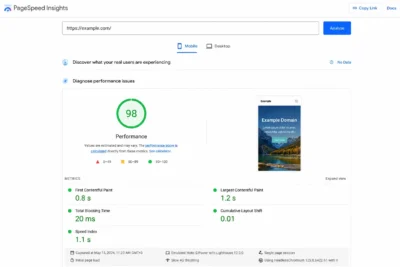
PageSpeed Insights
PageSpeed Insights can help you analyze a page and review different performance indicators and potential problems.
You can use it to compare:
- Mobile.
- Desktop.
But do not make getting a high score your only goal.
The real goal is to understand:
What is making the page slow?
Lighthouse
Lighthouse can be used to analyze website pages and review performance and many technical aspects.
It is useful when you want to understand which elements need improvement instead of focusing only on the Performance score.
GTmetrix
GTmetrix provides a detailed report that can help you identify:
- Large files.
- Page requests.
- Loading times.
- Resources that take a long time to load.
- Performance-related problems.
Which Tool Should You Use?
You can use more than one tool, but do not compare their numbers as if they were results from the same test.
Results may differ because of:
- The server used for testing.
- Geographic location.
- Connection speed.
- Device.
- Cache.
- Testing time.
Therefore, use the tool to understand the cause of the problem, then test again in the same way as much as possible after making improvements.
What Is the Difference Between Diagnosing a Slow Website and Solving the Problem?
This is a very important point.
A testing tool may show a message such as:
Reduce unused JavaScript
But this does not mean that the solution is to delete every JavaScript file you find.
The file may be required for a specific function.
Similarly, if you see:
Properly size images
the solution is not to delete the images. It is to provide them at the appropriate dimensions for their display.
So the process should be:
Diagnosis → Understand the Cause → Choose the Solution → Test
Not:
Warning Appears → Delete Something → Test Again.
How Does Image Compression Improve Website Speed?
Images are among the elements that can have a major effect on page size, especially on websites that depend heavily on images.
An image may be:
- Larger than necessary.
- Saved in an unsuitable format.
- Higher quality than needed.
- Loaded at a very large resolution even though it is displayed at a small size.
How Can You Reduce Image Size?
You can:
- Choose suitable dimensions.
- Compress images.
- Use modern formats when appropriate.
- Avoid uploading huge images and then resizing them with CSS.
- Use different images for different devices when needed.
Example
If an image will appear inside an area that is 800 pixels wide, there is not always a reason to upload an image that is 5,000 pixels wide.
A larger image means more data that needs to be downloaded.
What Are Modern Image Formats?
You can use modern formats such as:
WebP
and
AVIF
when they are suitable for the browser and website.
But do not make changing the image format a separate goal.
The important thing is to achieve:
Suitable Quality + Appropriate File Size + Fast Loading.
Why Should You Specify Image Dimensions?
When the browser knows the image dimensions in advance, it can reserve the appropriate space while building the page.
If the dimensions are not clear, page elements may move after the image loads.
Therefore, it is better to provide:
Width + Height
with values suitable for the image.
This does not mean that the image needs to be huge. Its dimensions simply need to be known and suitable for its intended use.
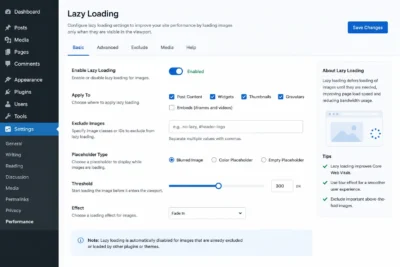
What Is Lazy Loading?
Lazy Loading means delaying the loading of some resources until they are needed.
For images, this can mean delaying images located below the visible part of the page until the user starts reaching them.
This reduces the amount of data the browser needs to load initially.
When Is Lazy Loading Useful?
It is especially useful when a page contains:
- Many images.
- Long articles.
- Many products.
- A Gallery.
- Content below the fold.
However, you should be careful when applying Lazy Loading to elements that the user needs immediately.
Should You Use Lazy Loading for the Main Image?
Not always.
If the main image is the primary element visible to the user when the page opens, delaying it may not be appropriate.
Therefore, you should distinguish between:
Important elements at the beginning of the page
and
Elements located below the page.
The goal is not to apply Lazy Loading to everything. The goal is to load resources at the right time.
How Can You Reduce Unnecessary CSS Files?
CSS controls the website’s design, but some websites load CSS files containing rules that the page does not actually use.
This can happen because of:
- The theme.
- Page Builder.
- Plugins.
- Large design libraries.
- Features that are loaded on every page.
You can improve this by identifying which files are actually being loaded and determining what can be reduced or loaded only when needed.
But do not delete CSS without knowing what it is used for.
Deleting one file may cause:
- Elements to disappear.
- The design to change.
- Mobile problems.
- Parts of the page to stop working.
Read also: Google Search Console Explained
How Can You Reduce Unnecessary JavaScript?
JavaScript can add interactive functions to a website, but it can become a source of slow performance when many files are loaded at the beginning of the page.
You can review:
- Theme scripts.
- Plugin scripts.
- Analytics code.
- Widgets.
- Chat tools.
- Advertisements.
- Tracking tools.
The important question is:
Does the user need to load this code immediately when the page opens?
If the answer is no, it may be possible to delay it or load it when needed.
What Does Delaying Non-Critical Code Mean?
Some code is not needed by the user at the first moment.
It can be loaded later instead of loading everything at the same time.
For example:
- Chat tools.
- Some analytics tools.
- Widgets.
- Some interaction scripts.
- Some third-party code.
However, you should test the website after delaying code because some functions depend on JavaScript being available early.
How Do Fonts Affect Website Speed?
External fonts can add extra requests and files.
A website may load:
- Several font weights.
- Several font families.
- Different versions.
- Fonts that are not actually used.
You can improve this by:
- Using a limited number of weights.
- Removing unused fonts.
- Hosting fonts locally when appropriate.
- Loading only the fonts that are needed.
How Can You Reduce Third-Party Code?
Third-party code includes services that are loaded from outside the website.
Examples include:
- Google Analytics.
- Chat tools.
- Advertisements.
- Social Widgets.
- Map tools.
- Tracking tools.
- Video Embeds.
Each service may add new files and requests.
Therefore, review every service and ask:
Do we really need it?
If a service does not provide real value, removing it may be better than trying to optimize the way it loads.
What Is Browser Caching?
Browser Caching allows the browser to keep some resources for a certain period instead of downloading them again on every visit.
These resources may include:
- CSS.
- JavaScript.
- Images.
- Fonts.
This can make repeat visits more efficient.
However, Cache Headers should be configured properly so users do not receive an old version of files after the website is updated.
What Is Page Caching?
Page Caching allows a ready version of a page to be stored instead of running all WordPress processes on every visit.
Instead of the user requesting a page and WordPress doing all of the following every time:
- Running PHP.
- Running database queries.
- Loading plugins.
- Building the page.
a cached version can be served when appropriate.
This is very useful for pages that do not change with every visit.
Is Page Caching Suitable for All Store Pages?
Not necessarily.
Online stores contain dynamic pages such as:
- Cart.
- Checkout.
- My Account.
These pages handle user and order data, so they require more precise Cache settings.
Cache should not be applied to everything in exactly the same way.
How Does File Compression Improve Website Speed?
Some files can be compressed before they are sent to the browser to reduce the amount of data.
Examples include:
- HTML.
- CSS.
- JavaScript.
Technologies used for data compression include:
Gzip
and
Brotli
However, compression settings must be compatible with the server and hosting environment.
What Is a CDN and How Does It Improve Website Speed?
A CDN, or Content Delivery Network, is a network of servers that helps deliver content from a location that is geographically closer to the user.
For example, if a website’s audience is distributed across:
- Egypt.
- Saudi Arabia.
- UAE.
- Europe.
a CDN may help deliver resources from locations closer to users.
Resources may include:
- Images.
- CSS.
- JavaScript.
- Static files.
However, a CDN is not a magic solution for every speed problem.
If the server itself is slow or the website loads large amounts of JavaScript, a CDN alone will not fix the main problem.
How Can You Improve the WordPress Database?
Over time, the database may contain a large amount of data, such as:
- Revisions.
- Plugin data.
- Spam comments.
- Transients.
- Old data.
- Tables belonging to deleted plugins.
However, database cleanup should be done carefully.
Do not delete any table or record simply because it looks unnecessary.
It is better to:
- Take a Backup.
- Identify the source of the data.
- Make sure no Plugin depends on it.
- Perform the cleanup.
- Test the website.
How Do Plugins Affect WordPress Speed?
The problem is not always the number of plugins.
One plugin may have a greater impact than ten simple plugins.
A plugin may:
- Load CSS on every page.
- Load JavaScript.
- Run database queries.
- Add external requests.
- Work in the Dashboard.
- Perform operations on the Front End.
Therefore, do not follow the rule:
The fewer plugins you have, the faster the website will be.
A better approach is:
Use the plugins you need and check their actual impact.
How Can You Improve WordPress Speed in Practice?
You can start with these steps:
Step 1: Test the Website
Use an appropriate performance testing tool.
Step 2: Identify the Biggest Problems
Do not try to fix 20 problems at the same time.
Start with the problems that have a clear impact.
Step 3: Review Images
Compress images, specify their dimensions, and use suitable formats.
Step 4: Review Plugins
Identify tools that add many resources or unnecessary functions.
Step 5: Review Cache
Make sure you have an appropriate caching strategy.
Step 6: Review JavaScript and CSS
Identify resources that can be delayed or reduced without breaking the website.
Step 7: Review Hosting
If the page is simple but the server is still slow, the problem may be outside the website files.
Step 8: Test Again
Compare the results before and after the changes.
How Does Hosting Affect Website Speed?
Hosting can be a direct cause of a slow website.
Performance may be affected by:
- Server resources.
- Storage type.
- Number of websites on the server.
- PHP settings.
- Server location.
- CPU and RAM resources.
- Server Cache settings.
If you have applied many improvements but the initial response is still slow, do not ignore the server.
Sometimes the problem is not the page itself, but the amount of time the server needs to start sending it.
How Does Website Design Affect Performance?
Website speed does not depend only on hosting or performance optimization plugins. It also starts with how the website itself is built.
When choosing Best Website Design Companies in Egypt, the focus should not be only on appearance. It should also include the website structure, how files and images are loaded, and how JavaScript and CSS are used.
A well-built design can reduce unnecessary resources and help create lighter pages that are easier to load. In contrast, a complex design or reliance on many tools and files can increase page size and the number of requests.
Therefore, it is better to think about performance from the website design and development stage instead of trying to solve all speed problems after launch.
How Can You Improve WooCommerce Store Speed?
Online stores need additional attention because some pages depend on dynamic data.
Product Pages
You can improve:
- Product image size.
- Thumbnails.
- Unnecessary Scripts.
- Number of visible products.
- Cache for appropriate resources.
How Can You Improve WooCommerce Store Speed?
Category Pages
If a category displays dozens of products, review:
- Image size.
- Number of products.
- Filters.
- Search.
- JavaScript.
- Product loading.
Cart and Checkout
These pages should be handled carefully.
Do not apply Cache or JavaScript optimizations to them without testing, because an inappropriate change may affect:
- Cart updates.
- Accounts.
- Payment methods.
- Shipping.
- Forms.
Website Performance Problems and Solutions
| Performance Problem | Possible Cause | How to Identify It | Suitable Solution | Priority |
|---|---|---|---|---|
| Large images | Incorrect dimensions or quality | Analyze images and page size | Compress images and use suitable dimensions | High |
| Many images loading | Large number of images | Check page requests | Lazy Loading and image optimization | High |
| Large JavaScript | Plugins or external tools | Waterfall and file analysis | Reduce or delay unnecessary files | High |
| Unused CSS | Theme or plugins | Resource analysis | Reduce resources when needed | Medium |
| Slow response | Server or PHP | Measure response time | Review hosting and server settings | High |
| Ineffective Cache | Incorrect settings | Test repeat visits | Configure Page/Browser Cache | High |
| Too many requests | Many resources | Waterfall | Reduce unnecessary resources | Medium |
| Too many fonts | Several weights and fonts | Network | Reduce fonts and weights | Medium |
| Too much external code | Analytics, Widgets, and others | Network | Remove unnecessary code or delay it | High |
| Large database | Revisions and old data | Check database | Safe cleanup after Backup | Medium |
| Unsuitable CDN | Incorrect settings | Compare performance with and without CDN | Review settings | Medium |
| Heavy Plugin | Many operations | Test the Plugin | Replace it or reduce its loading | High |
What Are the Common Mistakes When Optimizing Website Speed?
Installing Too Many Speed Optimization Plugins
Using five performance optimization plugins does not mean that the website will become faster.
The plugins themselves may cause:
- Conflicts.
- Duplicate settings.
- JavaScript problems.
- Overlapping Cache systems.
Enabling Every Optimization Option
Some tools provide dozens of options.
Do not enable everything at once.
Enable one setting and test the website.
Over-Compressing Images
A smaller image is not always a better image.
If compression is too strong, you may get:
- Distortion.
- Loss of detail.
- Poor quality.
Using a CDN Without Understanding the Settings
A CDN requires appropriate configuration for:
- Cache.
- SSL.
- DNS.
- Dynamic files.
Randomly Deleting JavaScript Files
This may break:
- Menus.
- Forms.
- Sliders.
- Cart.
- Checkout.
Deleting Database Files Without a Backup
This is one of the most dangerous practices.
Always keep a Backup before performing important cleanup.
How Do You Know That Your Website Is Actually Faster?
Do not rely only on your feeling that the website has become faster.
Run a test before and after optimization.
Use:
- The same page.
- The same testing tool.
- Similar settings.
- More than one test when possible.
Compare:
- Response time.
- Page size.
- Number of requests.
- Images.
- JavaScript.
- CSS.
- Key performance indicators.
But the most important factor is the real user experience.
If the report improves while the page becomes less stable or an important function stops working, this is not a real improvement.
How Does Website Speed Work With SEO Services?
Website speed optimization can be an important part of technical website work, but it is not a complete SEO strategy by itself.
Along with performance optimization, websites need attention to:
- Page structure.
- Content.
- Internal links.
- User experience.
- Finding and fixing technical problems.
Therefore, SEO Services can be used to perform a broader website optimization process, with loading speed treated as part of the bigger picture rather than as a separate solution that guarantees search results on its own.
Practical Example: Before and After Optimizing a Page
Before Optimization
A page contains:
- Large images.
- Several fonts.
- Many external Scripts.
- No Page Cache.
- A large number of files.
The result:
Large page size + Many requests + Slow loading.
After Optimization
The following changes were made:
- Images were compressed.
- WebP or AVIF was used where appropriate.
- Some Scripts were delayed.
- The number of fonts was reduced.
- Appropriate Cache was enabled.
- Unnecessary external tools were removed.
The expected result:
Smaller size + Fewer resources + More efficient loading.
However, the result should be measured rather than assumed.
Website Speed Optimization Checklist
Before Optimization
- Test the page.
- Identify slow pages.
- Identify the largest files.
- Review images.
- Review JavaScript.
- Review CSS.
- Review plugins.
- Review Cache.
- Review hosting.
- Review third-party code.
During Optimization
- Compress images.
- Specify image dimensions.
- Enable Lazy Loading when needed.
- Reduce fonts.
- Reduce unnecessary Scripts.
- Delay non-critical code.
- Optimize CSS.
- Configure Browser Cache.
- Configure Page Cache.
- Use a CDN when needed.
- Review the database.
- Test the website after each group of changes.
After Optimization
- Test the page again.
- Compare the results.
- Test on mobile.
- Test on desktop.
- Test forms.
- Test search.
- Test menus.
- Test the store if available.
- Test Cart and Checkout.
- Make sure there are no JavaScript errors.
Learn more about Local SEO Services from Be One.
How Can You Speed Up Your Website Without Causing Problems?
The best approach is not to change all settings at the same time.
Use this process:
Measure → Diagnose → Change → Test → Compare
FAQ: Frequently Asked Questions About Website Speed Optimization
How Can I Speed Up My Website?
Start by measuring performance and identifying the cause of the slowdown. Then focus on images, JavaScript, CSS, Cache, hosting, and third-party code. Do not start by installing many plugins before knowing the problem.
What Makes a Website Slow?
Common causes include large images, heavy files, too many requests, unnecessary plugins or code, weak hosting, incorrect Cache settings, and too much third-party code.
How Can I Speed Up WordPress?
Review the theme, plugins, images, JavaScript, and CSS. Then configure caching and review the hosting and database. It is better to test every change instead of applying random settings.
How Can I Reduce Image Size?
Use appropriate dimensions, compress images, and use WebP or AVIF when suitable. Avoid uploading an image that is much larger than the space where it will be displayed.
What Is Lazy Loading?
It is a technique that delays loading some images or resources until they are needed. This reduces the resources loaded when the page initially opens.
Do Too Many WordPress Plugins Make a Website Slow?
Not necessarily. The impact depends on what each plugin does and how it works. One heavy plugin can have a greater impact than several simple plugins.
Does Removing Plugins Make WordPress Faster?
Removing unused plugins may help reduce complexity and resources, but not every installed plugin affects the Front End in the same way. You should identify its actual impact before making a decision.
Does a CDN Speed Up a Website?
A CDN can help deliver static files from servers closer to users, but it does not solve every performance problem, especially when the issue is related to the server or the website’s own code.
Should I Use More Than One Speed Optimization Plugin?
Usually, you do not need several plugins that perform the same function. Duplicating Cache or Optimization tools can cause conflicts instead of improving performance.
How Can I Reduce Page Loading Time?
Start by reducing page size and the resources being loaded, optimizing images, reducing unnecessary JavaScript and CSS, configuring Cache, and reviewing hosting and third-party code.
Do I Need to Get 100 on PageSpeed Insights?
No. The score is not the only goal. What matters is understanding the problems, improving actual performance, and maintaining good website functionality and user experience.
How Do I Know If the Speed Problem Is Caused by Hosting?
If the page itself is relatively light but the server response time remains consistently high, hosting or server settings may be part of the problem. Compare results and test the hosting environment before making a decision.
Is Improving WooCommerce Speed Different From Regular WordPress?
Yes. WooCommerce contains dynamic pages and functions such as Cart, Checkout, and Accounts. Therefore, Cache and JavaScript Optimization should be applied carefully so store functions are not affected.
Website speed optimization does not mean installing a Cache plugin and waiting for a magic result. Good performance starts with identifying the problem and then choosing the right solution.
Start by measuring performance, then review images, files, hosting, plugins, database, Cache, and third-party code. After that, test the website again and compare the results.
The most important rule is:
Do not optimize your website only for a testing score; optimize it for more efficient page loading and a better user experience.
If your website is still slow after applying the basic optimization steps, the Be One team can review your website performance, identify the sources of the slowdown—from images and plugins to files, hosting, and Cache—and create a practical optimization plan without affecting your website’s functions.


