

How to connect and link search console to google analytics.

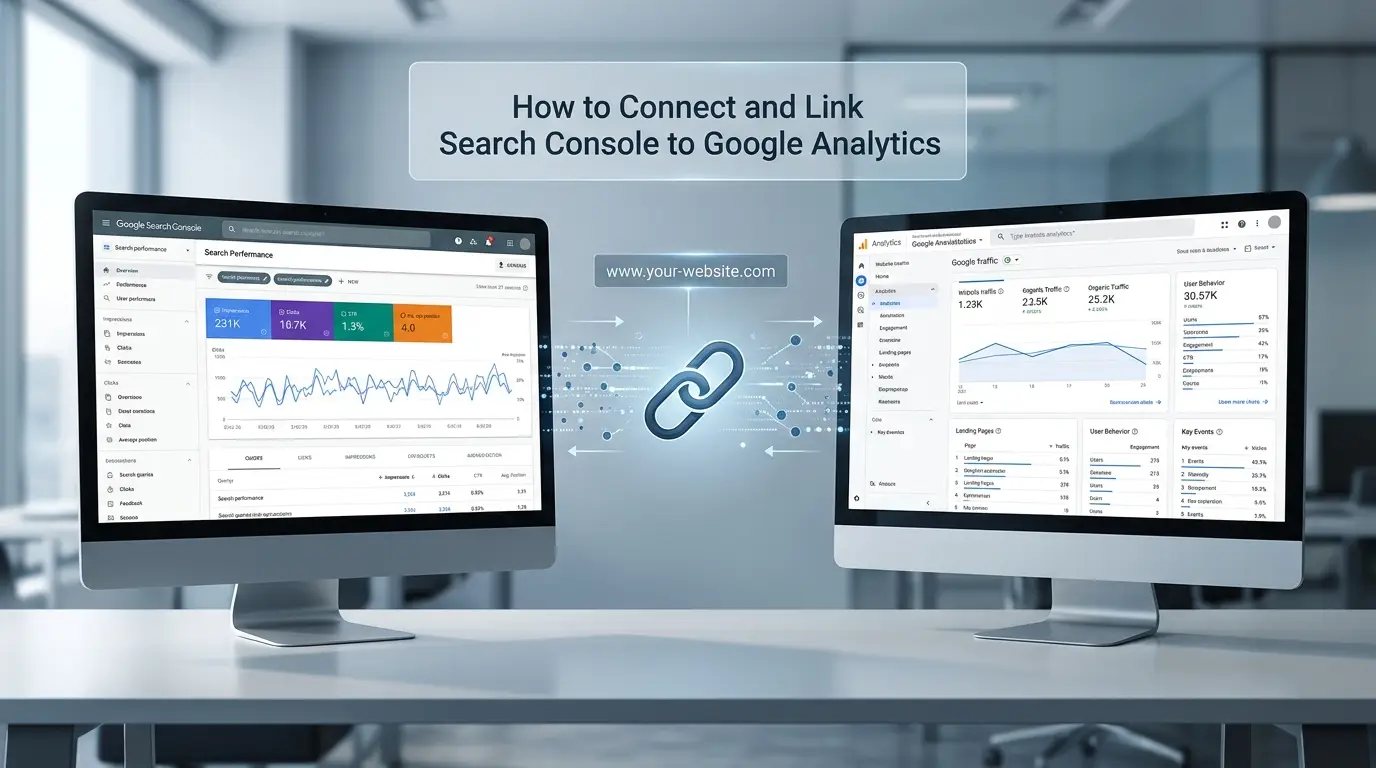
If you want to understand both how your website appears in Google Search and what visitors do after they reach your site, connecting Google Search Console with Google Analytics can give you a more complete view of organic performance.
To connect the two platforms, you need a verified Google Search Console property and a Google Analytics 4 property with the appropriate access. In Google Analytics, go to Admin → Product links → Search Console Links, choose Link, select the Search Console property and the relevant web data stream, then review and submit the connection. Google also allows the connection to be created from Search Console.
However, Search Console and Google Analytics are separate Google products. They measure different parts of the customer journey, so connecting them does not turn their data into one identical dataset.
Search Console primarily tells you what happens in Google Search, including impressions, clicks, queries, click-through rate, and search position. Google Analytics focuses more on what happens after visitors arrive on your website, such as engagement, landing-page behavior, and key events.
This guide explains how the two platforms work together, how to connect them, what data you can compare, why numbers may differ, and how SEO teams can use both tools to make better decisions.
What Are Google Search Console and Google Analytics?
Google Search Console and Google Analytics answer two different questions about your website.
Google Search Console asks:
How is my website performing in Google Search?
Google Analytics asks:
What do users do after they reach my website?
This distinction is important because the platforms collect and process data differently.
What does Google Search Console measure?
Search Console provides information about your website’s performance in Google Search. Depending on the report, you can analyze metrics such as:
- Clicks
- Impressions
- Click-through rate (CTR)
- Average position
- Search queries
- Landing pages
- Countries
- Devices
For example, you may discover that a blog post received 20,000 impressions but only 300 clicks.
That tells you that Google is showing the page frequently, but the page may have an opportunity to improve its search-result performance.
What does Google Analytics measure?
Google Analytics focuses on activity on your website after users arrive.
Depending on your setup, you can analyze:
- Users
- Sessions
- Traffic sources
- Landing pages
- Engagement
- Events
- Key events
- Conversions
- User behavior
For example, Analytics might show that users arriving through organic search spend significant time on a particular service page and frequently trigger an important event.
Search Console can tell you why and where users discovered the page in Google Search, while Analytics can help you understand what happened after they arrived.
This data is also useful for local SEO, especially when businesses need to understand how their pages perform for location-based searches.
What is Search Console in Google Analytics?
If you’re searching for what is search console in google analytics, the most important thing to understand is that Search Console is not a feature inside Google Analytics itself.
They are separate Google products that can be connected.
Google Analytics can receive certain Search Console data after you establish the integration. The current integration connects a Google Analytics 4 web data stream with a Search Console website property.
This connection allows you to view specific Search Console reports within Analytics, but it does not mean that every Search Console metric becomes a standard Analytics metric.
For example, the integration currently provides reports related to:
- Google organic search queries
- Google organic search traffic
- Search Console metrics
- Landing pages
- Country
- Device
Google states that Search Console data available through the integration can take up to 48 hours after collection to appear in Analytics.
Think of the relationship this way:
Google Search → Search Console → Search performance
Google Search → Website → Google Analytics → User behavior
When you connect the platforms, you get a better opportunity to analyze these two parts together.
Google Search Console vs Google Analytics: What’s the Difference?
| Feature | Google Search Console | Google Analytics |
|---|---|---|
| Main purpose | Measure Google Search performance | Measure website and user behavior |
| Main data source | Google Search | Website/app activity |
| Search queries | Yes | Available through the Search Console integration, with limitations |
| Impressions | Yes | Search Console data in integrated reports |
| Search clicks | Yes | Search Console data in integrated reports |
| Average position | Yes | Search Console data in integrated reports |
| Organic sessions | No | Yes |
| Engagement | No | Yes |
| Events | No | Yes |
| Key events/conversions | Not as an Analytics metric | Yes |
| Landing-page behavior | Limited search-focused context | Detailed behavioral context |
| Main SEO use | Understand visibility and search performance | Understand what visitors do after arriving |
The biggest difference is where each platform sits in the user journey.
Search Console is closer to the search results.
Analytics is closer to the website experience.
Why Should You Connect Search Console and Google Analytics?
Connecting the platforms gives you a more complete SEO analysis workflow.
Imagine that one of your pages has:
- 50,000 impressions
- 1,000 clicks
- A 2% CTR
- Strong average visibility
- High organic traffic
- Low engagement
Search Console helps you understand the first part of that story.
Analytics helps you investigate what happens after those clicks.
You can then ask more useful questions:
- Is the page attracting the right audience?
- Are visitors engaging with the content?
- Are they moving to other pages?
- Are they completing important actions?
- Is the page ranking for relevant queries?
- Should the title and snippet be improved?
- Does the content satisfy the search intent?
That is where combining the two platforms becomes useful.
What Do You Need Before Connecting Search Console and Google Analytics?
Before you try to connect the platforms, check your properties and permissions.
1. A verified Search Console property
You need access to the Search Console property you want to connect.
Google’s current requirements state that the person creating the link must be a verified owner of the Search Console property.
If you haven’t verified your website yet, complete the Search Console ownership verification first.
2. A Google Analytics 4 property
You also need a Google Analytics 4 property collecting data from the relevant website.
Make sure the Analytics property is the one associated with the website you want to analyze.
3. The correct web data stream
The current Search Console integration works with a Google Analytics 4 web data stream.
The selected data stream should represent the same website covered by the Search Console property. Google specifically recommends ensuring that the two properties collect data for the same set of web pages.
4. The correct permissions
Permissions are one of the most common reasons an integration option may not work as expected.
To create the link, Google currently requires:
- Editor access to the Google Analytics property
- Verified owner access to the Search Console property
If you’re managing the website for a client, don’t assume that having access to the website itself automatically gives you the permissions required in both Google products.
How to Connect Search Console to Google Analytics
The current Google Analytics workflow is straightforward once the required permissions are available.
Step 1: Open Google Analytics
Sign in to the Google account that has access to the relevant Google Analytics 4 property.
Select the correct property before changing any settings.
Step 2: Open Admin
From the Google Analytics interface, open Admin.
The exact interface can change over time, so verify the current labels before publishing screenshots or instructions based on a particular version of the interface.
Step 3: Find Product links
Inside the Admin area, look for Product links.
Then select:
Search Console Links
Google’s current documentation lists this path under the Analytics Admin area.
Step 4: Click Link
In the Search Console Links section, click Link.
This begins the process of connecting your Analytics property with a Search Console property.
Step 5: Choose the Search Console property
Select the Search Console property you manage.
You need to be a verified owner of the property for it to be available for linking.
Double-check the website address before continuing.
For example, make sure you aren’t accidentally connecting:
https://www.example.com
when your intended Search Console property represents:
https://example.com
Property configuration matters when you’re trying to compare data across platforms.
Step 6: Select the Analytics web stream
Choose the web data stream associated with the website.
Google’s current setup process asks you to select the web data stream after selecting the Search Console property.
Make sure the selected stream is actually collecting data for the same website.
Step 7: Review the configuration
Review the selected Search Console property and Analytics web stream.
If everything is correct, submit the configuration.
Once the connection is established, the Search Console reports can become available in the relevant Analytics property.
How to Link Google Analytics to Search Console
If you’re specifically looking for how to link google analytics to search console, the process can also be initiated from the Search Console side.
Google currently supports creating the connection from either Analytics or Search Console.
The important thing is not which interface you start from, but whether:
- You have the correct Search Console property.
- You have the correct GA4 property.
- The website data streams represent the same website.
- You have the required permissions.
- You select the correct properties during the connection process.
If the connection isn’t available, don’t immediately assume that Google has removed the feature. First check your account permissions and whether you’re working with the correct property.
Can You Edit a Search Console Link After Creating It?
Currently, Google states that Search Console links cannot be edited directly.
If you need to change the configuration, you must remove the existing link and create a new one with the correct settings.
This is useful to remember if you accidentally choose the wrong Analytics web stream.
Rather than looking for an edit button, review the existing link and recreate it with the correct configuration if necessary.
What Happens After You Connect Search Console and Google Analytics?
Once the integration is active, Google Analytics can provide specific reports containing Search Console data alongside relevant Analytics information.
Google currently documents two main reports:
Google Organic Search Queries
This report contains search queries and associated Search Console metrics for the linked Search Console property.
It can help you understand which searches are generating visibility and clicks.
Google Organic Search Traffic
This report focuses on landing pages and combines relevant Search Console and Analytics metrics.
You can further analyze the report using dimensions such as:
- Country
- Device
- Landing page
These reports are particularly useful because they connect search visibility with the pages users reach.
Why Can’t You See the Search Console Reports?
The integration may be active even if the reports aren’t immediately visible in the main Analytics navigation.
Google currently states that the Search Console report collection is unpublished by default. You can find the collection under Library and publish it so that the reports appear in the navigation.
If you’ve completed the connection but can’t find the reports, check the Library before assuming the integration failed.
Can You Compare Search Console and Google Analytics Data?
Yes, but you need to compare equivalent metrics and understand what each platform is measuring.
For example, Search Console clicks and Analytics sessions are not interchangeable.
A Search Console click represents a click from a Google Search result.
An Analytics session represents a website visit according to Analytics’ measurement and session rules.
Those are different measurements.
A practical comparison
Suppose Search Console reports:
1,000 clicks
Analytics may report a different number of organic sessions.
That does not automatically mean one platform is broken.
A visitor can click a search result but fail to load the page completely. Tracking implementation can also affect Analytics measurement. In addition, the platforms use different processing and attribution systems.
The correct approach is to understand what each number represents before trying to reconcile it.
Why Don’t Search Console and Google Analytics Numbers Match?
Differences between the platforms are normal.
Here are some of the most common reasons.
Different metric definitions
Search Console clicks are not the same thing as Analytics sessions.
Search Console measures activity associated with Google Search results, while Analytics measures activity recorded by your website’s Analytics implementation.
Different processing systems
The two platforms process their data independently.
This means that numbers can vary even when both systems are working correctly.
Different date ranges
Always compare the same date range.
For example:
Search Console: January 1–31
Analytics: January 1–31
If one report uses the last 28 days and the other uses the previous calendar month, the comparison won’t be meaningful.
Data delays
Search Console data can take time to become available in Analytics after collection.
Google currently states that Search Console data becomes available in Analytics 48 hours after it is collected by Search Console.
Therefore, avoid judging the integration based on data from the most recent few hours.
Different property configurations
You might accidentally compare a domain-level Search Console property with an Analytics setup that only tracks a particular version or subset of the website.
Always confirm the website scope.
Tracking implementation
Analytics depends on the website’s measurement implementation.
If Analytics tracking isn’t working correctly on a particular page, Search Console may still record search activity associated with that page while Analytics doesn’t record the resulting visit as expected.
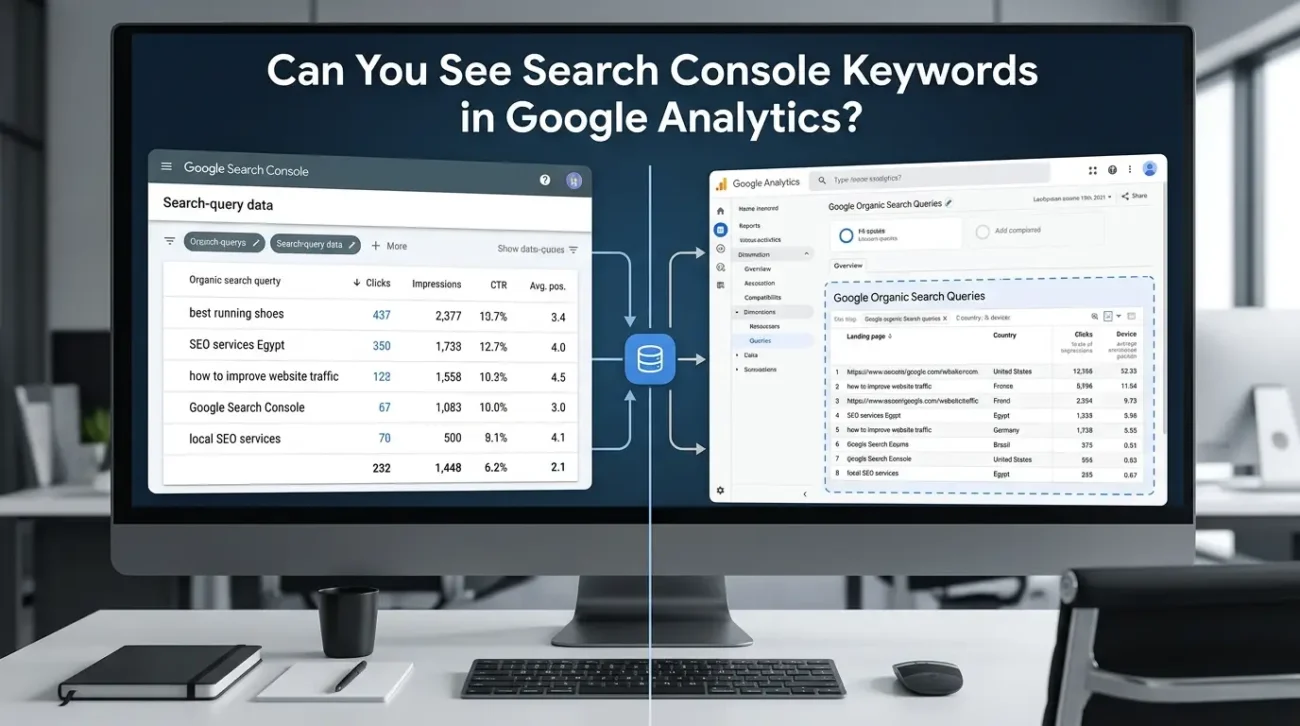
Can You See Search Console Keywords in Google Analytics?
You can access Search Console search-query data in the dedicated integrated report, but you shouldn’t assume that all Search Console query information becomes available throughout every Analytics report.
Google’s current integration provides a Google Organic Search Queries report containing search queries and associated Search Console metrics. However, Search Console metrics are compatible only with Search Console dimensions and certain Analytics dimensions, including landing page, country, and device.
This means the integration has defined reporting limitations.
If you need detailed keyword analysis, Search Console itself remains an important source.
Analytics is more useful for understanding what happened after users arrived.
How Can You Use Search Console and Google Analytics Together?
The biggest value comes from turning the data into questions and actions.
Use case 1: High impressions but low clicks
Imagine a page has:
- 30,000 impressions
- 400 clicks
- Low CTR
Search Console tells you that the page has significant visibility but isn’t generating many clicks relative to its impressions.
You can investigate:
- Search intent
- Page title
- Meta description
- SERP competition
- Content relevance
- Rich-result opportunities
Analytics can then help you evaluate what happens when users do click.
This gives you two different optimization opportunities:
Before the click: improve search-result performance.
After the click: improve the landing-page experience.
Use case 2: High organic traffic but weak engagement
Suppose a page receives a lot of organic traffic but users rarely engage with it.
Search Console may show that the page ranks for many queries and generates clicks.
Analytics can help you investigate what happens after those clicks.
Possible issues include:
- Poor content structure
- Slow page experience
- Weak internal links
- Mismatch between search intent and content
- Unclear calls to action
- Users finding the answer quickly and leaving
The solution depends on the actual data rather than simply assuming that more traffic is always better.
A clear structure and modern website design can also make it easier for visitors to navigate and engage with important pages.
Use case 3: Find content opportunities
Search Console can reveal queries for which your website receives impressions even when clicks are limited.
These queries can reveal topics that deserve:
- New content
- Content expansion
- Better headings
- Stronger internal linking
- Better search intent alignment
Analytics can then help you understand whether visitors to related content are engaging with the website.
Many SEO Agencies use both platforms to identify content opportunities and turn search data into measurable optimization tasks.
Use case 4: Identify high-performing landing pages
Look for pages that combine strong search visibility with useful user behavior.
For example:
| Page | Search visibility | Organic traffic | Engagement | Potential action |
|---|---|---|---|---|
| Page A | High | High | High | Expand and strengthen |
| Page B | High | Low | — | Improve CTR |
| Page C | Low | Low | High | Improve visibility |
| Page D | High | High | Low | Improve content experience |
This type of analysis helps prevent SEO teams from focusing only on rankings.
A page that ranks well but fails to satisfy users may need a different type of optimization than a page that has excellent engagement but poor search visibility.
How to Use Search Console and Google Analytics Together
A simple SEO workflow can make the two platforms much more useful.
Weekly SEO workflow
Once a week, check Search Console for major changes.
Look for:
- Sudden click drops
- Impression increases
- New search queries
- Pages gaining visibility
- Pages losing visibility
- CTR changes
- Significant position changes
Then move to Analytics.
Investigate the pages receiving organic traffic and look for changes in:
- Engagement
- Key events
- Landing-page performance
- User behavior
You don’t need to investigate every small fluctuation.
Focus on meaningful changes.
Monthly SEO workflow
Once a month, perform a deeper comparison.
Step 1: Identify visibility winners
Find pages with increasing impressions and clicks.
Step 2: Identify CTR opportunities
Look for pages receiving strong impressions but relatively few clicks.
Step 3: Review landing-page behavior
Use Analytics to evaluate how organic visitors interact with important pages.
Step 4: Find content gaps
Look for relevant search queries and topics where your website has visibility but weak performance.
Step 5: Prioritize actions
Turn the findings into specific SEO tasks.
For example:
Finding: High impressions + low CTR
Action: Test a stronger title and improve the search snippet.
Finding: High organic traffic + low engagement
Action: Review search intent, content quality, page structure, and user experience.
Finding: Low impressions + strong engagement
Action: Improve the page’s search visibility through content optimization and internal linking.
What Are the Limitations of the Search Console and Analytics Integration?
Connecting the platforms is useful, but there are limitations.
Search Console data doesn’t become normal Analytics data
The integration doesn’t transform every Search Console metric into a standard Analytics metric.
Instead, Google provides specific reports containing Search Console data.
Search Console data has a limited historical window
Google states that Search Console retains data for the most recent 16 months, so the integrated Search Console reports in Analytics are also limited to a maximum of 16 months.
Search Console reports have dimension limitations
The integrated reports don’t allow unrestricted combinations of Search Console and Analytics dimensions.
Google currently identifies landing page, country, and device as compatible Analytics dimensions for Search Console metrics.
Reports may not appear automatically
The Search Console report collection is unpublished by default in Analytics, so it may need to be published from the Library before it appears in navigation.
Understanding these limitations prevents you from expecting the integration to work like a single combined analytics platform.
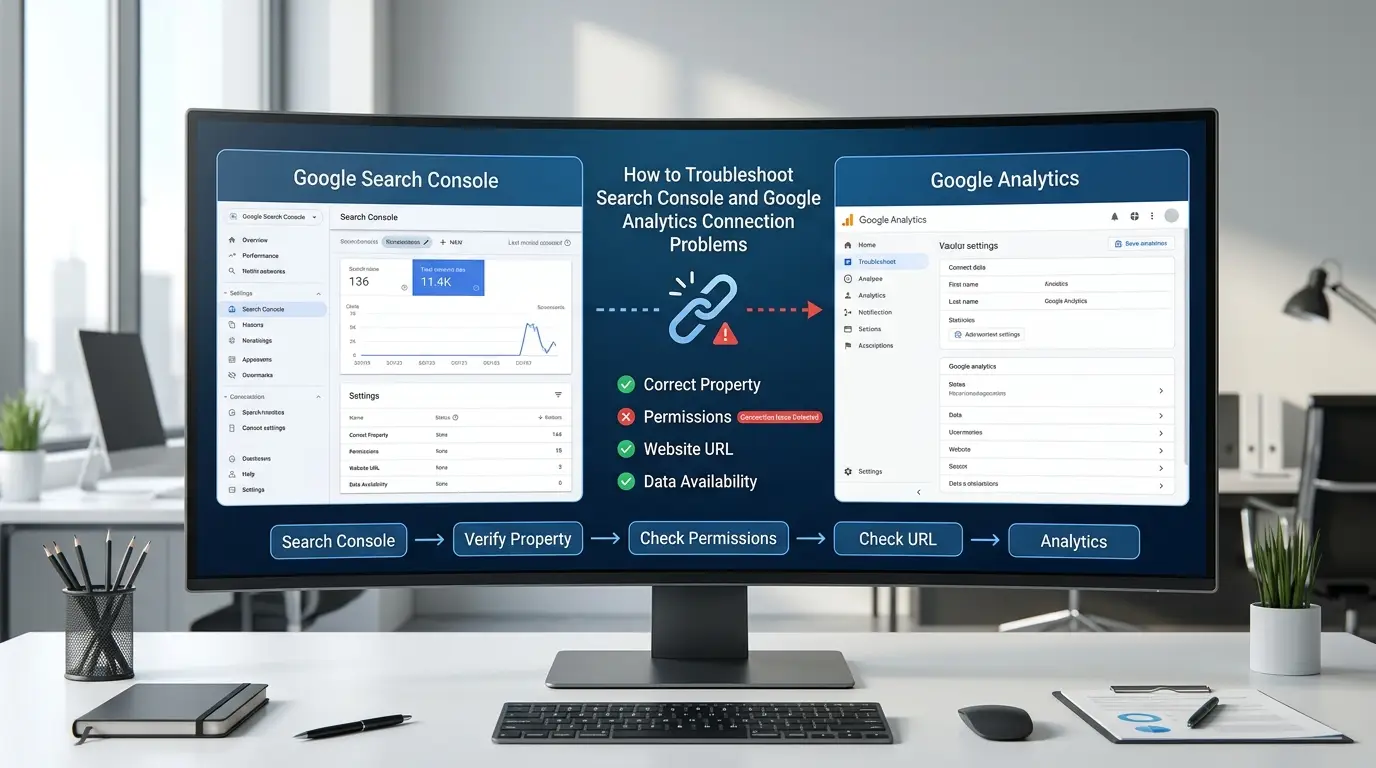
How to Troubleshoot Search Console and Google Analytics Connection Problems
If the connection isn’t working correctly, work through the following checks.
| Problem | Possible cause | What to check |
|---|---|---|
| Search Console property isn’t available | Wrong account or ownership | Verify Search Console ownership |
| Link option doesn’t work | Insufficient Analytics permissions | Check Editor access |
| Wrong website data appears | Incorrect property or stream | Confirm the website and web stream |
| Reports aren’t visible | Reports are unpublished | Check Library in Analytics |
| Data isn’t appearing yet | Processing delay | Allow time for Search Console data to become available |
| Numbers don’t match | Different metric definitions | Compare equivalent metrics |
| URLs look different | Property configuration | Check domain, protocol, and URL scope |
| Some pages have no Analytics data | Tracking issue | Check Analytics implementation |
| Connection needs changing | Existing link configuration | Remove the link and create a new one |
What if you don’t see the Search Console property?
First, confirm that you’re signed into the correct Google account.
Then check whether you are a verified owner of the Search Console property.
If you have access to Analytics but don’t have the necessary Search Console ownership permissions, the property may not be available for you to select.
What if the reports are missing?
Check the Analytics Library.
Google currently says that the Search Console collection is unpublished by default. Publishing the collection can make its reports available in the navigation.
What if no data appears?
Don’t immediately recreate the connection.
First check:
- Whether the link was successfully created.
- Whether the correct web stream was selected.
- Whether Search Console is collecting data.
- Whether the properties cover the same website.
- Whether enough time has passed for data to become available.
Google currently documents a 48-hour availability window for Search Console data in Analytics after Search Console collects it.
What Permissions Are Required to Connect Search Console and Analytics?
The required permissions are straightforward but important.
To create a Search Console link from Google Analytics, Google currently requires:
- Editor role on the Google Analytics property.
- Verified owner status on the Search Console property.
To delete an existing link, Google says you need the Editor role on the Analytics property.
If you’re working with a marketing team, it may be useful to establish these permissions before beginning the setup rather than discovering the problem halfway through the connection process.
Best Practices for Using Search Console and Google Analytics Together
Connecting the platforms is only the technical part. The real benefit comes from using the data correctly.
Don’t treat the platforms as duplicates
They answer different questions.
Search Console focuses on search performance.
Analytics focuses on website behavior.
Always check the date range
Use the same period when comparing trends.
Compare similar metrics
Don’t directly compare Search Console clicks with Analytics sessions as if they were identical.
Check the page level
Landing-page analysis can reveal opportunities that aren’t obvious from site-wide totals.
Focus on trends
A single day’s difference may not mean much.
Look for sustained changes.
Turn findings into actions
Don’t stop at reporting.
If a page has high impressions and low CTR, optimize its search appearance.
If a page has strong organic traffic and weak engagement, investigate its content and user experience.
If a page has strong engagement but weak search visibility, work on its SEO visibility.
Businesses exploring AI search visibility can also compare these insights when evaluating the best GEO service providers for their optimization strategy.
Frequently Asked Questions
Can Search Console connect to Google Analytics?
Yes. Google currently supports linking a Google Search Console property with a Google Analytics 4 web data stream. The integration provides specific Search Console reports inside Analytics.
What is the difference between Google Search Console and Google Analytics?
Search Console focuses on how your website performs in Google Search, including impressions, clicks, queries, CTR, and position. Google Analytics focuses on what users do on your website after arriving, including engagement, events, and key events.
Why don’t Search Console and Analytics numbers match?
The platforms use different measurement systems, metric definitions, processing methods, and attribution approaches. For example, a Search Console click isn’t identical to an Analytics session, so differences don’t automatically indicate an error.
Can I see Search Console keywords in Google Analytics?
Yes, the integration provides a Google Organic Search Queries report containing Search Console query data. However, this data is subject to the reporting and dimension limitations of the integration.
What permissions are required?
Google currently requires Editor access to the Google Analytics property and verified-owner access to the Search Console property to create the link.
How long does it take for Search Console data to appear in Analytics?
Google currently states that Search Console data becomes available in Analytics 48 hours after it is collected by Search Console.
Can I use Search Console without Google Analytics?
Yes. Search Console works independently and provides search-performance data even if you don’t use Google Analytics.
Can I use Google Analytics without Search Console?
Yes. Analytics can measure website activity without Search Console, but you won’t have the same level of Google Search performance information provided by Search Console.
Does connecting Search Console to Analytics improve SEO rankings?
No. Connecting the two platforms is an analytics and reporting integration. It doesn’t directly improve rankings. Its value comes from helping you understand search visibility and user behavior so you can make better SEO decisions.
Can I connect multiple Search Console properties to one Analytics property?
The current integration has specific linking limits. Google states that a Search Console property can be linked to only one Analytics web data stream, while a web data stream can be linked to only one Search Console property.
What should I do if I selected the wrong web stream?
Search Console links cannot currently be edited. Google recommends deleting the existing link and creating a new one with the correct web data stream.
Google Search Console and Google Analytics are most useful when you understand that they measure different parts of the organic search journey.
Search Console helps answer questions about visibility and search performance:
- What are people searching for?
- How often does my website appear?
- Which pages receive impressions?
- How many people click?
- What is my average search position?
Google Analytics helps answer questions about what happens after the click:
- Which landing pages receive organic visitors?
- Are users engaging with the content?
- Which pages generate important events?
- What do visitors do after arriving?
- Which organic landing pages contribute to business goals?
Connecting the platforms allows you to bring selected Search Console reporting into Google Analytics, but it doesn’t make the two datasets identical. The current integration provides dedicated reports for organic search queries and organic search traffic, with specific dimension and data-availability limitations.
The most effective workflow is therefore not to ask which platform is better. Instead, use Search Console to understand what happens before and around the search click, and use Google Analytics to understand what happens after visitors reach your website.
When those insights are combined correctly, you can identify pages with high impressions but low CTR, investigate organic landing pages with weak engagement, discover content opportunities, and prioritize SEO improvements based on actual performance data.
Want to turn your Search Console and Analytics data into actionable SEO insights? Contact Be One for professional SEO analytics, tracking, and performance optimization.
A specialized team such as Be One agency can help turn these analytics findings into practical SEO improvements.


