

How to add and create sitemap for google search console

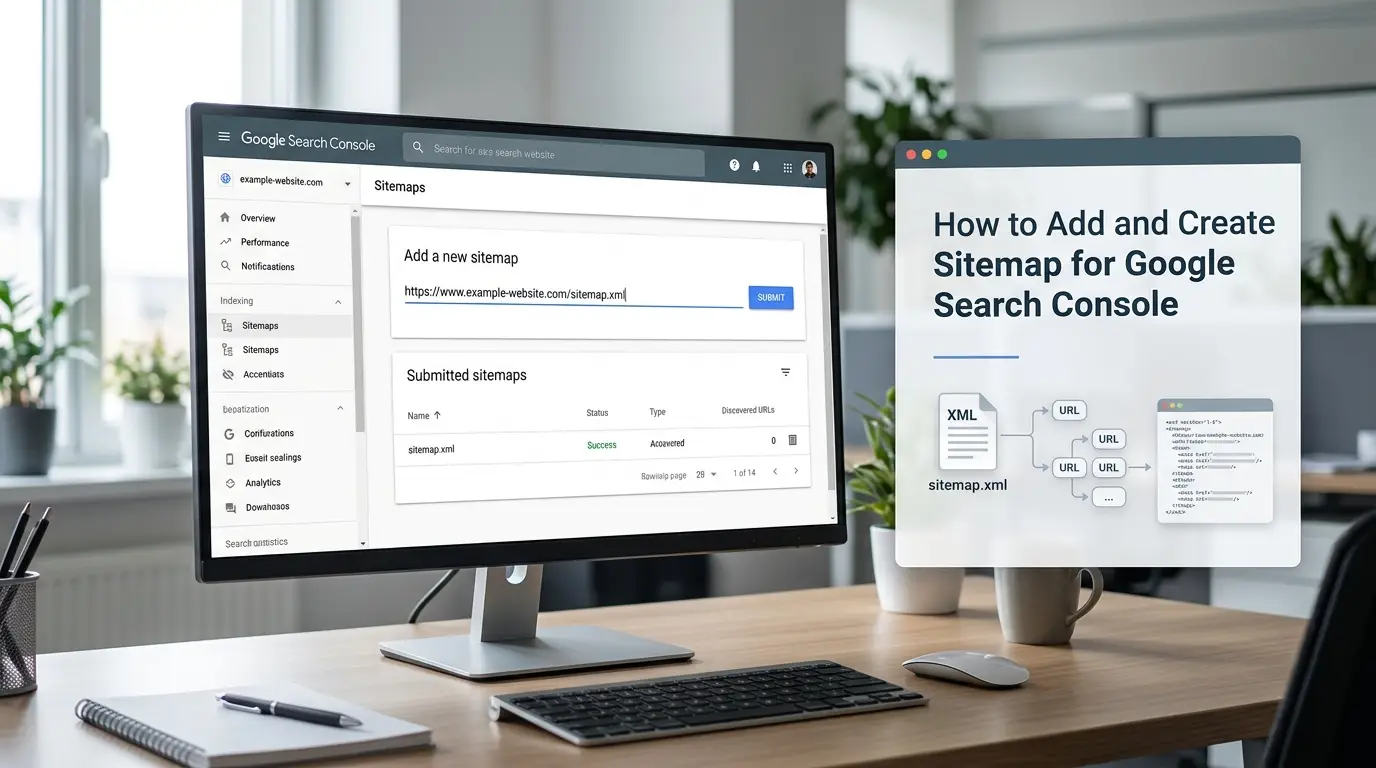
If you want Google to discover important pages on your website more efficiently, submitting a sitemap through Google Search Console is a straightforward process. First, find or create the correct sitemap, verify that you are working with the right Search Console property, open the Sitemaps report, enter the sitemap URL, and click Submit. You can then monitor the sitemap status and troubleshoot any errors that Google reports.
A sitemap may look like this:
https://example.com/sitemap.xml
or, for websites that use multiple sitemap files:
https://example.com/sitemap_index.xml
The exact URL depends on your website platform and configuration. Many websites already generate a sitemap automatically, so you should always check for an existing sitemap before creating a new one.
This guide explains the complete process, including how to find a sitemap, how to create one for different website platforms, how to submit it to Google Search Console, how to troubleshoot common errors, how to manage sitemap indexes, and how to remove an old sitemap submission.
How do I add a sitemap to Google Search Console?
To add a sitemap to Google Search Console, follow these steps:
- Verify that your website is added to Google Search Console.
- Select the correct website property.
- Find the sitemap generated by your website.
- Open the Sitemaps report.
- Enter the sitemap URL or sitemap path.
- Click Submit.
- Check the sitemap status after submission.
- Fix any errors if Google cannot fetch or process the sitemap.
For example, if your website is:
https://www.example.com/
and your sitemap is:
https://www.example.com/sitemap.xml
you should submit the second address, not the homepage.
Google Search Console doesn’t require you to upload the XML file manually. Instead, you provide Google with the location of the sitemap so that Google can retrieve and process it. Google recommends using the Sitemaps report to submit a sitemap when you want to monitor its processing status.
Before submitting anything, however, there are a few details you should check.
If you need broader technical SEO support, an experienced SEO Company in Egypt can also review your website’s crawling and indexing setup.
What do you need before adding a sitemap?
You should have two things ready before opening the Sitemaps report:
A verified Search Console property
First, make sure your website is properly added to Google Search Console and that you have the required access to manage its sitemap submissions.
You should also make sure you’re working with the correct property.
For example, pay attention to differences between:
http://example.comhttps://example.comhttps://www.example.comhttps://example.com
These addresses can represent different Search Console URL-prefix properties.
If your sitemap belongs to a different version of the website than the property you’re currently viewing, you may encounter property-related errors.
The correct sitemap URL
You also need to know where your sitemap is located.
Common sitemap URLs include:
https://example.com/sitemap.xml
https://example.com/sitemap_index.xml
https://example.com/wp-sitemap.xml
These are examples, not universal URLs. Your website may use a completely different sitemap location.
That’s why you should confirm the actual sitemap generated by your website instead of assuming that every website uses /sitemap.xml.
What is the difference between a website URL and a sitemap URL?
This is one of the most common mistakes beginners make when using Google Search Console.
Your website URL is the address visitors use to access your website.
For example:
https://example.com/
Your sitemap URL points to the XML file containing information about URLs on your website.
For example:
https://example.com/sitemap.xml
These two addresses serve completely different purposes.
If Google Search Console asks you to submit a sitemap and you enter your homepage, you aren’t providing Google with a sitemap. You need to enter the URL or path of the actual XML sitemap.
The same applies to sitemap indexes. If your website generates:
https://example.com/sitemap_index.xml
then that is the file you should consider submitting rather than automatically choosing sitemap.xml.
How do I find my sitemap URL?
Before creating a sitemap, check whether your website already has one.
Many content management systems automatically generate sitemaps. Google specifically notes that CMS platforms can often generate sitemaps automatically, meaning website owners may not need to build them manually.
Check common sitemap locations
Start by trying common URLs on your domain:
https://example.com/sitemap.xml
https://example.com/sitemap_index.xml
For WordPress websites, you can also check:
https://example.com/wp-sitemap.xml
Open the address in your browser.
If you see an XML document containing URLs or links to other sitemap files, you’ve probably found your sitemap.
However, don’t assume that a URL is correct simply because it loads. Review the contents and make sure the sitemap contains the URLs you actually want Google to discover.
Check your website’s SEO settings
If your website uses an SEO plugin or SEO platform, check its sitemap settings.
An SEO plugin may automatically generate:
- A sitemap index
- Post sitemaps
- Page sitemaps
- Product sitemaps
- Category sitemaps
If an index is available, you can often submit the index rather than submitting every individual sitemap file.
Ask your developer or website provider
For custom-built websites, the sitemap may have been created by the development team.
If you can’t find it using the common URLs, ask whoever manages the website where the sitemap is generated and whether it is automatically updated.
This is better than creating a second sitemap that could conflict with the existing one.
How to create a sitemap for Google Search Console
If your website doesn’t already have a sitemap, you’ll need to create one before submitting it.
It’s important to understand that Google Search Console normally doesn’t create the sitemap itself. Search Console is used to submit and monitor a sitemap that exists on your website.
The sitemap is usually generated by:
- Your CMS
- An SEO plugin
- A website application
- A sitemap generator
- A developer
Google recommends using your CMS’s sitemap functionality when available because automatically generated sitemaps can stay updated as the website changes.
For businesses targeting specific locations, local seo services can help improve how local pages are structured and discovered.
How to create a sitemap in WordPress
WordPress can generate a sitemap automatically.
A WordPress website may provide its sitemap at:
https://example.com/wp-sitemap.xml
However, your website might use an SEO plugin that generates a different sitemap structure.
For example, the plugin may create:
https://example.com/sitemap_index.xml
The sitemap index could then contain links to files such as:
post-sitemap.xmlpage-sitemap.xmlproduct-sitemap.xml
Before submitting the sitemap, open the generated URL and check which system is actually managing your sitemap.
You don’t need to create a separate manual sitemap if your WordPress installation already generates one correctly.
How to create a sitemap for Blogger
Blogger can generate sitemap-related functionality automatically, so you generally don’t need to manually build a large XML sitemap.
If you use Blogger, identify the sitemap or supported sitemap resource associated with your blog and verify that it can be accessed before submitting it to Search Console.
It’s important not to confuse a normal Blogger feed with an XML sitemap. They can serve different purposes, so use the actual sitemap resource supported by the platform.
Google lists Blogger among CMS platforms that can provide automatically generated sitemap functionality.
How to create a sitemap for a custom-built website
Custom websites may require a developer to create and maintain the sitemap.
A basic XML sitemap can contain URLs such as:
<?xml version="1.0" encoding="UTF-8"?>
<urlset xmlns="http://www.sitemaps.org/schemas/sitemap/0.9">
  <url>
    <loc>https://example.com/</loc>
  </url>
  <url>
    <loc>https://example.com/about/</loc>
  </url>
  <url>
    <loc>https://example.com/contact/</loc>
  </url>
</urlset>
For a very small website, manually creating an XML sitemap may be possible.
For a larger website, automatic generation is usually a better solution because the sitemap needs to stay synchronized with the website.
For example, if a website adds 100 new pages every month, manually updating the sitemap becomes inefficient and increases the chance of leaving outdated URLs in the file.
During website design and development, developers should also consider how the sitemap will be generated and updated as the website grows.
What URLs should be included in a sitemap?
A sitemap shouldn’t contain every URL that your website can generate.
Instead, it should generally contain the important URLs that you want Google to discover.
Google recommends including canonical URLs in your sitemap.
For example, avoid filling the sitemap with:
- URLs that return 404 errors
- Redirecting URLs
- Duplicate URLs
- Non-canonical URLs
- URLs blocked from crawling
- URLs that shouldn’t appear in search
If your website has multiple versions of the same page, the sitemap should generally point toward the preferred canonical version.
A clean sitemap gives Google a clearer set of URLs to consider.
How to add sitemap URL in Google Search Console
Once you’ve found or created the sitemap, you can submit it through Google Search Console.
Step 1: Open Google Search Console
Sign in to Google Search Console using the account that has access to your website.
Step 2: Select the correct property
Use the property selector to choose the website you’re managing.
Double-check the domain and protocol before proceeding.
If your sitemap is located on:
https://www.example.com/
make sure you’re not accidentally working inside an unrelated property.
Step 3: Open the Sitemaps report
From the Search Console navigation menu, open the Sitemaps report.
This is where you can submit new sitemap files and review previously submitted sitemaps.
Step 4: Enter the sitemap URL
You’ll see an area for adding a new sitemap.
Depending on the interface, the domain may already be displayed, meaning you only need to enter the sitemap path.
For example:
sitemap.xml
or:
sitemap_index.xml
If the field expects a path rather than the complete URL, don’t paste the domain twice.
Step 5: Click Submit
After entering the correct sitemap path, click Submit.
Google will then attempt to fetch the sitemap from your website.
You’re not uploading the file to Google. You’re providing Google with the location where the sitemap can be found.
Step 6: Check the sitemap status
After submitting it, look at the sitemap entry in the Sitemaps report.
A successful submission means Google was able to retrieve and process the sitemap.
If Google reports an error, open the sitemap details and investigate the specific problem.
What happens after you submit a sitemap?
Submitting a sitemap starts a discovery and processing process.
It does not mean that Google immediately indexes every URL.
The general process is:
Sitemap submitted → Google fetches sitemap → Google processes sitemap → URLs are discovered → URLs may be crawled → Google evaluates URLs for indexing
Each stage is separate.
For example, your sitemap can show a successful status while one or more pages inside it remain unindexed.
Google explicitly states that sitemap submission is a signal for discovery and doesn’t guarantee that all URLs will be crawled or indexed.
How do you check whether Google processed your sitemap?
Open the Sitemaps report after submission and look at the sitemap’s status.
You may see a successful status or an error.
If the sitemap was successfully processed, you can then monitor the URLs discovered through it and investigate individual pages separately if they aren’t appearing in Google’s index.
Don’t interpret sitemap success as proof that every page has been indexed.
The Sitemaps report is primarily about Google’s ability to retrieve and process the sitemap.
What does “Success” mean in Google Search Console?
A successful sitemap status generally means Google was able to fetch and process the sitemap.
It does not mean:
- Every URL is indexed.
- Every URL will rank.
- Every URL will be crawled immediately.
- Google considers every URL valuable.
- Your rankings will automatically improve.
This distinction is important when analyzing technical SEO performance.
If the sitemap says Success but important pages are missing from Google, investigate those URLs separately using URL Inspection and the relevant indexing reports.
How to troubleshoot Google Search Console sitemap errors
Sitemap errors can happen for several reasons.
The best approach is to identify whether Google is having trouble accessing the sitemap or reading its contents.
Start by opening the sitemap URL directly.
If it doesn’t load correctly, the problem is likely on the website or server rather than inside Search Console.
Common sitemap errors and solutions
| Error or issue | Likely cause | What you should do |
|---|---|---|
| Couldn’t fetch | Google can’t retrieve the sitemap | Check the URL, server, robots.txt, and property |
| Sitemap could not be read | Sitemap content has a processing problem | Inspect the XML and Search Console error details |
| 404 error | Sitemap doesn’t exist at the submitted URL | Find the current sitemap URL and resubmit it |
| 403 error | Access to the sitemap is restricted | Check firewall, security settings, or authentication |
| Server error | Website server returned an error | Check hosting and server logs |
| Invalid URL | Incorrect URL or property configuration | Verify the sitemap URL and selected property |
| Blocked by robots.txt | Google can’t access the sitemap | Review robots.txt rules |
| Wrong hostname | Sitemap uses a different www/non-www version | Check the website and sitemap configuration |
| Zero discovered URLs | Sitemap contains no useful URLs or hasn’t been fully processed | Inspect the sitemap and its URLs |
What should you do if Google says “Couldn’t fetch”?
Start with the sitemap URL itself.
Open it in your browser and check whether it loads.
If the sitemap returns a 404, the submitted URL is likely incorrect or the file has been removed.
If it returns a server error, investigate the server.
If it works normally in your browser, use Google’s URL Inspection tools to determine whether Google can access the resource.
Google recommends checking whether the sitemap is accessible to Googlebot when troubleshooting fetch problems.
What if the sitemap returns a 404 error?
A 404 means the sitemap isn’t available at the submitted URL.
Possible reasons include:
- The sitemap was moved.
- The sitemap filename changed.
- An SEO plugin was replaced.
- The sitemap generator was disabled.
- The website was migrated.
- The sitemap was deleted.
Don’t keep resubmitting the same broken URL.
Instead, find the new sitemap location and submit that address.
What if the sitemap is blocked?
A sitemap can be inaccessible because of website security settings, firewall rules, authentication, or crawling restrictions.
Check your robots.txt file and your server configuration.
Also make sure the sitemap isn’t behind a login page.
Google needs to be able to retrieve the sitemap in order to process it.
What if the sitemap shows zero discovered URLs?
If your sitemap has been processed but shows zero discovered URLs, first open the sitemap itself.
Check whether it contains valid <loc> entries.
Then check whether those URLs:
- Actually exist
- Return successful responses
- Are canonical
- Are accessible to Google
- Are not accidentally generated as empty or invalid entries
If the sitemap was recently created or updated, also consider whether Google has had enough time to process the latest version.
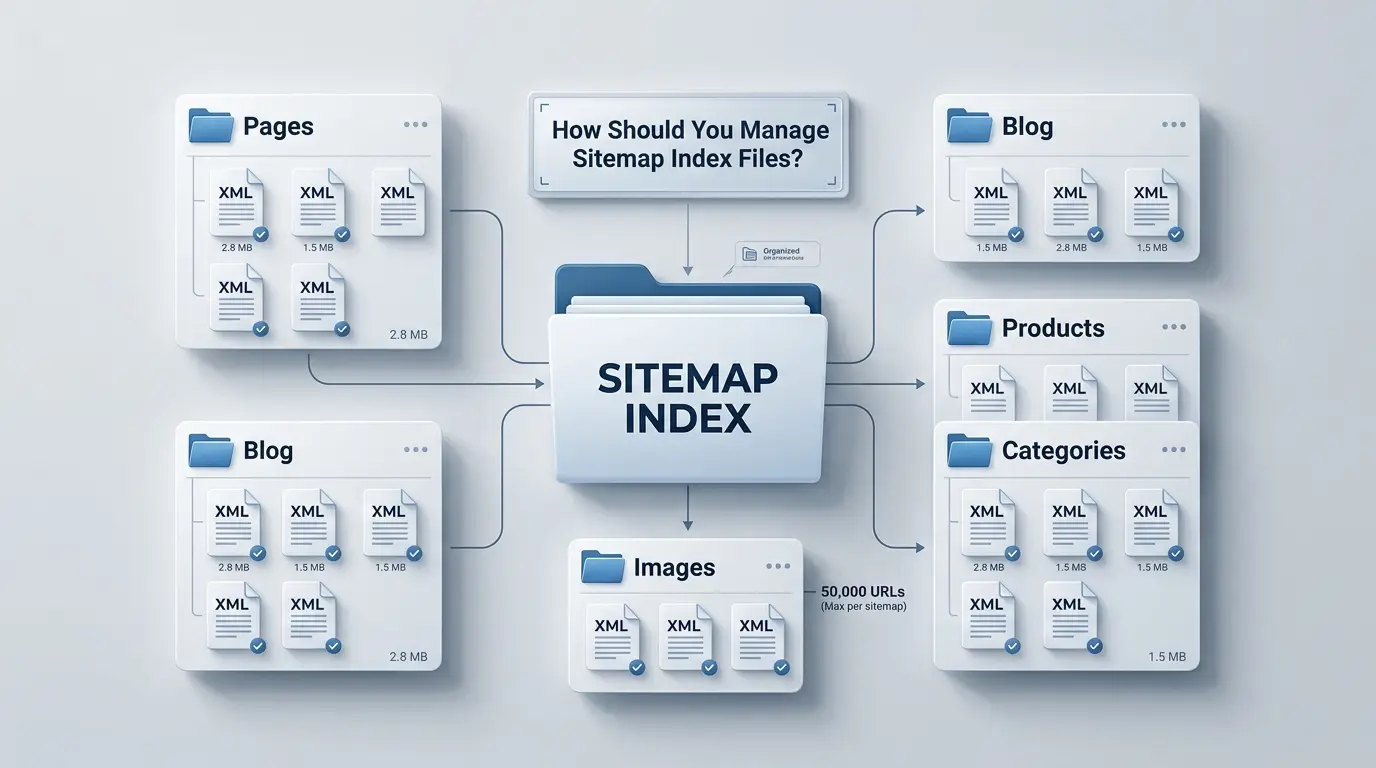
How should you manage sitemap index files?
Large websites often have several sitemap files instead of putting everything into one XML file.
For example:
post-sitemap.xml
page-sitemap.xml
product-sitemap.xml
A sitemap index can organize those files under one central URL:
sitemap_index.xml
Google currently documents a limit of 50,000 URLs or 50 MB uncompressed for an individual sitemap. When a website exceeds those limits, multiple sitemap files and a sitemap index can be used.
When is a sitemap index better?
A sitemap index is particularly useful when:
- Your website has thousands of URLs.
- Your CMS generates multiple sitemap files.
- Your website contains different content types.
- You have separate product and blog sitemaps.
- You need to divide a very large sitemap.
For example:
sitemap_index.xml
    ├── post-sitemap.xml
    ├── page-sitemap.xml
    ├── product-sitemap.xml
    └── category-sitemap.xml
Instead of managing each file individually, you can submit the sitemap index.
Can you submit multiple sitemaps?
Yes.
Google allows website owners to submit multiple sitemap files and sitemap index files.
For example, you could submit:
blog-sitemap.xmlproduct-sitemap.xmlnews-sitemap.xml
However, if your website already has a properly configured sitemap index, submitting the index is often the simpler approach.
Individual submissions can still be useful when troubleshooting a specific sitemap.
What should you do after submitting a sitemap?
Submitting the sitemap is only one part of managing your website’s crawlability.
After submission, follow these steps.
Monitor the status
Check whether Google successfully processed the sitemap.
Investigate errors
If Google reports an error, identify the cause before submitting the same sitemap repeatedly.
Check discovered URLs
Look at whether Google is discovering URLs from the sitemap.
Review important pages separately
If a high-value page isn’t indexed, inspect that page individually rather than assuming the sitemap is the problem.
Keep the sitemap updated
Your sitemap should reflect the current state of your website.
If pages are added, removed, redirected, or replaced, make sure the sitemap generation system handles those changes.
Does sitemap submission guarantee indexing?
No.
A sitemap is not an indexing guarantee.
It helps Google discover URLs, but Google decides independently whether and when to crawl and index individual pages.
A URL may remain unindexed even when it appears correctly in a sitemap.
Possible reasons can include:
- Duplicate content
- Canonicalization
noindex- Crawling restrictions
- Poor page quality
- Technical problems
- Other indexing signals
Therefore, use the sitemap as part of your technical SEO setup rather than treating it as a shortcut to indexing.
How long does Google take to process a sitemap?
There isn’t a guaranteed timeframe for sitemap processing and URL indexing.
Google can attempt to fetch a submitted sitemap, but crawling and indexing the URLs inside it are separate processes.
A sitemap may be processed successfully while individual URLs take longer to be crawled or indexed.
If you have just submitted a sitemap, avoid assuming that something is broken simply because every page hasn’t appeared in Google immediately.
How to delete a sitemap from Google Search Console
If you submitted an outdated, incorrect, or unnecessary sitemap, you can remove its submission from Search Console.
The process for how to delete sitemap from Google Search Console is:
- Open Google Search Console.
- Select the correct property.
- Open the Sitemaps report.
- Find the sitemap you want to remove.
- Select the sitemap.
- Open the additional options menu.
- Choose Remove sitemap.
This removes the sitemap submission from the Sitemaps report.
However, there’s an important distinction between removing a sitemap from Search Console and deleting the sitemap file itself.
Does removing a sitemap delete the actual sitemap file?
No.
If your website has:
https://example.com/sitemap.xml
removing it from Search Console does not automatically delete that XML file from your website.
The file remains on your server unless you remove it through your website’s hosting, CMS, or file management system.
Google also explains that removing a sitemap submission doesn’t mean Google immediately forgets the sitemap or URLs that it previously contained.
Does deleting a sitemap remove pages from Google?
No.
Removing a sitemap from Search Console does not remove the pages listed in that sitemap from Google’s index.
A sitemap is used to help Google discover URLs. It isn’t a URL removal tool.
If a page is already known to Google through internal links, external links, previous crawling, or other sources, removing the sitemap doesn’t necessarily stop Google from knowing about it.
If you need to remove a page from search results, you need to use the appropriate Google Search Console removal and indexing controls instead.
When should you remove a sitemap?
You might remove a sitemap submission when:
- The sitemap no longer exists.
- The sitemap URL has changed.
- You migrated to a new sitemap system.
- Two sitemap submissions are unnecessary duplicates.
- An old sitemap was generated by a plugin you no longer use.
- You want to clean up obsolete submissions.
Before removing one, make sure you know whether another sitemap or sitemap index has replaced it.
For example, if you previously submitted:
post-sitemap.xml
but your new SEO system generates:
sitemap_index.xml
you may want to remove the old submission after confirming that the new index correctly includes your content.
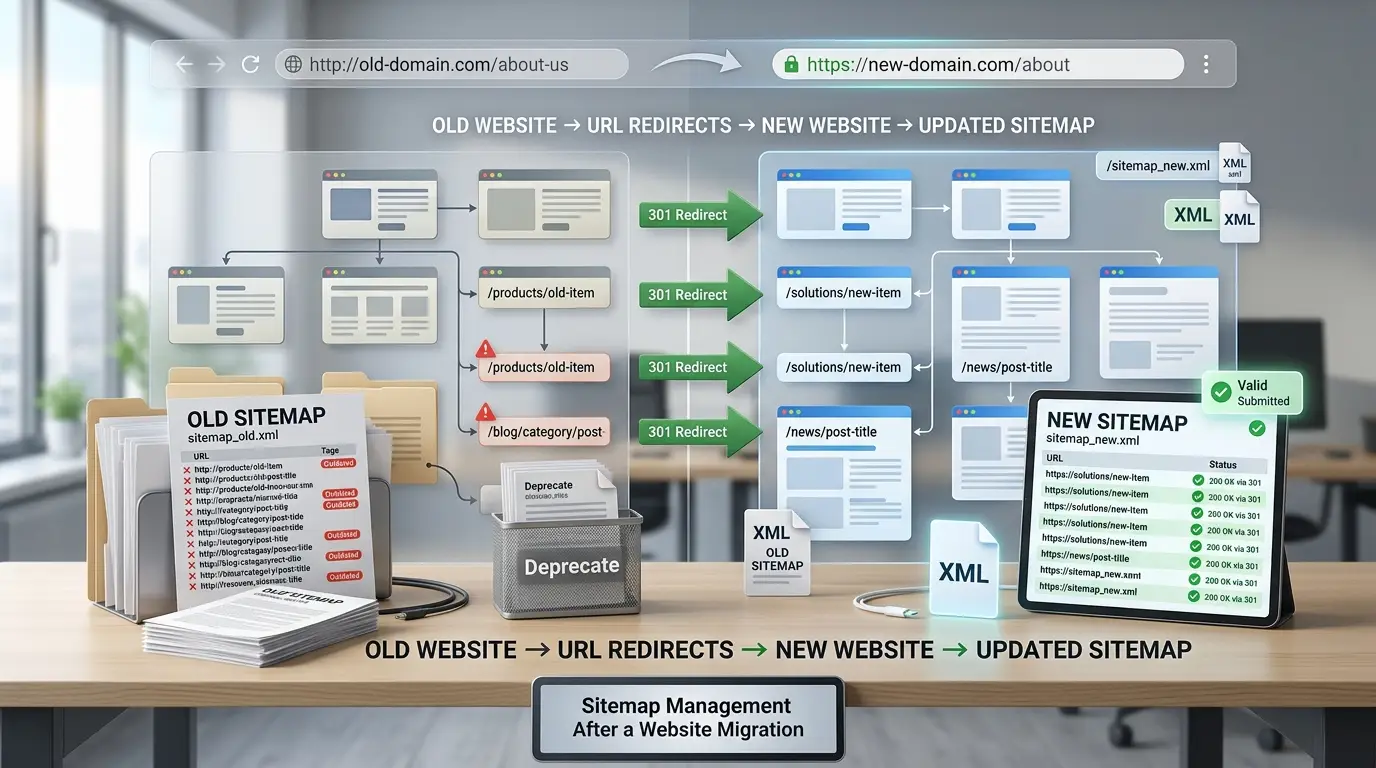
Sitemap management after a website migration
Website migrations are one of the situations where sitemap management deserves extra attention.
If you change your domain, CMS, URL structure, or HTTPS configuration, your sitemap may also change.
For example, an old sitemap could contain:
http://example.com/old-page/
while the new website uses:
https://www.example.com/new-page/
After a migration, check:
- Sitemap URL
- Sitemap contents
- Canonical URLs
- Redirects
- Robots.txt
- Search Console properties
- Internal links
The sitemap should reflect the new version of the website, not the old URL structure.
What if your sitemap contains redirected URLs?
Ideally, your sitemap should point to the URLs you want Google to consider as canonical.
If an old URL redirects to a new URL, investigate why the old URL remains in the sitemap.
For example:
https://example.com/old-product/
redirects to:
https://example.com/new-product/
If the second URL is the preferred page, the sitemap should generally be updated to reference the destination URL.
This prevents the sitemap from sending outdated URL signals.
Best practices for Google Search Console sitemaps
A technically correct sitemap is more useful than a very large sitemap full of unnecessary URLs.
Follow these practices:
Submit the correct sitemap
Don’t guess the URL. Confirm which sitemap your website actually generates.
Use canonical URLs
Include the preferred versions of your pages.
Keep the sitemap accessible
Make sure Google can fetch it without unnecessary restrictions.
Update it when your website changes
Automated sitemap generation is particularly useful for frequently updated websites.
Use sitemap indexes for large websites
Don’t force thousands of URLs into a single file when your website requires multiple sitemaps.
Monitor Search Console
Don’t submit the sitemap once and forget about it. Check for errors after major website changes.
Don’t use sitemap submission as an indexing guarantee
A successful sitemap helps Google discover URLs but doesn’t guarantee that every URL will be indexed.
Beyond traditional search, generative engine optimization can help businesses prepare their content for visibility across AI-powered search experiences.
Frequently Asked Questions
Where do I submit a sitemap?
Submit your sitemap through Google Search Console → Sitemaps after selecting the correct website property. Enter the sitemap path or URL and click Submit.
How do I find my sitemap URL?
Check common locations such as /sitemap.xml, /sitemap_index.xml, or /wp-sitemap.xml. If none work, check your CMS or SEO plugin settings or ask your developer where the sitemap is generated.
How do I create sitemap for Google Search Console?
Your CMS, SEO plugin, sitemap generator, or developer usually creates the sitemap. Google Search Console is primarily used to submit and monitor the sitemap rather than generate it.
Can I submit multiple sitemaps?
Yes. You can submit multiple sitemap files or sitemap indexes. For larger websites, a sitemap index can make managing several files easier.
Why can’t Google fetch my sitemap?
Common causes include an incorrect URL, 404 or server errors, access restrictions, robots.txt problems, or an incorrect Search Console property. Check the sitemap URL and the error details in the Sitemaps report.
How long does Google take to process a sitemap?
Google may fetch the sitemap after submission, but there is no guaranteed timeframe for crawling or indexing the URLs inside it. Sitemap processing and page indexing are separate processes.
Can I delete a sitemap after submitting it?
Yes. Open the Sitemaps report, select the sitemap, open the additional options, and choose Remove sitemap.
Does deleting a sitemap remove pages from Google?
No. Removing a sitemap submission doesn’t remove pages from Google’s index. Sitemap removal and URL removal are separate processes.
Should I submit sitemap.xml or sitemap_index.xml?
Submit the sitemap your website actually generates. If your website uses a sitemap index that contains multiple sitemap files, submitting the index is generally the most convenient option.
Does every website need a sitemap?
No. Google says some very small websites may not need one if all important pages are easily discoverable through internal links. However, sitemaps are particularly useful for large, new, complex, or frequently updated websites.
Does a sitemap improve rankings?
Submitting a sitemap does not directly guarantee higher rankings. Its primary purpose is to help Google discover URLs. Google states that sitemap submission doesn’t guarantee indexing or ranking improvements.
The process of managing a sitemap in Google Search Console is simple once you understand the difference between your website URL and your sitemap URL.
Start by finding or creating the correct sitemap. Then select the correct verified Search Console property, open the Sitemaps report, enter the sitemap URL, and submit it.
After submission, don’t stop at the word Success. Monitor the sitemap, investigate errors, and make sure the file continues to contain the correct URLs as your website changes.
For larger websites, a sitemap index can simplify management by organizing multiple sitemap files under one central URL. For WordPress and other CMS platforms, check the automatically generated sitemap before creating anything manually.
If Google reports an error, identify whether the problem is related to the sitemap URL, server, robots.txt, property configuration, or sitemap contents. Fixing the underlying problem is more effective than repeatedly resubmitting the same file.
Finally, remember that removing a sitemap from Google Search Console doesn’t delete the sitemap from your website and doesn’t remove its URLs from Google’s index. Sitemap submission is a discovery tool, not a page-removal system.
Having trouble submitting or managing your sitemap in Google Search Console? Contact Be One for technical SEO support and a complete review of your website’s crawling and indexing setup.
A technical review from be one company can help identify sitemap, crawling, and indexing issues before they affect your website’s organic visibility.


